


Update – May 14,2016
Added FAQ questions.
- How to remove a video from spotlight listed in channel
page? - Does the channel page has the ability to sort videos by date /
alphabetical order? - Is there a way to get a permission report for channels the user
has?
Update – May 9,2016
Added FAQ question.
Update – Apr 18,2016
Office 365 Video is included in the Office 365 E1, E3 and E5
subscription plans and A2, A3 and A4 plans for Academic customers.
Office 365 Video provides a secure portal for enterprises to post, share
and allow access to their confidential videos internally within their
organization. In this blog we share the details to help you get started
to use and experience the ease in managing your videos using Office 365
Video.
Office 365 Video – Working
Working of Office 365 Video depends on SharePoint Online and Azure Media
Services, such as videos are stored, viewed and managed in Site
Collections in SharePoint Online, which handles metadata and search for
videos, whereas as transcoding and secure streaming of videos are
handled by Azure Media Services.
Create Channel and Upload Videos
To navigate to your Office 365 Video portal, select the Office 365app
launcher, and then select the Video tile.
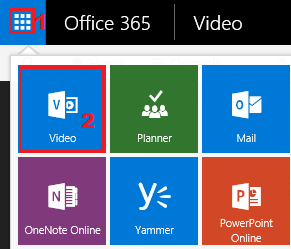
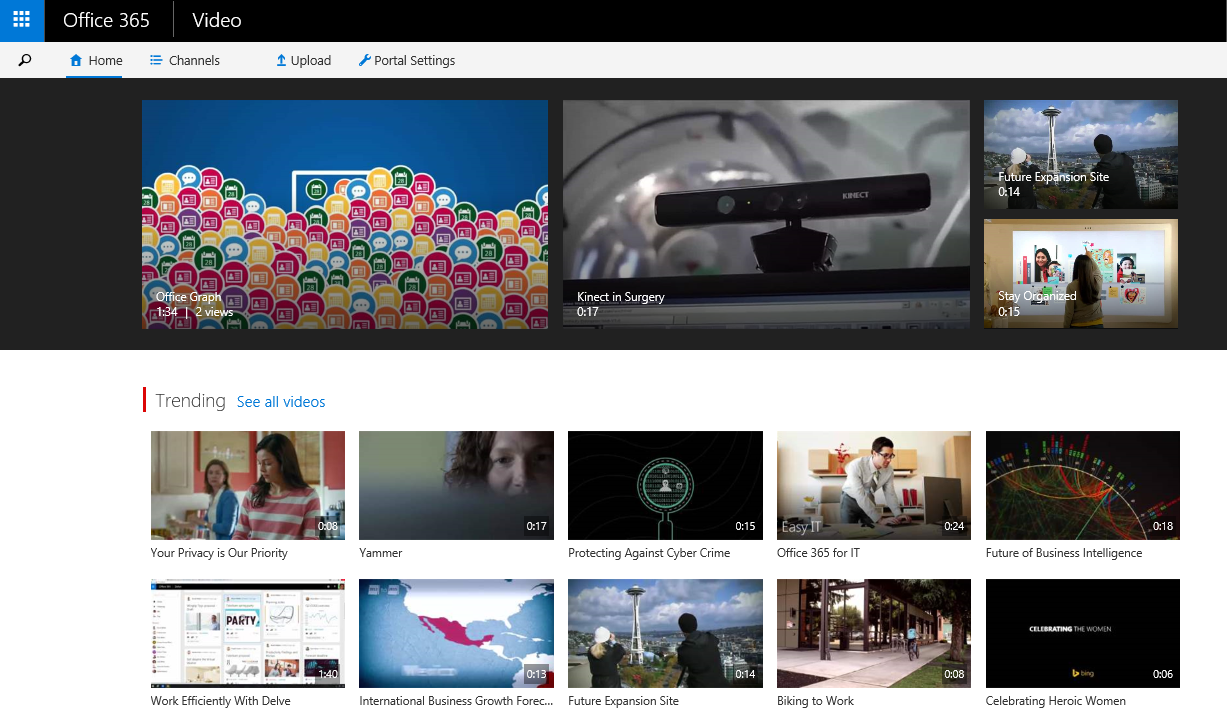
After clicking the Video tile, you will reach Office 365 Video portal
(https://tenant-name.sharepoint.com/portals/hub
). Each Office 365 tenant has one video portal which consists of –
“Home” tab and the “Channels” tab. The “Home” tab shows spotlight videos
on top, popular videos, and the newest videos from spotlight channels.
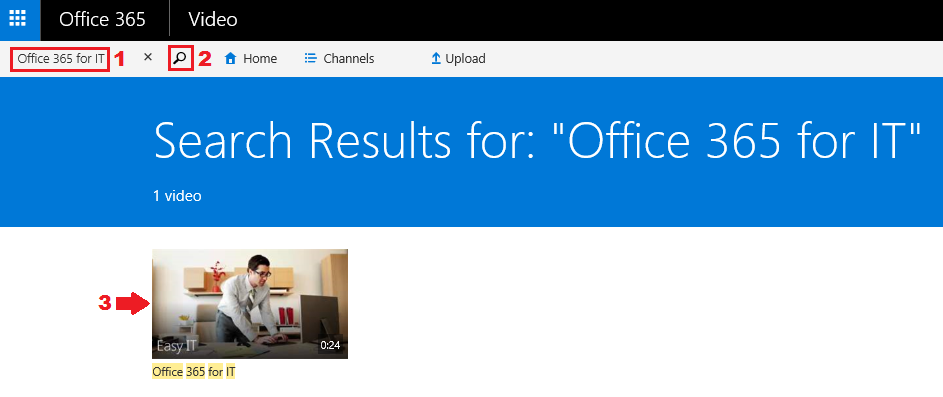
You can also search your required video from different channels from the
video portal.
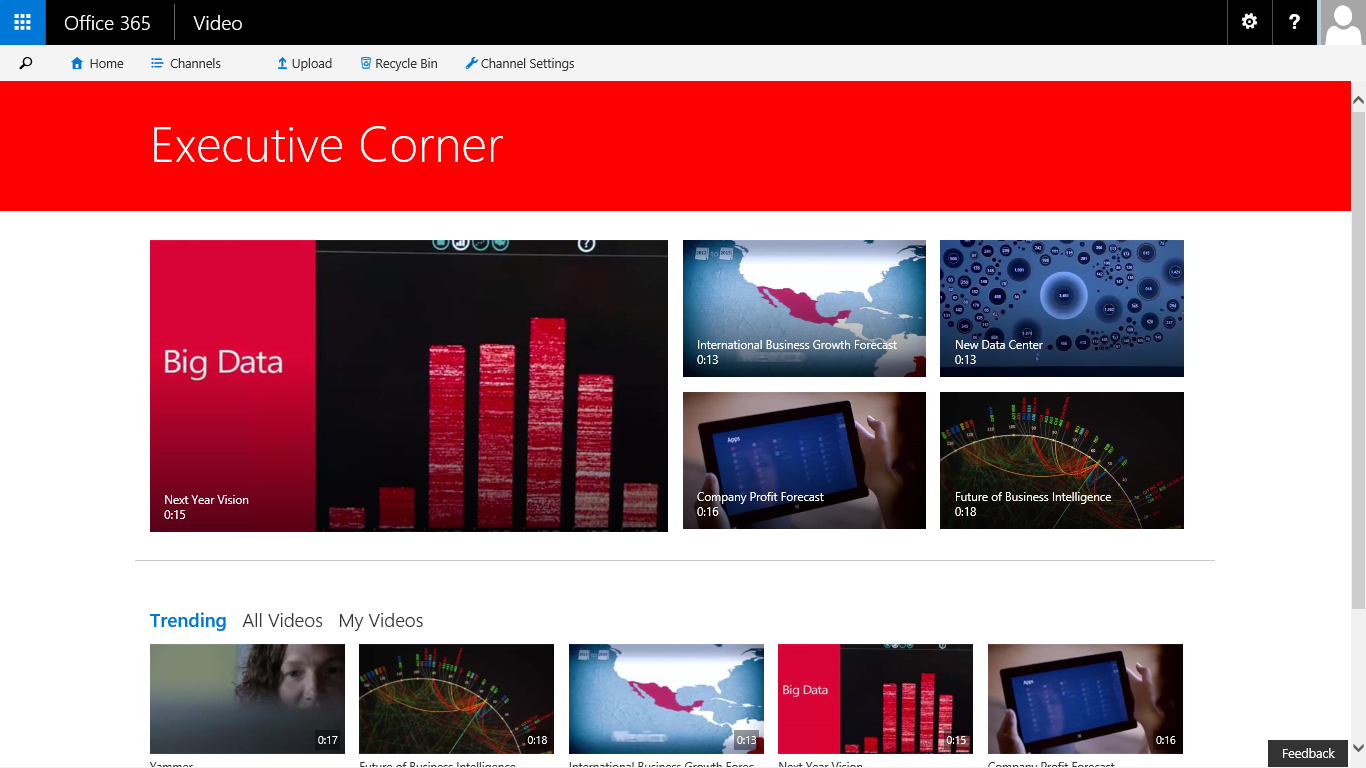
Basically channels are used to categorize videos. You can click
“Channels” tab to view the list of channels. Each channel has a similar
layout to the “Home” tab of video portal, showing up spotlight videos
for that channel, popular videos in that channel and the newest videos
in that channel.
NOTE: Technically Channels are Site Collections where videos are
stored.
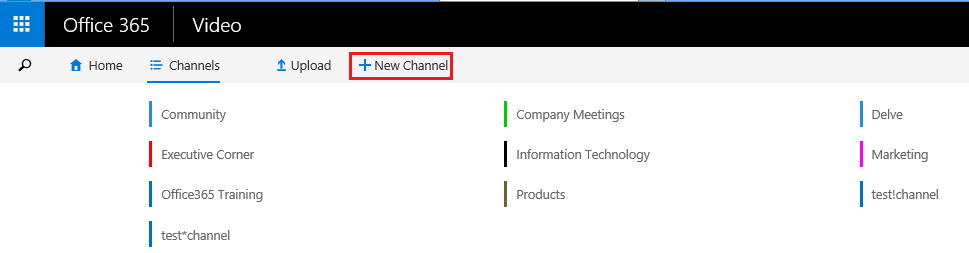
To create a new channel, navigate to “Channels” tab, in which click
“New Channel”.
After creating the channel, to upload your videos to your required
channel, follow the below steps,
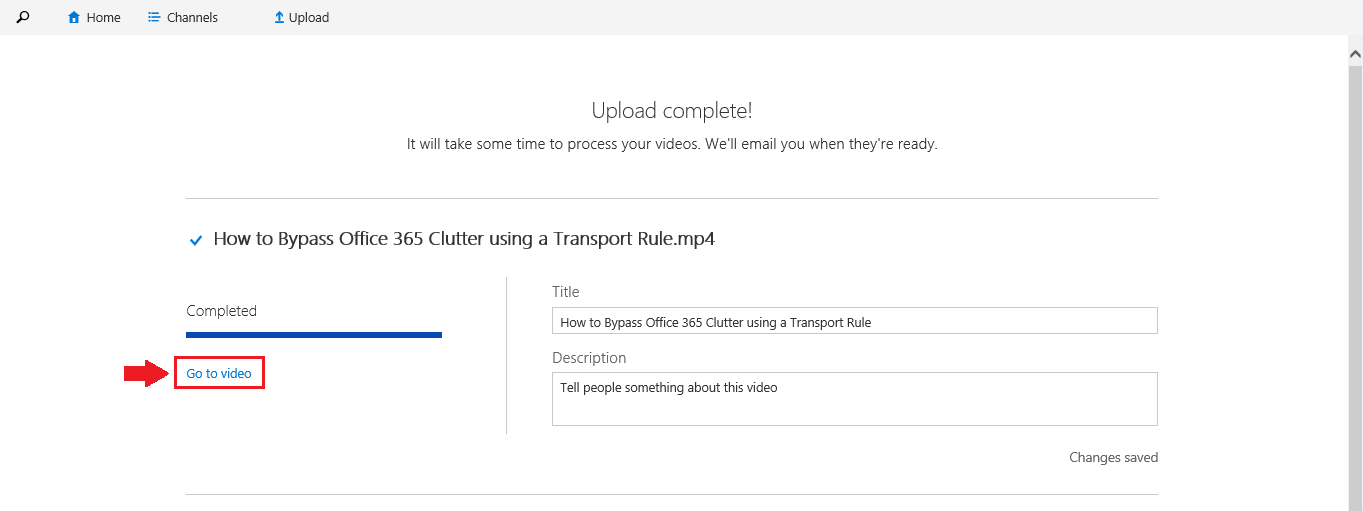
Step1: Select your channel and drag videos to the selected
channel.
Step2: After video uploaded to channel, click “Go to video” link.
NOTE: Before uploading the video, refer this
link
for Video Formats that are supported in Office 365 Video.
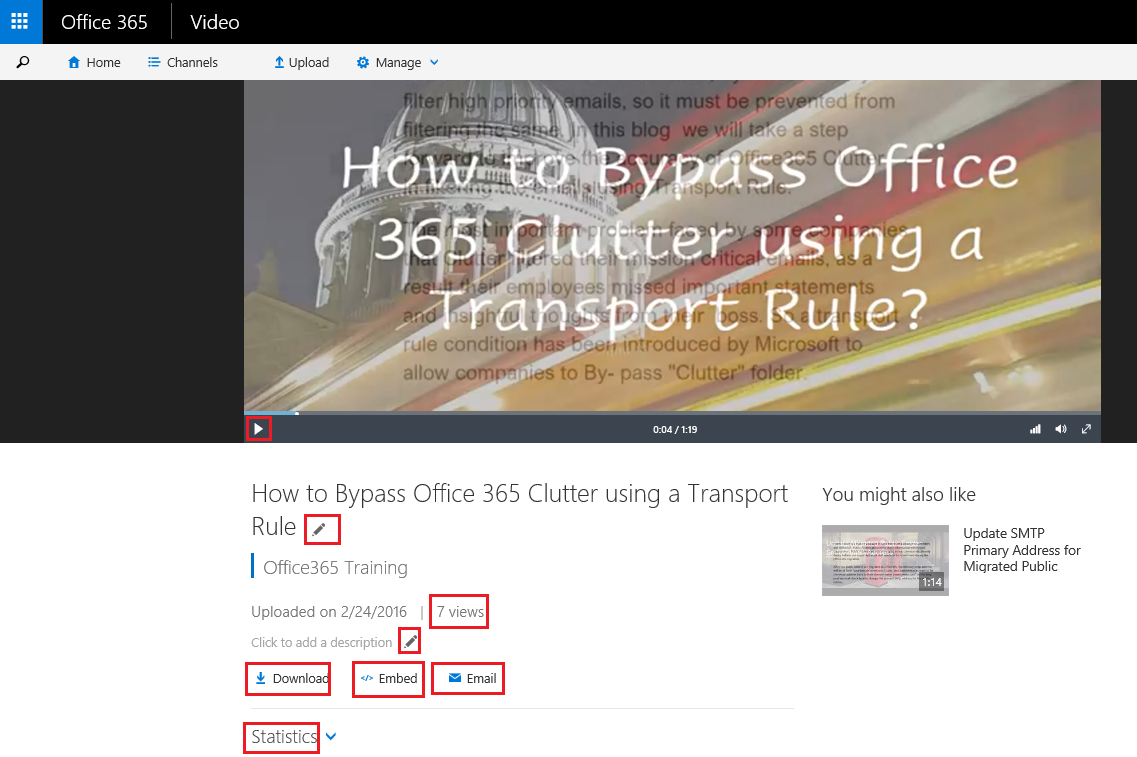
In the Video page, you can playback video, change title or add
description for video, download, share video, and also you can view the
views and statistics for the video.
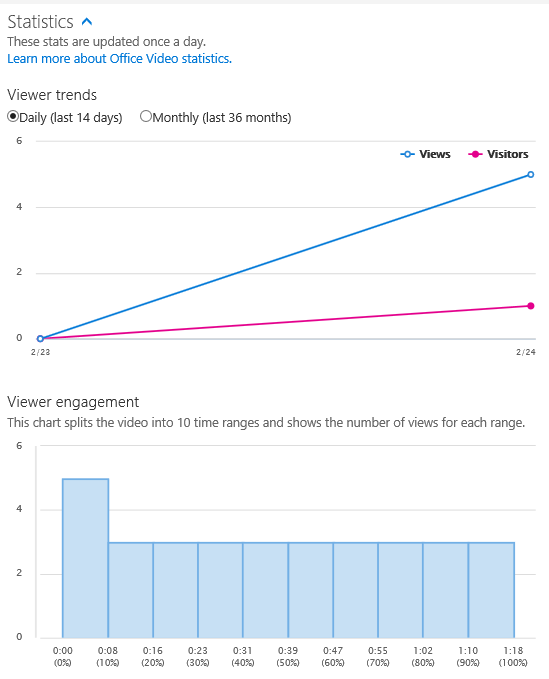
NOTE: The statistics information for the video are updated once a
day. For more information refer this
link.
Office 365 Video – Settings
In Office 365 Video, you need to configure the following settings,
- Portal Settings
- Channel Settings
Portal Settings
To configure Portal Settings navigate to video portal (
https://tenant-name.sharepoint.com/portals/hub
), in which click the “Portal Settings” tab, which includes settings to
configure portal permissions and to spotlight channels/videos.
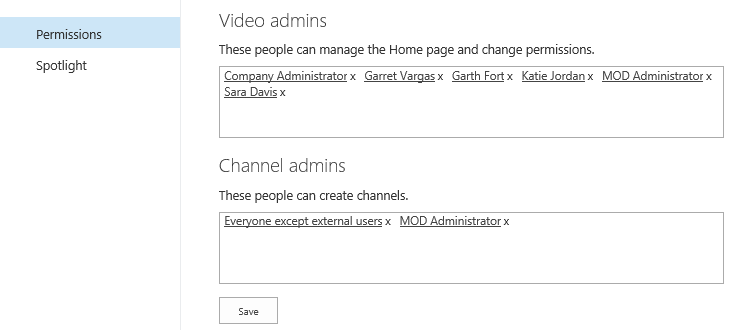
In the portal permissions, add your required users or security groups to
“Video admins” box to manage the Home page of video portal and change
permissions. In the “Channel admins” box, specify the users or security
groups for whom you wish to allow permission to create channels.
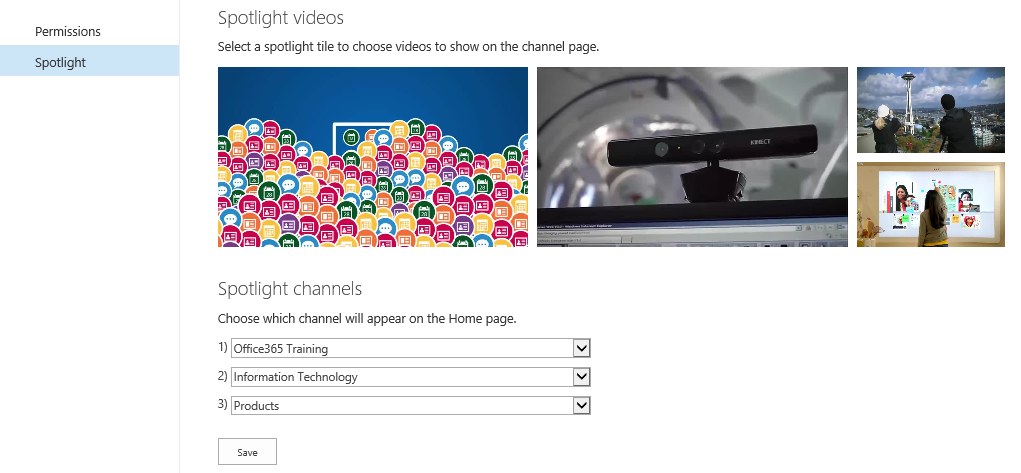
In the Spotlight page, choose the channel to appear in the Home page of
video portal and choose videos to show on the channel page.
Channel Settings
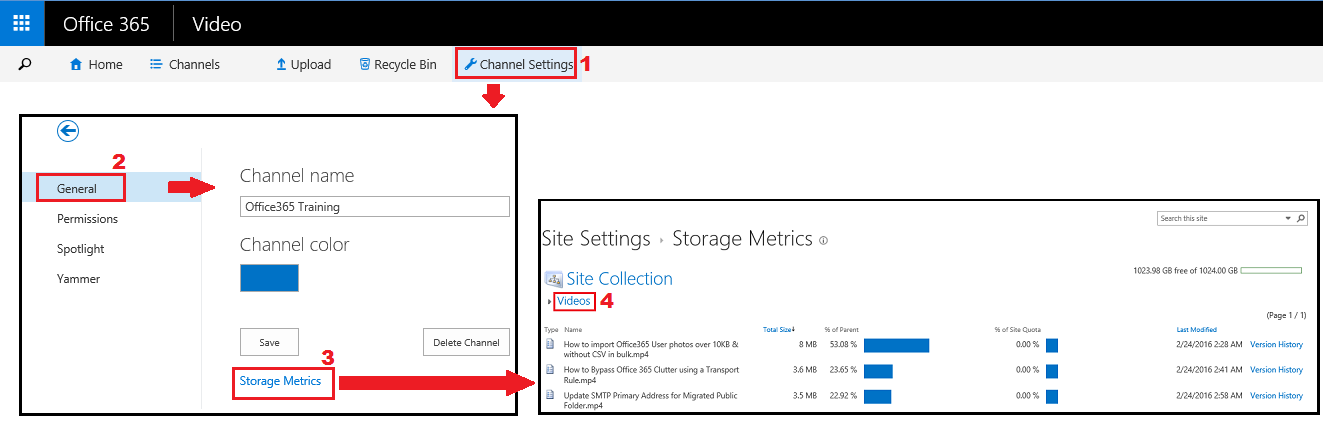
To configure Channel Settings navigate to the corresponding Channel,
then in the Channel’s homepage click “Channel Settings” tab, which
includes settings to view channel’s storage metrics, to configure
channel permissions and to spotlight videos.
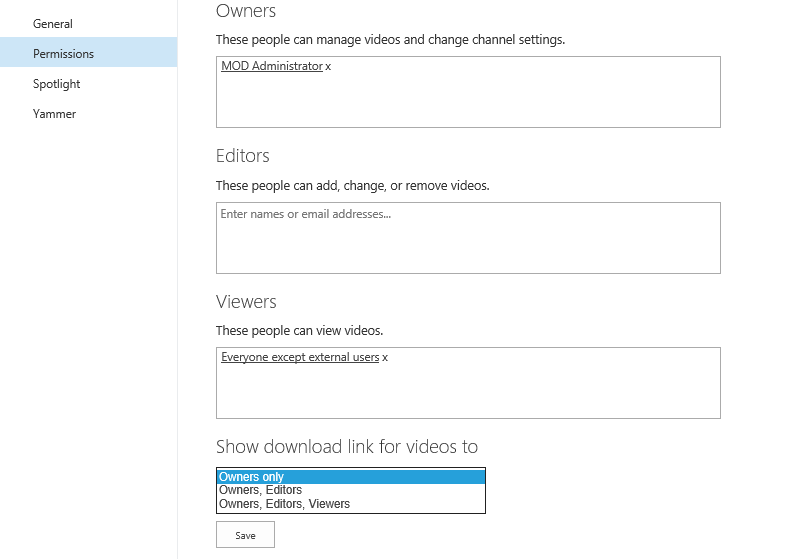
In the channel permissions, add your required users or security groups
to “Owners”, “Editors”, and “Viewers”, also select the group for whom
you wish to show the download link for videos.
Before concluding this blog, I am excited to inform you that Microsoft
has enabled support to add subtitles or captions to a video in Office
365 Video for “First Release” customers.
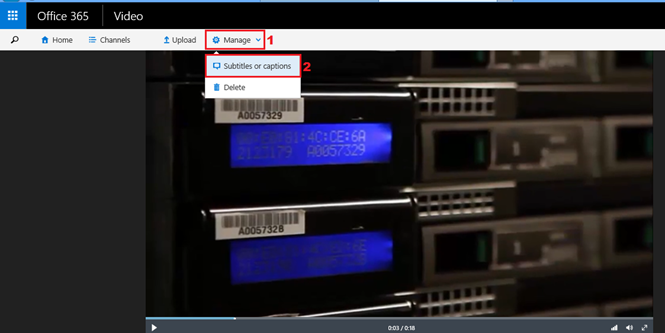
The “Subtitles or Captions” option, adds support to upload subtitle and
caption files in Web Video Text Track (.vtt) file format to associate
them with your video, also for a video you can upload different caption
files per language. For more information, refer this
link.
Choose a thumbnail
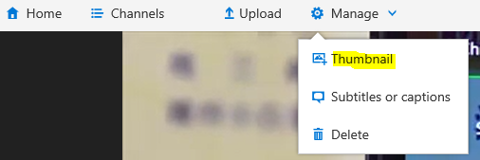
Users are now empowered with the capability to upload their own
thumbnail instead of picking one from the auto generated. Go to the
video for which you need to change the thumbnail and click ‘Manage’
button from top ribbon to locate thumbnail option. The uploaded
thumbnail will show up even when it is embedded outside the portal.
Links to Guidelines
You can able to add Guidelines in homepage & video upload page in the
portal. Login as video admin and navigate to video portal home page >
Portal Settings > Links to guidelines.
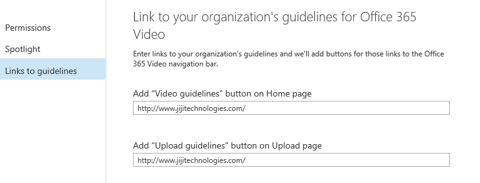
‘Video guidelines’ button on homepage

‘Upload guidelines’ button on video upload page

Sharing capability for Office 365 videos with External users
Microsoft recently announced that they have started working on external
sharing capability for Office 365 video at channel level which was
requested for a long time. This external sharing works as similar to
sharing documents from OneDrive / SharePoint to External users.
Below is the tentative flow of how it works as announced by MSFT
- ** IT Admin would need to enable External Sharing on SPO.
- ** IT Admin would need to enable external sharing on a specific
video channel/site collection. - ** If the above are done, then channel admin can add individual
users by email address as channel owner, editor, viewer. - ** The external user will get an email (just like the one for file
sharing on SPO/ODB). - ** The external user then logs in from the email with their
Microsoft Account or their Org ID (O365 account). The external user
will get added just like any other external user of SPO/ODB.
We hope that the above information provided on Office 365 Video in this
blog, creates interest on readers to get started to work with Office 365
Video.
Office 365 Video – FAQs
Yes, it is available. Using this you can perform actions on videos and to get reports / statistics
Yes, recently videos team has included this feature. When you click on ‘Upload’ button you have to first select the channel name and then select the video to be uploaded.
Yes, you can able to access videos directly using below url format.
[TenantName] – Your tenant name. [ChannelName] – Your channel name. Spaces between channel name words has to be replaced with – (Hyphen). Ex:’Company-Meetings’. [VideoName] – Your video name. Spaces between video name words has to be replaced with %20 . Ex: ‘Office%20Graph’
Also the script from below link helps you to add/ remove user permission (Owner, Viewer, Editor) in bulk for multiple channels at once. https://gallery.technet.microsoft.com/Update-Office-365-Video-6439ce87
/blogs/content/image/video-block
















