


Microsoft has introduced a feature custom bookable time in Outlook to share with others so they can easily find a time to schedule a 1:1 meeting with you according to your availability and preferences.
Come-on ! let’s get our hands into it.
How to create a Custom Bookable Time ?
We can create a Custom Bookable Time in 2 ways.
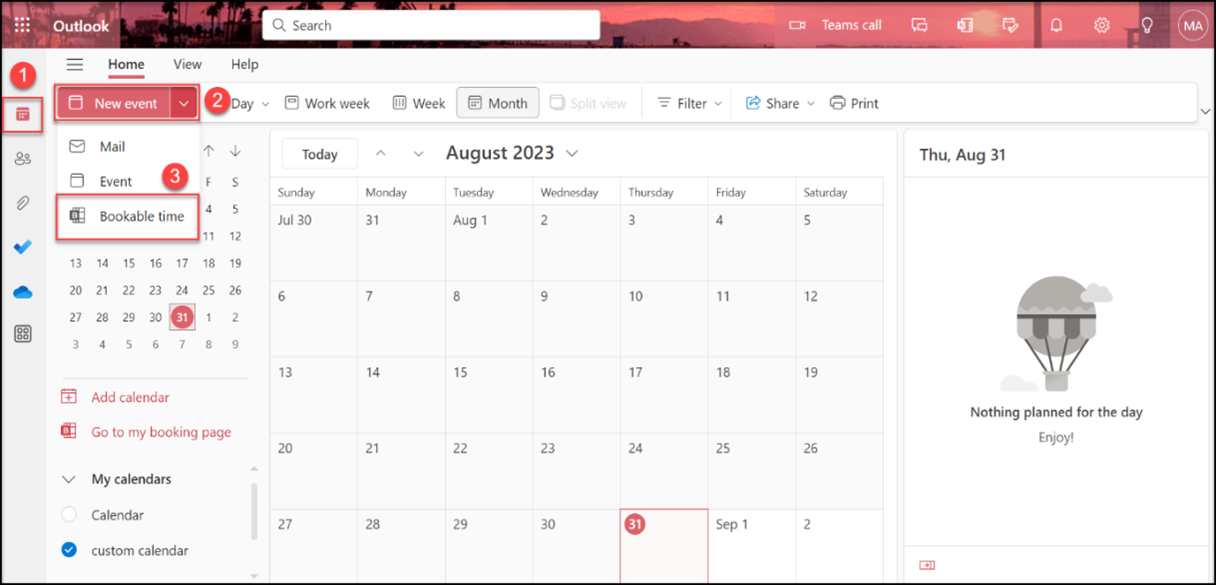
Via ‘New Event’ drop down in the Calendar Pane
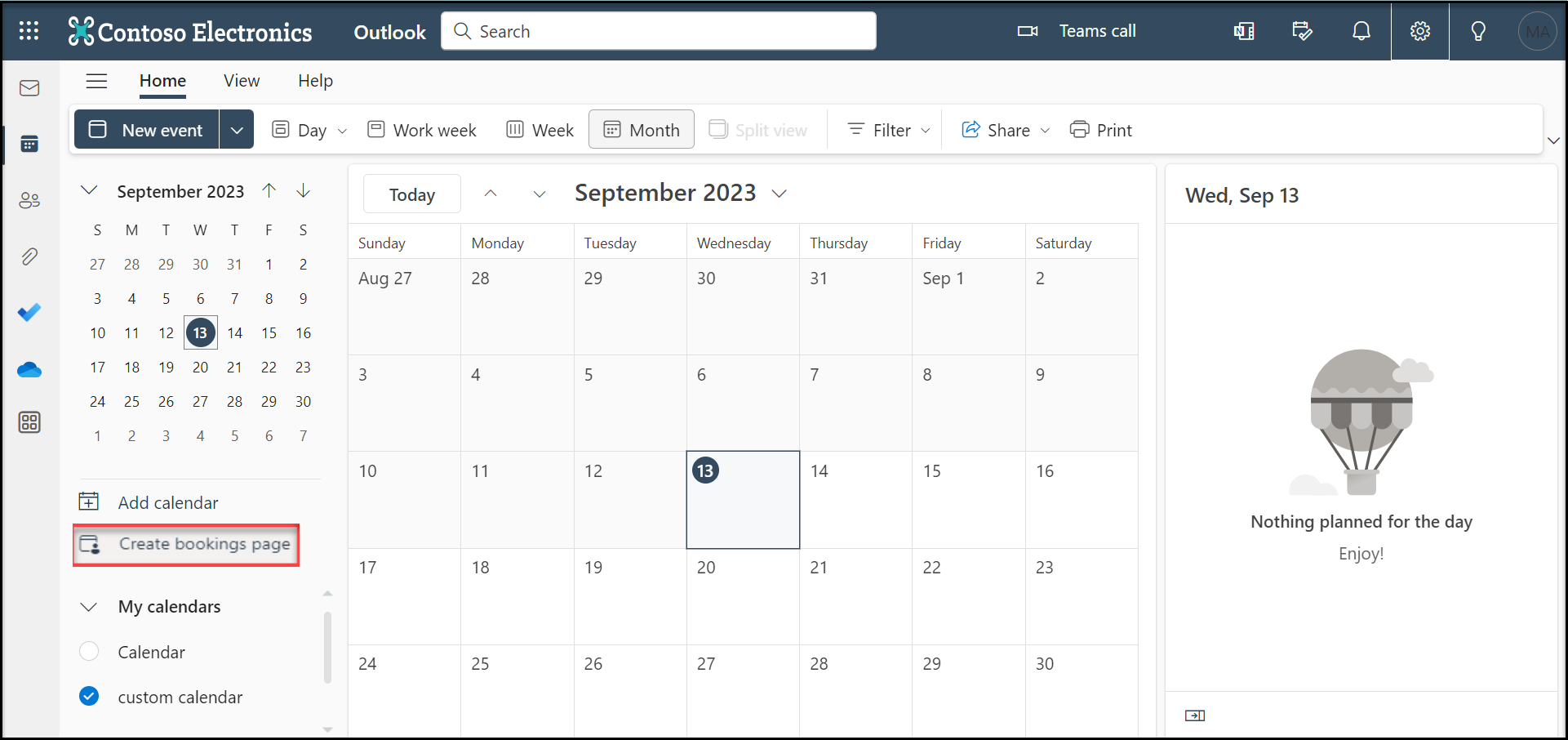
By clicking on ‘Create bookings page’ in the left rail of Calendar Pane
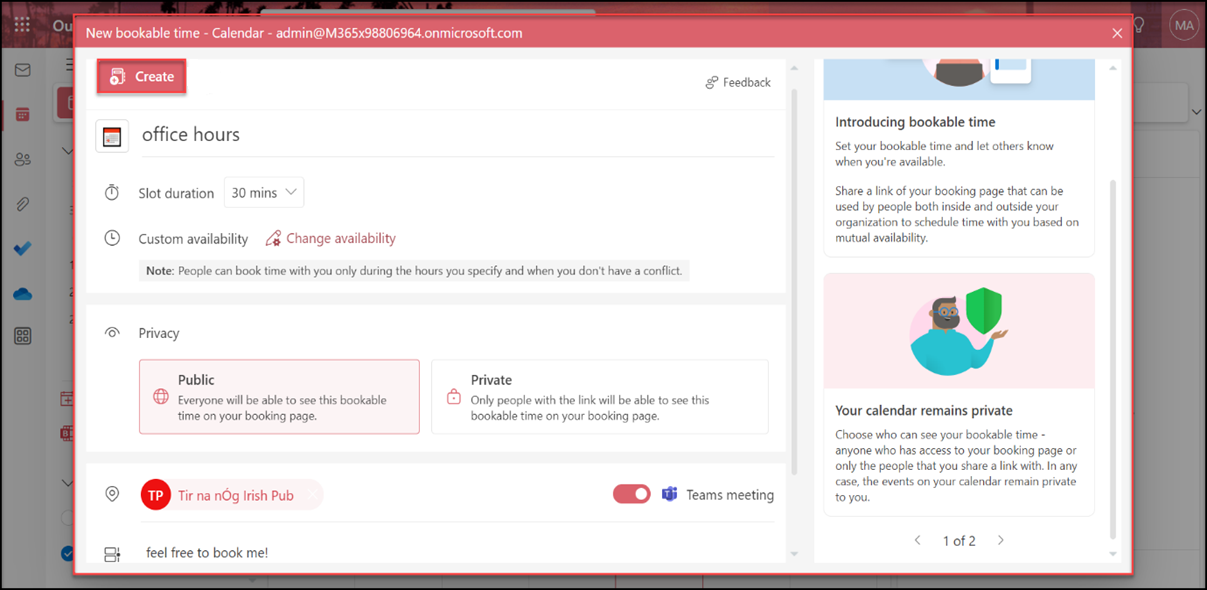
In any of the above ways, try creating a Bookable time by providing the below details :
✓ Slot duration
✓ Availability – Available date and time for days of a week
✓ Privacy – Visibility of your Booking event
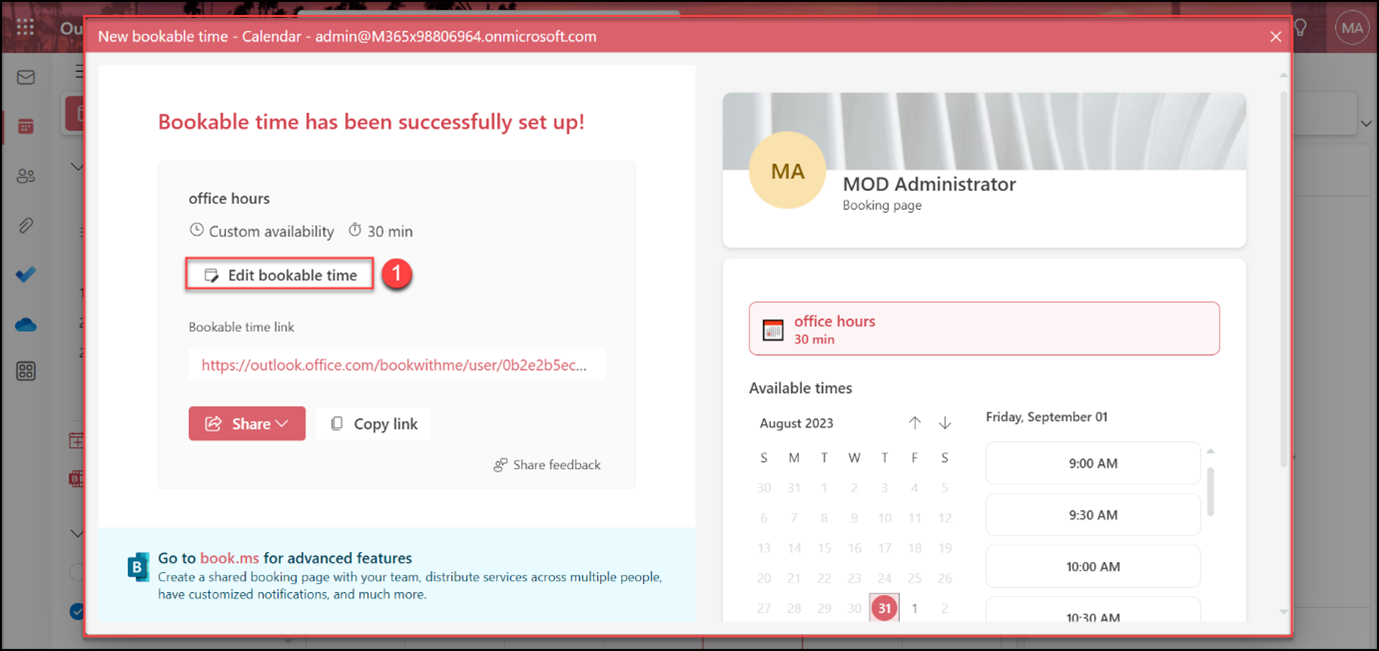
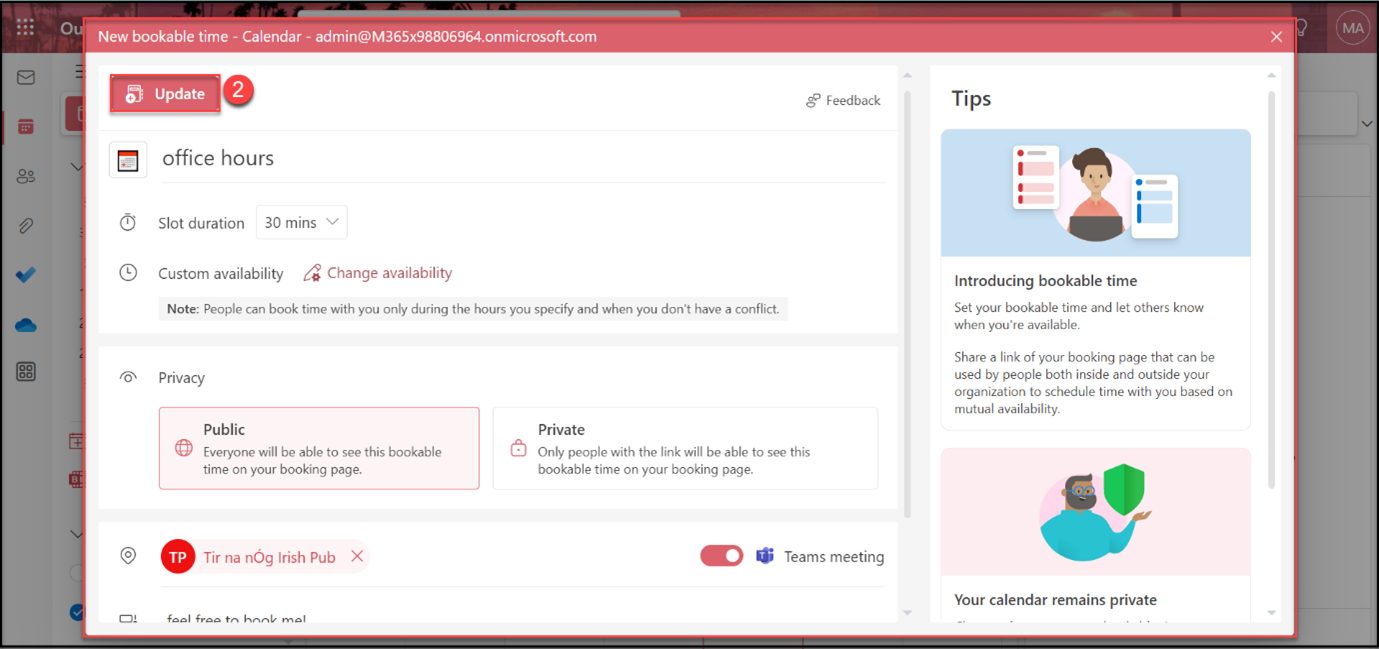
Edit Bookable Time
You can always go back and edit at a later point of time if the Booking needs any further changes as shown below
Share Bookable Time
You can share the Bookable time with your intended participants – could be either your colleagues or people from other organizations. We can do this in 2 different ways.
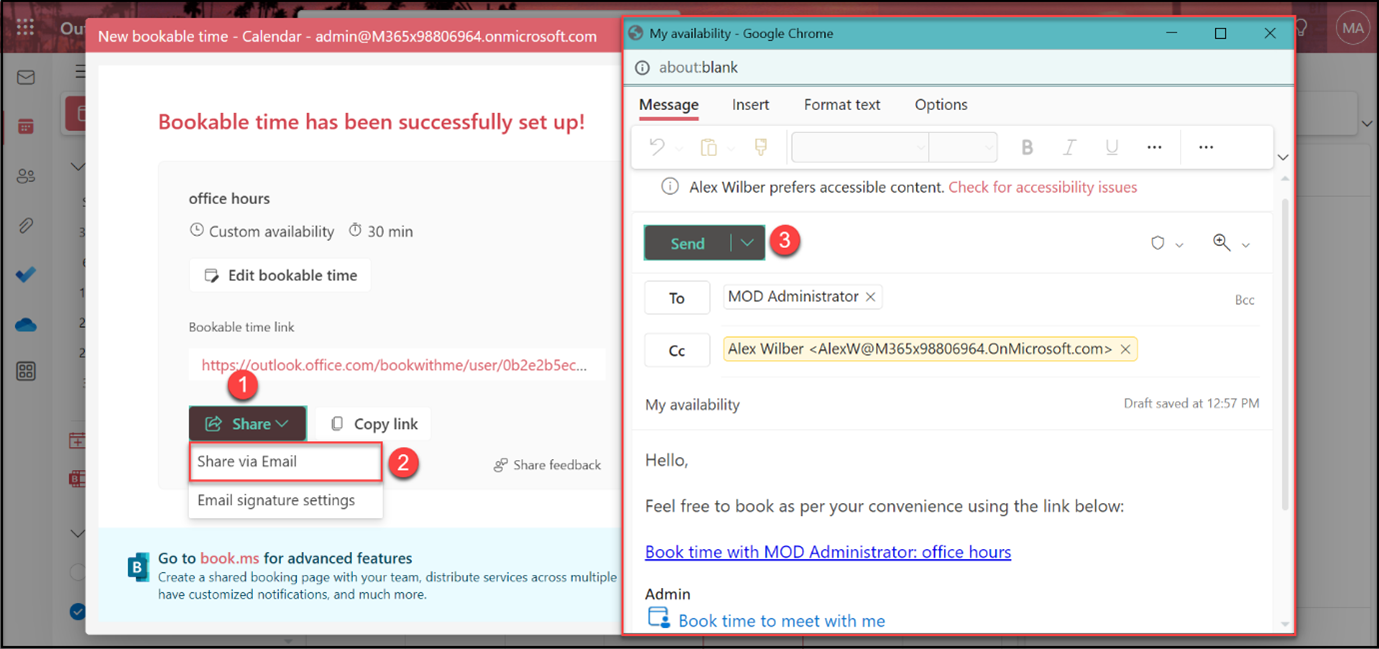
Share Via Email
Step 1 : In the create / edit Bookable Time window, click on option ‘Share’ at the bottom of the window.
Step 2 : Choose the option ‘Share via Email’
Step 3 : Compose window appears
Step 4 : Enter the intended recipients, update the message if required
Step 5 : Press ‘Send’ to share
Share Via Email Signature
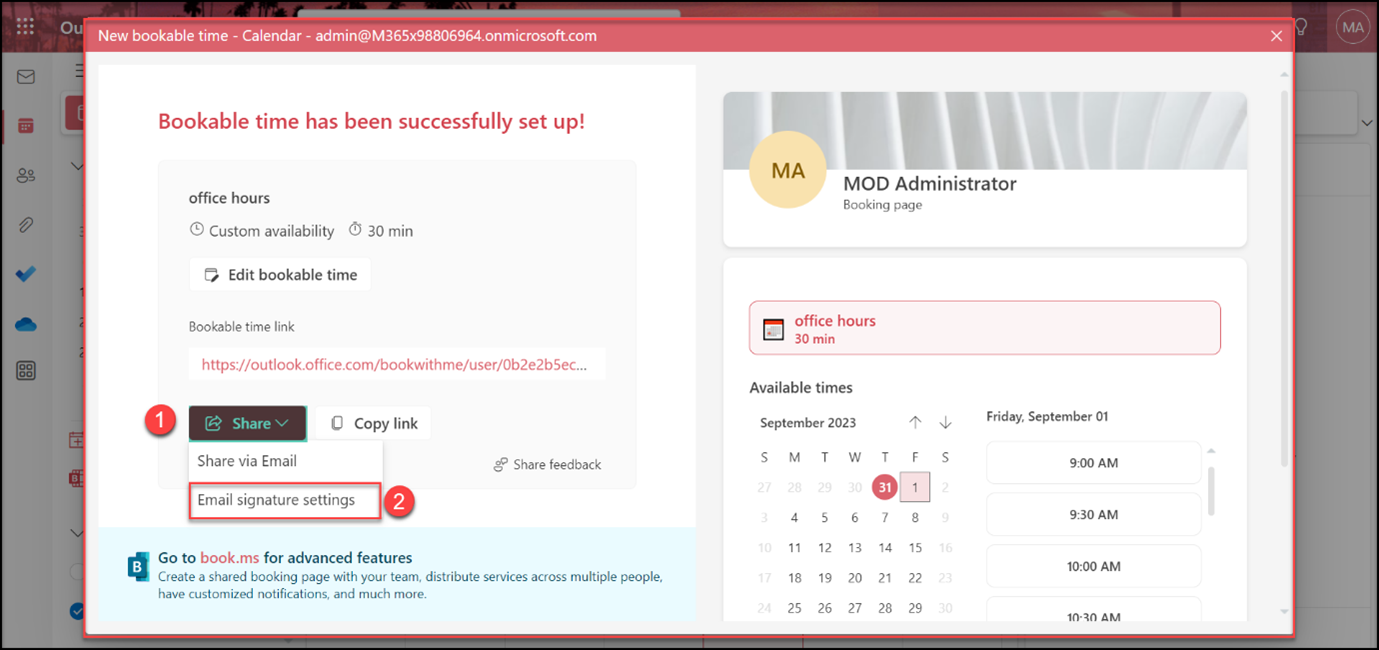
Step 1 : In the create / edit Bookable Time window, click on option ‘Share’ at the bottom of the window.
Step 2 : Choose the option ‘Email signature settings’
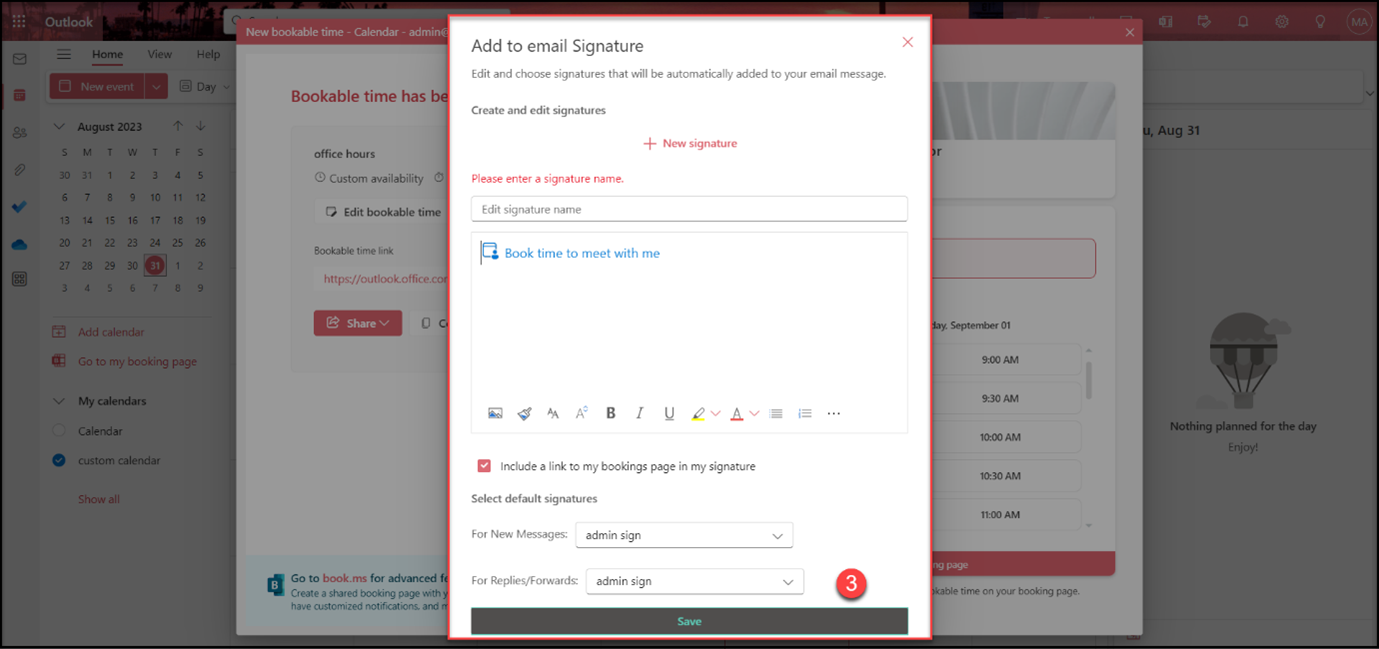
Step 3 : ‘Add to email Signature’ window appears
Step 4 : Add a new Signature or choose an existing one
Step 5 : Update the message if required
Step 6 : Press ‘Save’ for the Booking to reflect in your Signature
References :
















