Microsoft introduced the transition of Office 365 Video to Microsoft
Stream
This migrates following to Microsoft Stream
- Videos
- Channels (Owner, editor, and viewer permissions)
- Links
- Embed codes
- Admin Settings
Following are not get migrated to Streams
- Any guest access that was granted at the channel
Feature not available in Stream
- Statistics charts in videos
- Spotlight Video
- Spotlight channel
- Setting determining who can download the original video file from
the channel
NOTE: Once the data moved to Stream, the admin and user can’t able
to access the office Video portal and can’t able to see the Office 365
Video in an App launcher.
Transition phases for Office 365 Video customer
Microsoft planned four phases of transition for Office 365 Video
Phase0: Beta customers (Concluded)
Previously, Microsoft supported transition for the limited Office 365
Video customers for testing the transition using manual script.
Phase1: Tenant Admin Opt-in (started rollout June 2019)
This phase is applied for customers in specific regions who are not
using REST API, video view statistics, spotlight channels on the home
page, videos and channels showing up in Delve and who is ready to move
Office 365 Video to Stream. In this blog, we will discuss this phase.
Phase2: Tenant Admin Opt-out (TBD)
This phase is applied for all customers in all regions, even if tenant
admin doesn’t opt out of the transition in their tenant, Microsoft will
migrate the data from Office 365 Video to Stream.
Phase3: Automatic Transition (TBD)
In this phase, all the other Office 365 Video customers will get
migrated to Stream automatically.
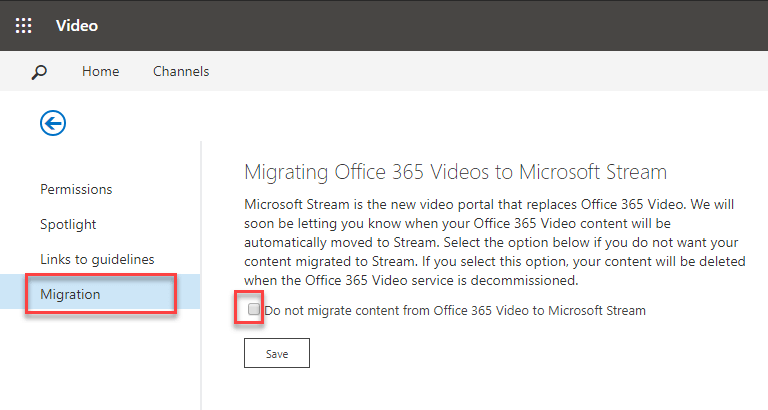
NOTE: If we decide not to migrate to Stream, configure the migration
setting in the Video portal setting, as shown in the below image.
Prerequisite:
- Office 365 Video admin permission
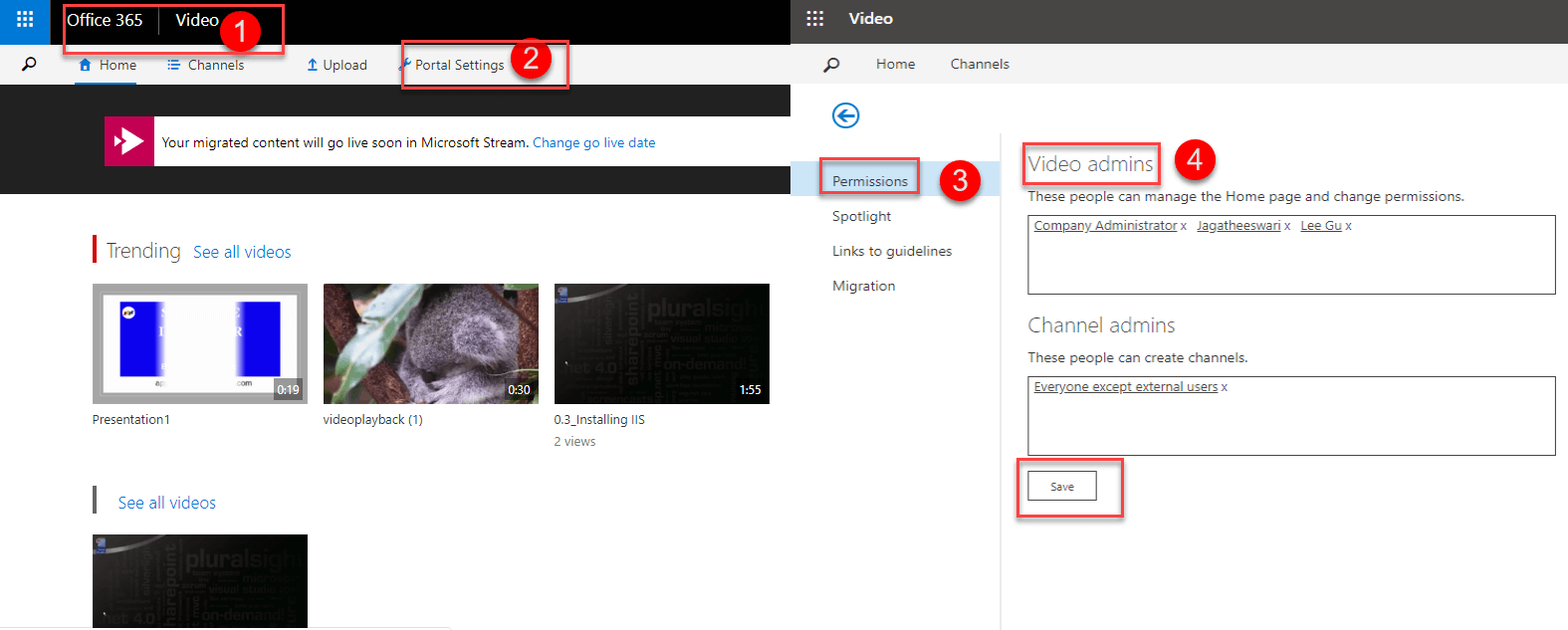
How to assign the Video admin permission
Only Global admin can assign the video admin permission in the office
365 Video. Video Portal Settings Permissions Video admins.
How to migrate Office 365 Video to Stream?
To start the migration login as an Office 365 Video admin. Go to Office
365 Video portal Click the Start Migration.
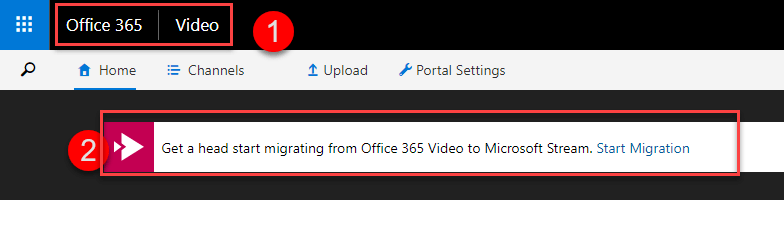
Step1:
Once migration is started, it shows the following key things. We need to
mind those during migration. Click Continue.
- You can’t interrupt or end this process once it’s been started.
- Content that migrates to Microsoft Stream will be read-only until it
goes live. - You’ll have up to 60 days to review migrated content in Microsoft
Stream. - During this time, you can invite others to review migrated content.
- After migration, all Office 365 Video links will automatically
redirect to Microsoft Stream.
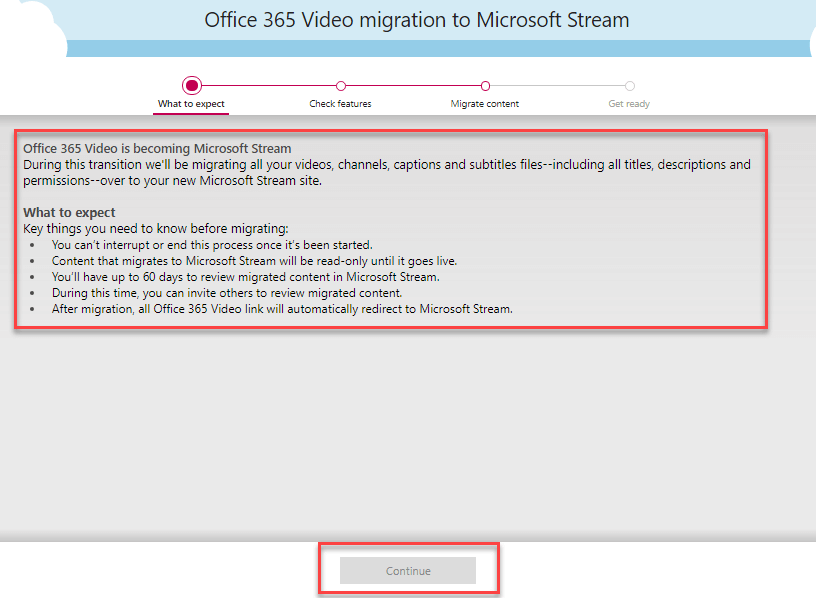
Step2:
In this step, it will show the known limitation in the Microsoft Stream.
Click Start Migration.
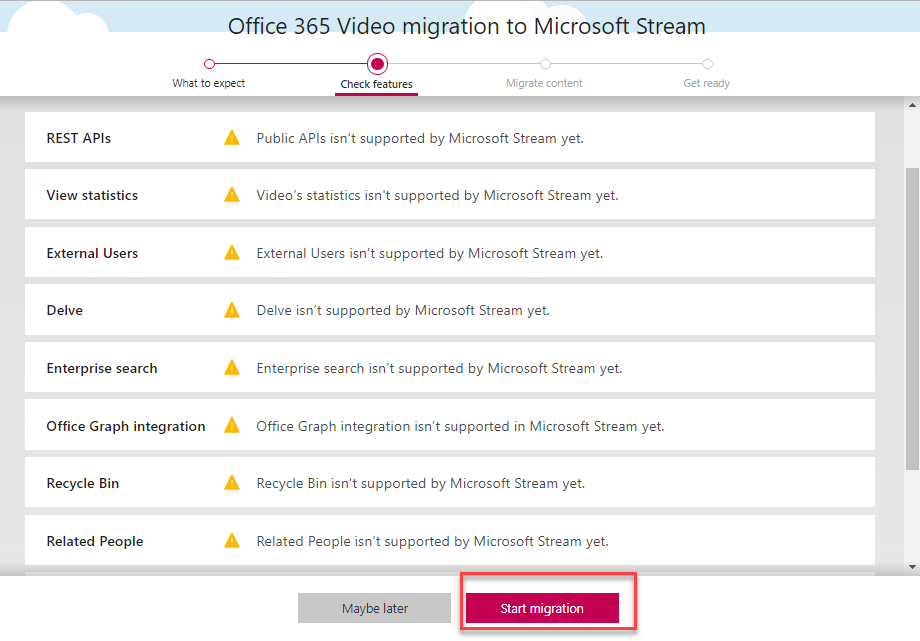
Step3:
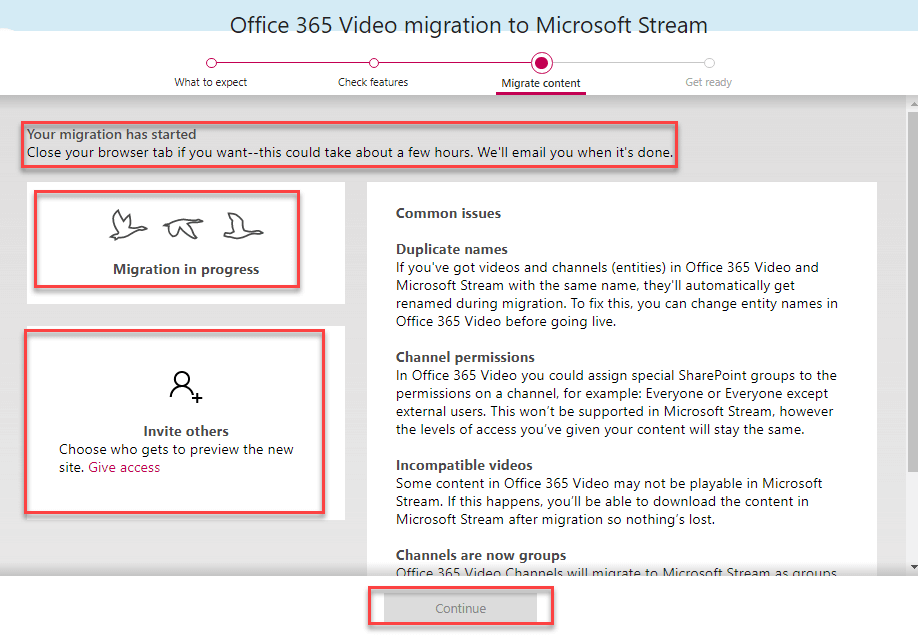
Once you start migrating, all the videos and corresponding settings will
be copy from Office 365 Video to Stream.
During migration, you can add the users to review the migrated data.
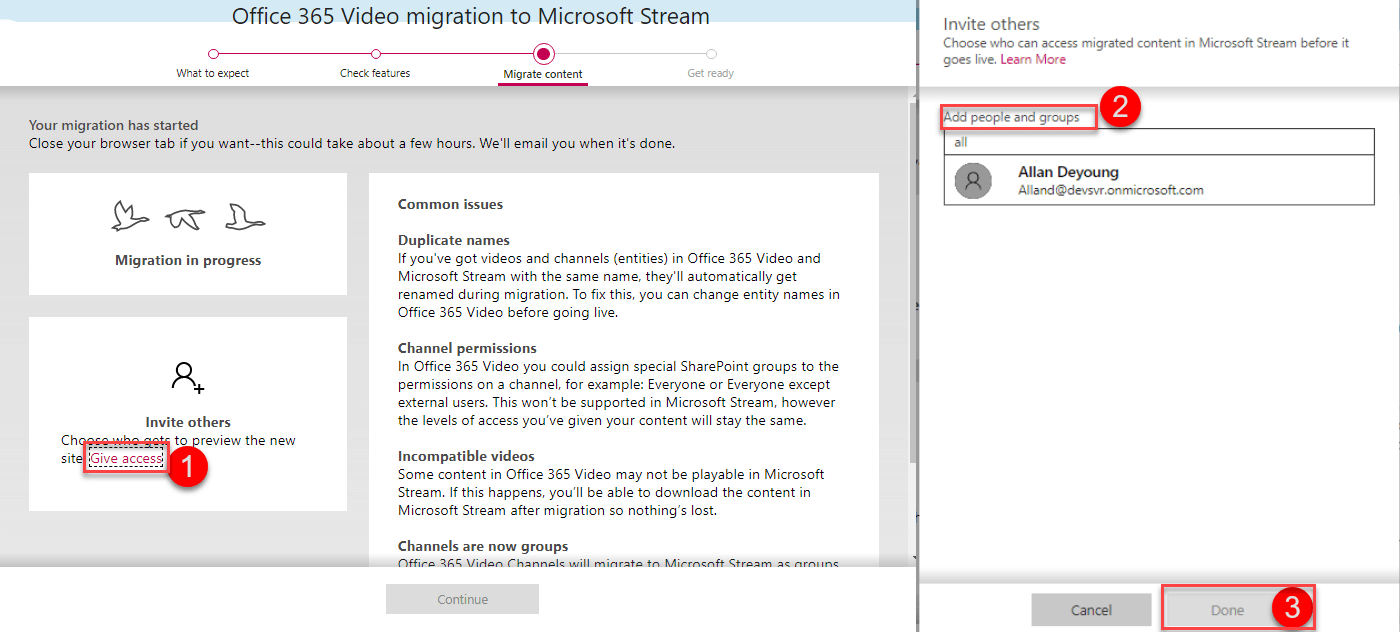
Once migration is done. Click Continue.
Step4:
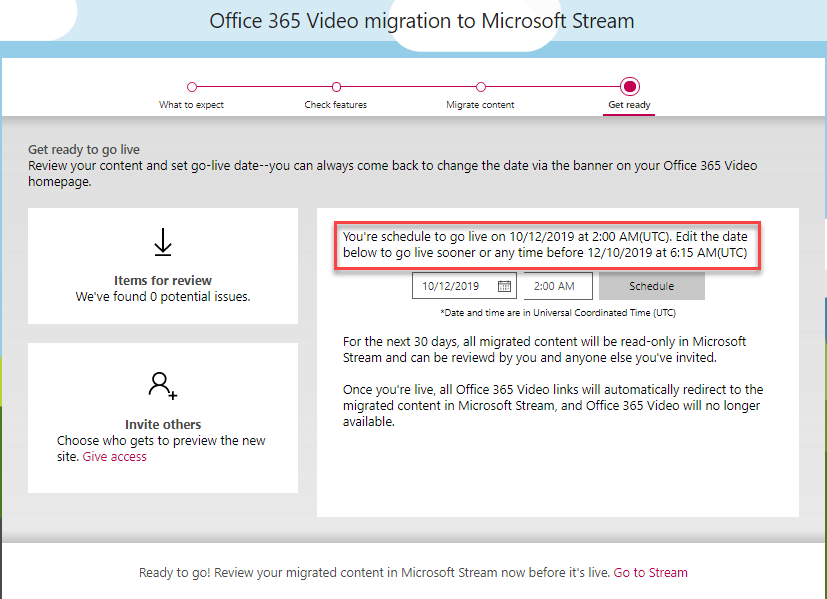
In this step, if any error occurs during the migration, we can download
that error details as a CSV file. We can also define the review duration
here. We can extend the review duration before the end of the existing
review period.
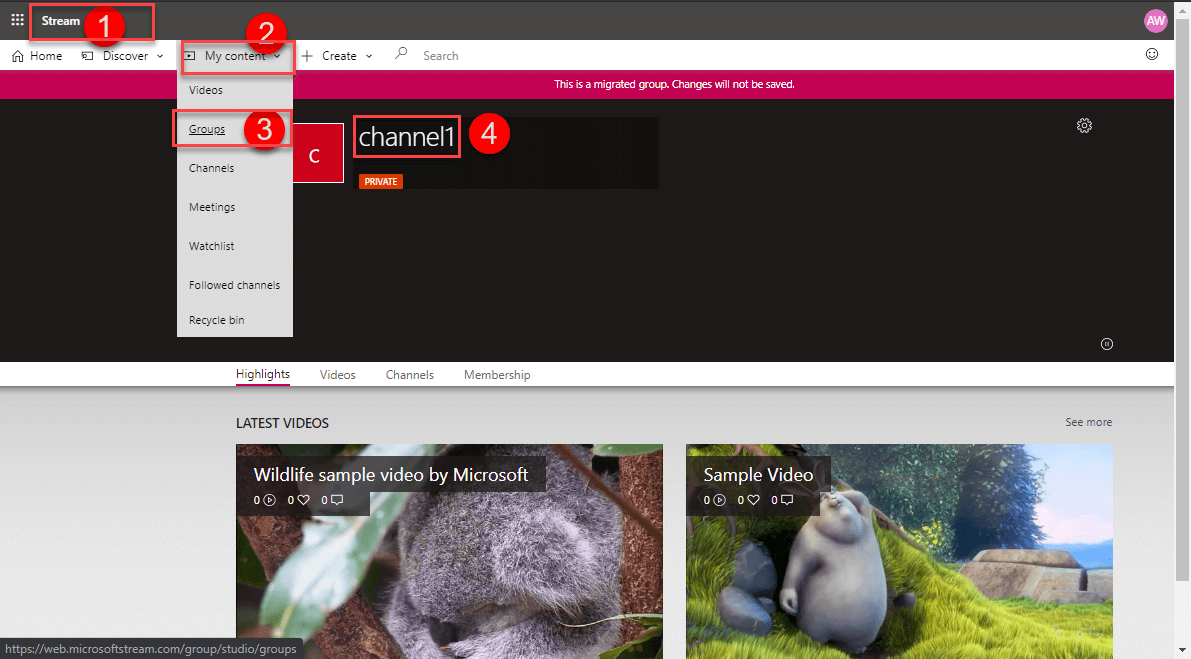
How to verify the migrated video in Stream?
Only Stream admin and reviewer can validate the migrated data (read-only
state data) in the Stream. All the data that is migrated from Office 365
Video will be saved under Groups in Stream.
This migration process is a one-way sync from office 365 Video to
Stream. During the migration process, if users editing/updating the
existing videos, modifying permissions, creating new videos it will be
automatically updated into the stream.
The reviewer needs to verify the following option.
- The videos from Office 365 Video to Stream
- The title and description
- Subtitles/closed captions
- Total view count for each Video.
- Channel permission
User experience after migration:
- All the Office 365 Video link will redirect to corresponding video
in Stream - All the embed code which we already embedded in the SharePoint site
or OneNote will get redirect to Stream. - All the data in Office 365 Video will get deleted automatically 30
days after migration goes to finalized. - Office 365 Video removed from App launcher for admin and user.
Stream – after migration: