Microsoft Planner has become the central hub for task management and to
share ideas and collaborate between team members. Planner is widely
adopted as it fits most use cases. Thus, the need to create Planner task
anywhere from the web is the need of the hour for users.
We are happy to introduce – Wunder365. A simple yet powerful extension
that helps you to create Planner tasks from anywhere on the web. It may
be a website, Word, Excel, OneNote, PowerPoint. Wherever you go, you can
create/view the Planner tasks.
Imagine a day your team works on preparing a client presentation for
your project, and members of the team have tasks assigned to them in the
Planner. Would that be easy for you if all the Planner tasks for the
presentation is listed when you open the PowerPoint? The obvious answer
is YES.
Wunder365 extension helps you to view the Planner tasks that are
related to the PowerPoint you have opened even though hundreds of
tasks are listed in Planner. Thus, you can avoid the cumbersome task
to create different Plan for managing the activities in the same
group.
Features:
Wunder365 extension can convert any texts, images, and URLs on the
website as a planner task.
The Planner task gets linked to the source, and thus, you can see the
Planner tasks whenever you visit the same web page.
Wunder365 supports Macros for each action. With the help of Macros, you
can create templates and save your time from repeated actions.
How to use the extension?
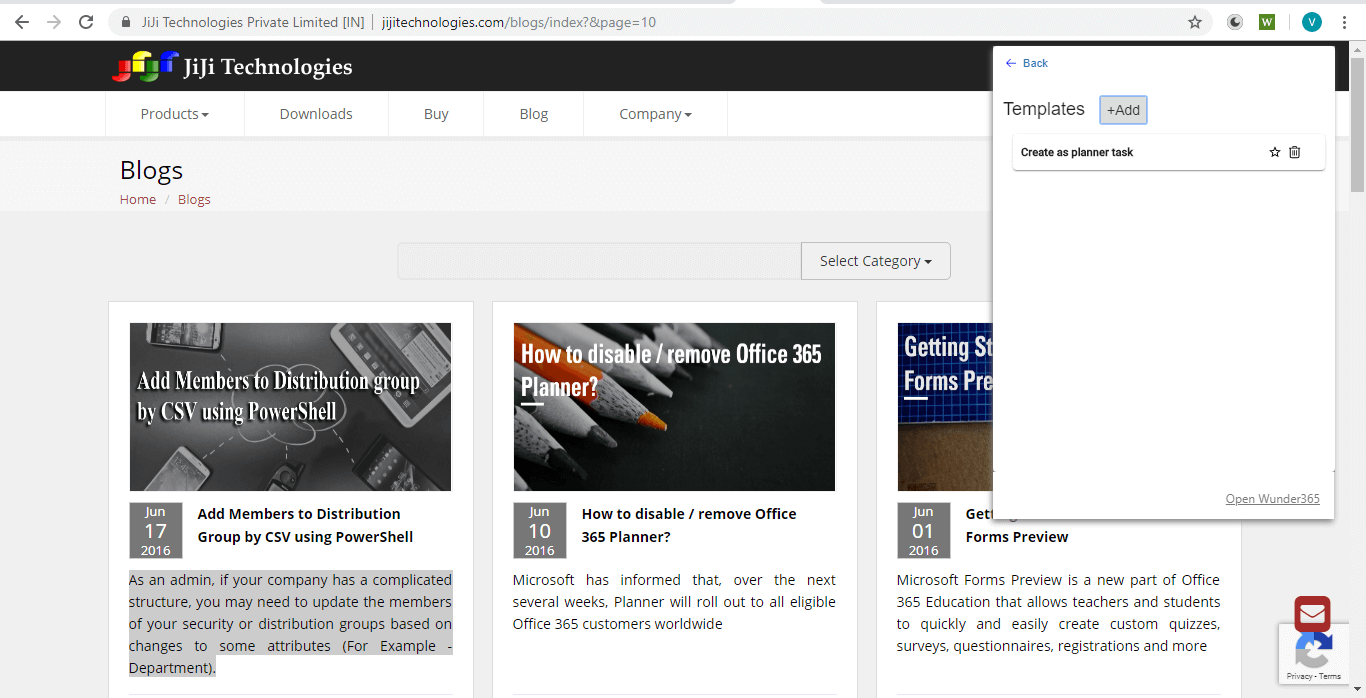
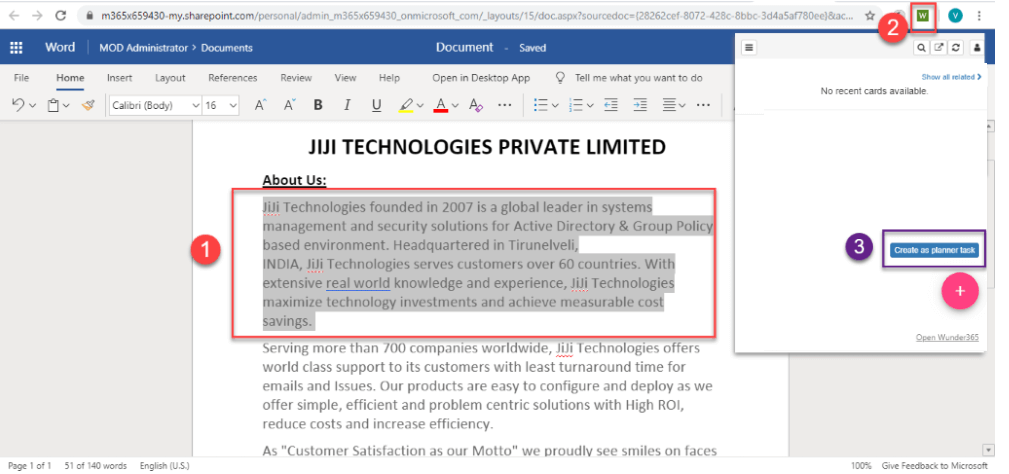
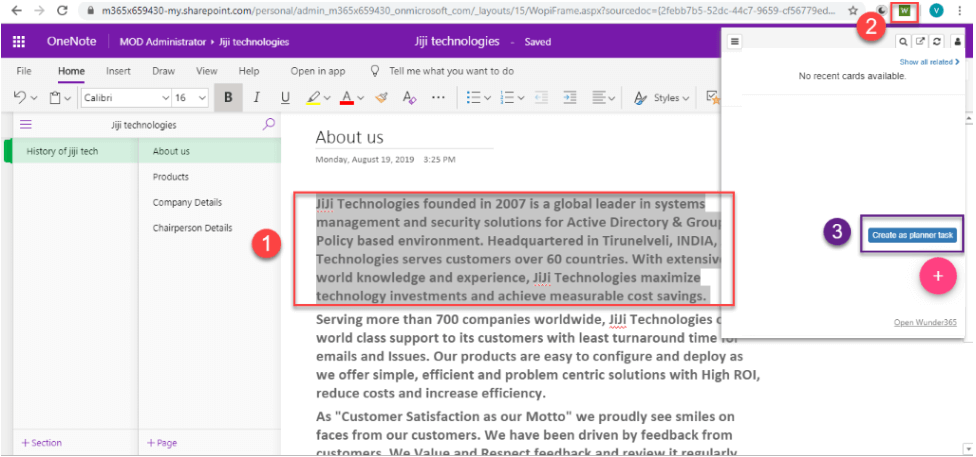
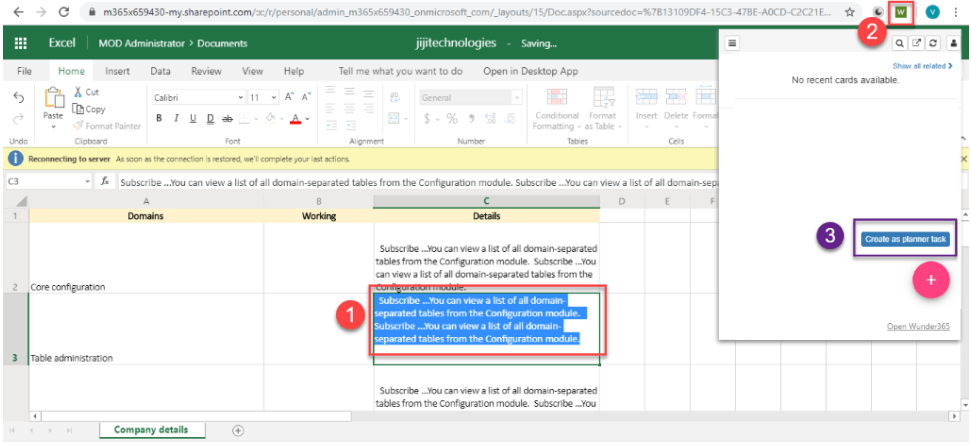
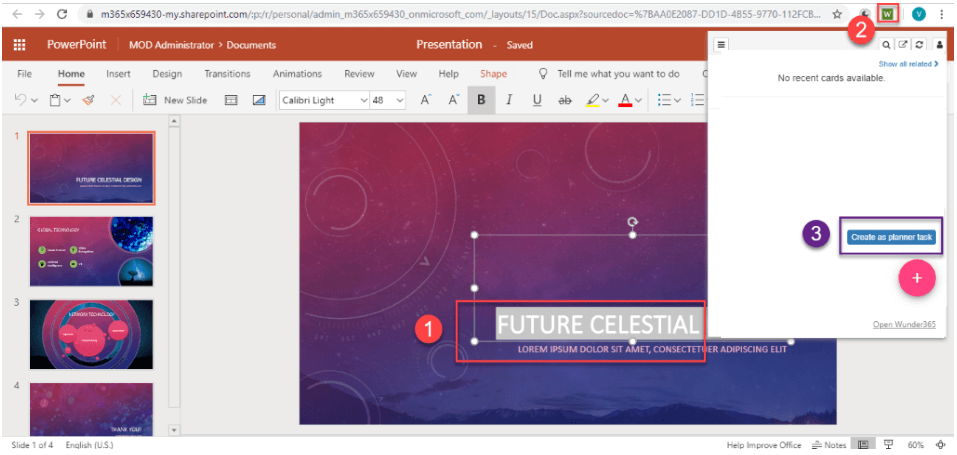
- Select Your needed text or link or image, for which you want to
create a planner task. - Click on the Wunder365 extension
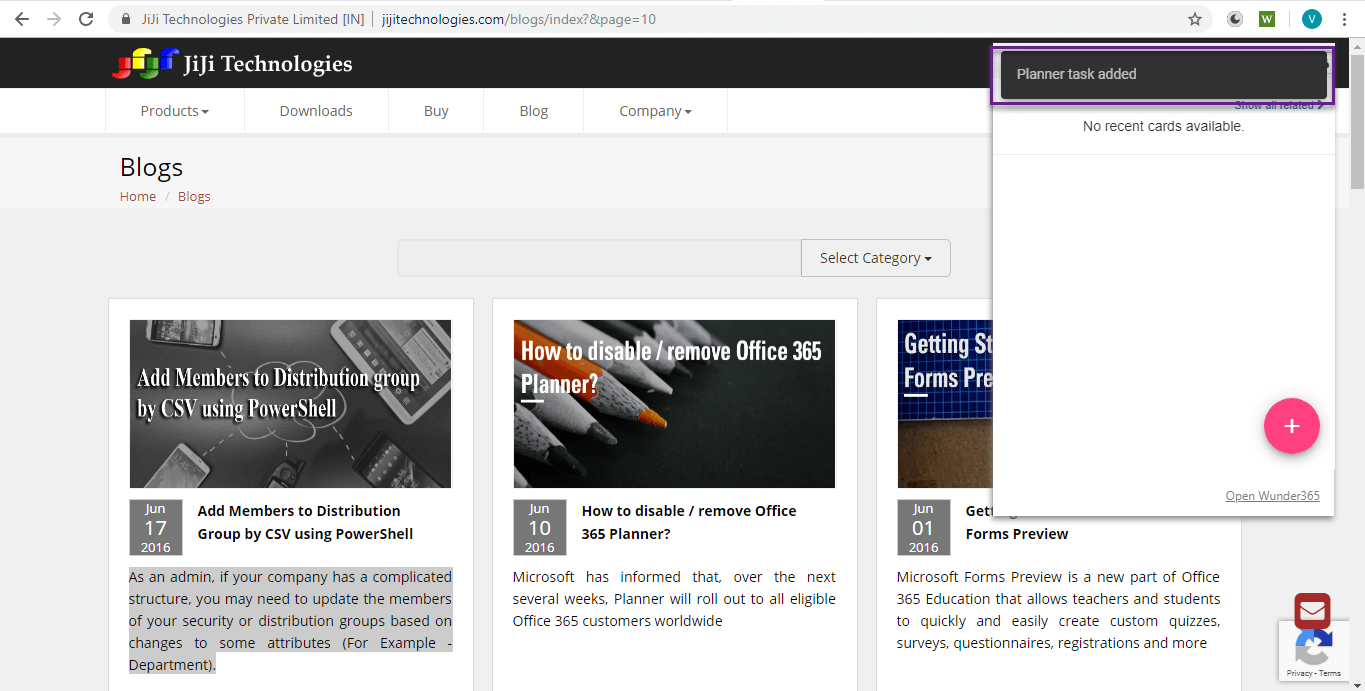
- Choose your template to create task Planner task
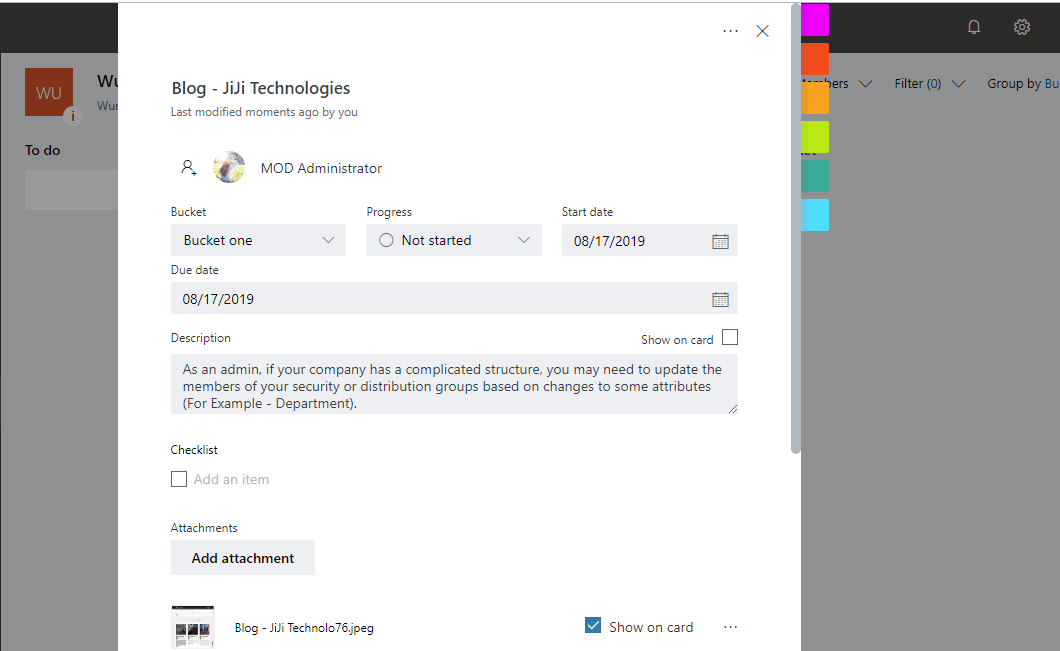
- The created task will appear on the same screen; hence, you can
update the additional details or post comments to it.
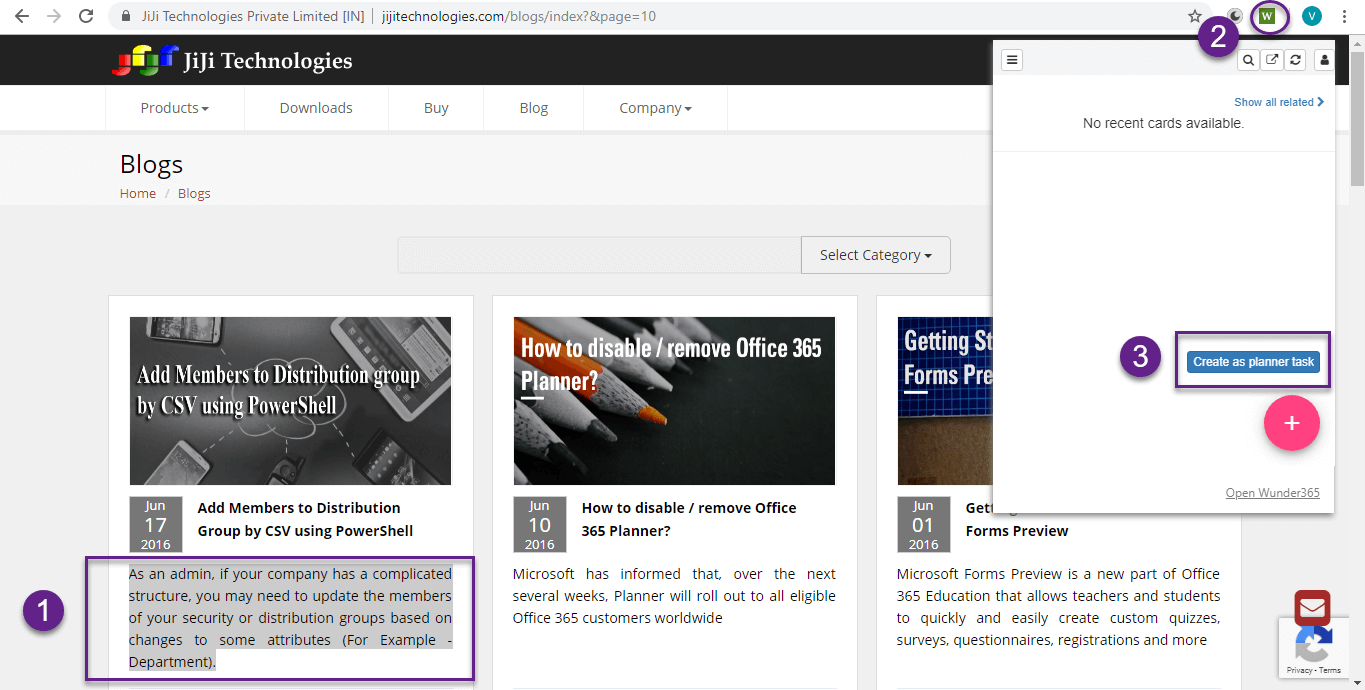
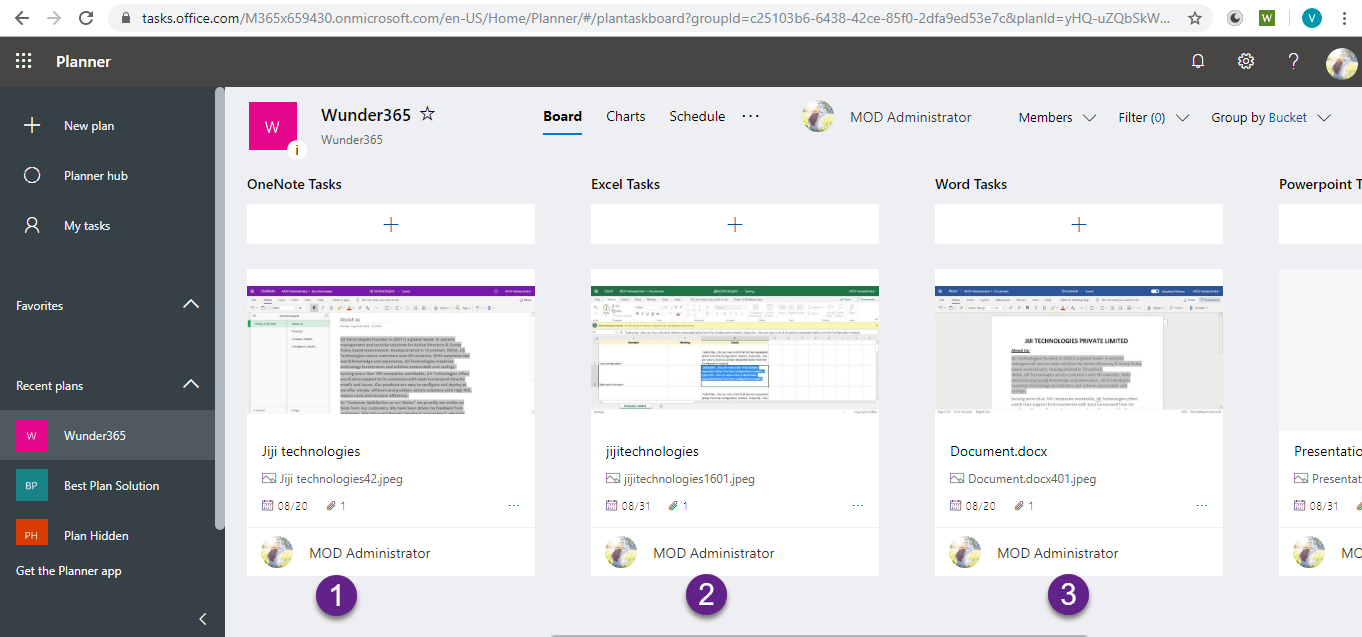
Create Planner task from a Word document
Create Planner task from OneNote
Create Planner task from Excel
Create Planner task from Power Point
How to create a task template?
Creating a template is a one-time action. Once created, you can re-use
it any number of times to create tasks in Planner. Thus, it helps you to
save time.