What is Teams app setup policy?
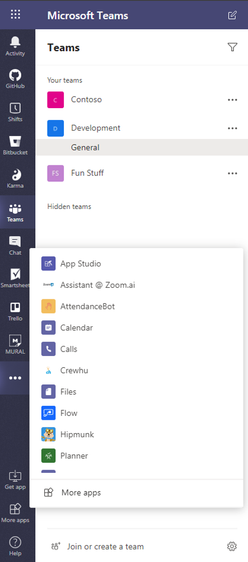
Based on working nature some people won’t use some default pinned app
and they always use some specific app from more option (…) and there
is no direct way to rearrange pinned apps order from Teams client.
Microsoft solves this requirement using App setup policy. Teams app
setup policy helps to rearrange the pinned app in Microsoft Teams based
on user’s requirement.
How to create and manage Teams app setup policy.
This Teams app setup policy requires Teams administrator permission to
create and manage setup policy. Teams administrator can create the app
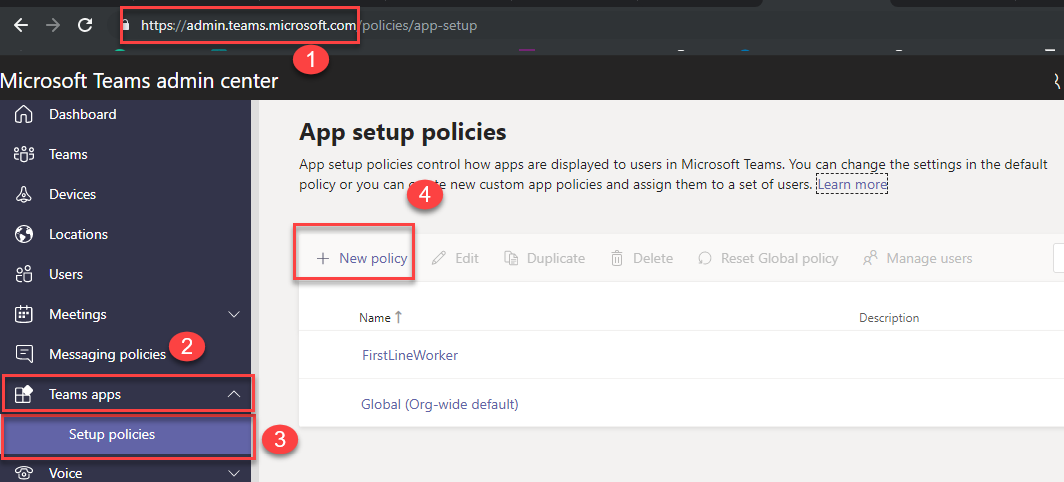
setup policy from Teams Admin Center Teams apps Setup policies New
Policy.
Create new policy
Rearrange the pinned apps
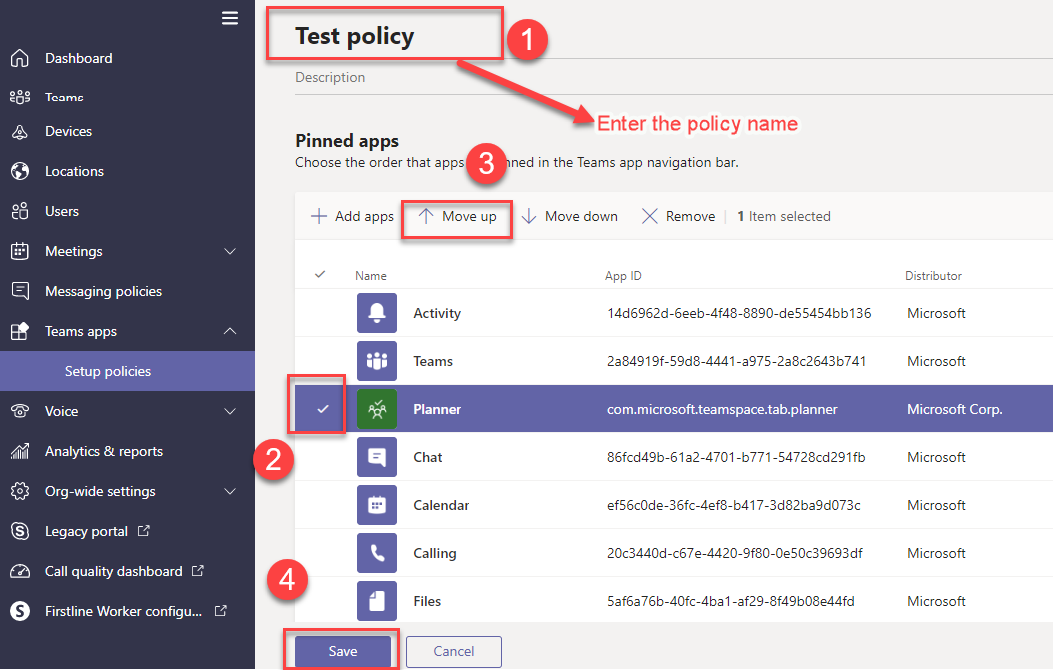
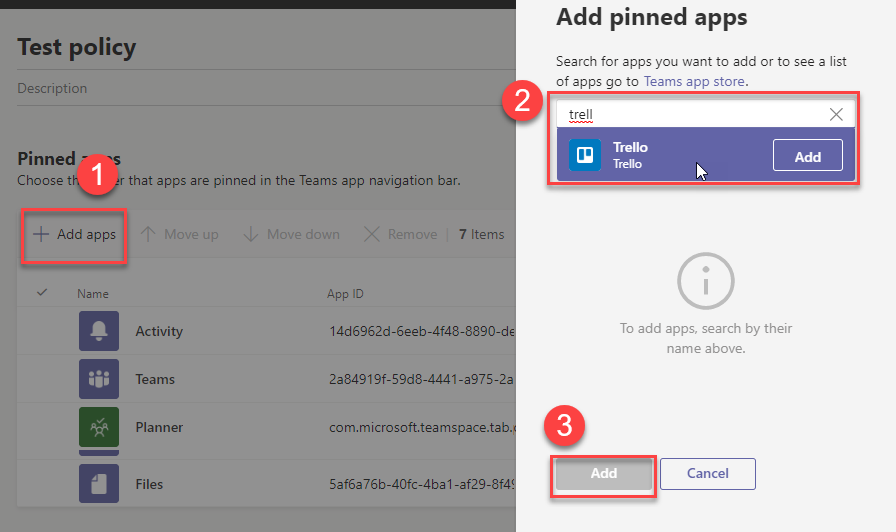
How to add new app in setup policy
Apps setup policy also support add the new apps from App Store. Go to
apps setup policies select existing policy Click Add apps Search app
Click Add.
How to apply Teams app setup policy to users
Once created the Teams app setup policies from Teams admin center. We
need to apply this policy to users. We can apply this policy in two
ways. That is
- Apply policy from Teams admin center.
- Apply policy using Skype PowerShell module.
Apply policy from Teams admin center
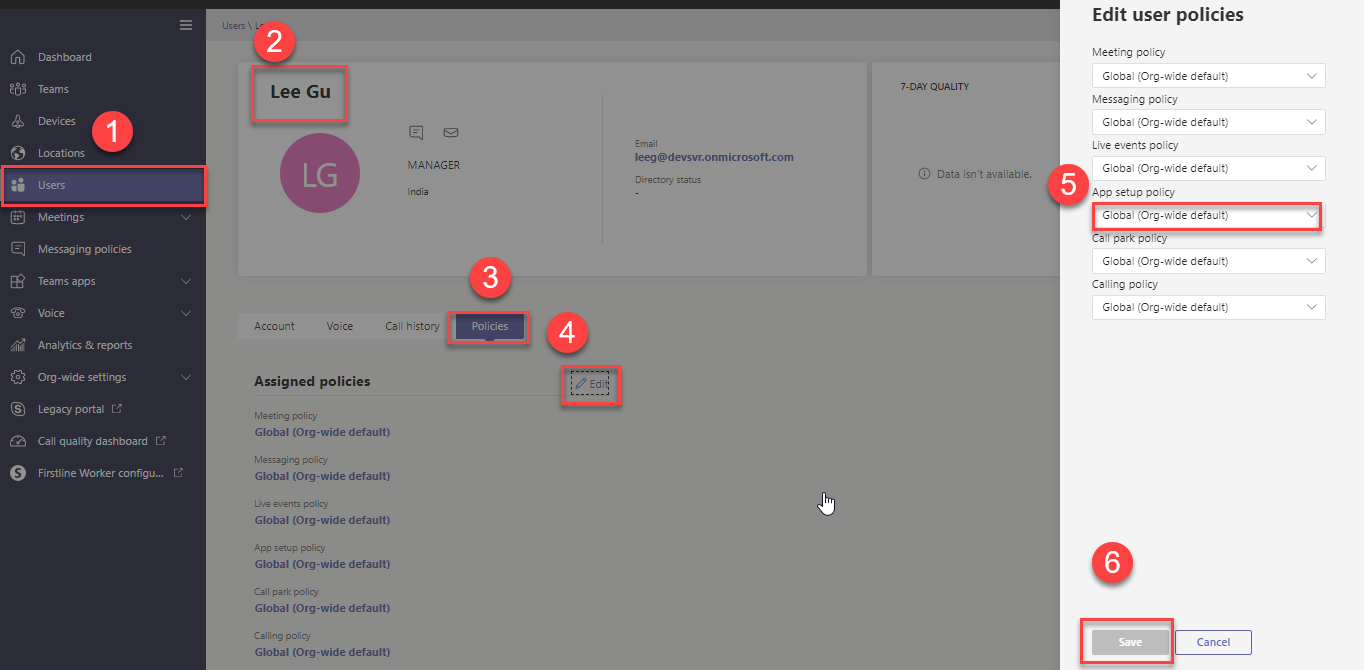
We can apply Teams apps setup policy to user from Teams admin center. Go
to Teams admin center Select required User click Polices Click Edit
Select required a policy in the App setup policy Click Save.
Apply policy using Skype PowerShell module
We can apply the Teams app setup policy to users using
Grant-CsTeamsAppSetupPolicy cmdlet in Skype for Business PowerShell
module. You apply this policy in two ways using PowerShell.
- Apply the policy to security group member
- Apply policy using CSV file.
Apply the policy to security group member
Using this script, we find all member in a particular security group and
apply the policy to all members. This script required two modules that
is Microsoft Azure Active Directory Module and Skype for Business online
PowerShell module.
             function Set-TeamsAppPolicy
             {
             param (
             $GroupName,$AppSetupPolicyName
             )
            process{
                $cred = Get-Credential
                #login into Azure Ad powershell module
                Connect-MsolService -Credential $cred

                #login into Skype online powershell module
                $session = New-CsOnlineSession -Credential $cred
                Import-PSSession $session

                #Get security group information.
                $group= Get-MsolGroup -SearchString $GroupName |select ObjectId,DisplayName

                $members=Get-MsolGroupMember -GroupObjectId $group.ObjectId -MemberObjectTypes user -all
                #Add user to App setup policy
                foreach($member in $members)
                {
                Grant-CsTeamsAppSetupPolicy -PolicyName $AppSetupPolicyName -Identity $member.EmailAddress
                Write-Host "Policy successfully added to $($member.EmailAddress) user "
                }
             }
             }

             Set-TeamsAppPolicy -GroupName Testsecgroup -AppSetupPolicyName "Dev team policy"
Apply policy using CSV file
Using this script, we can apply the policy to all user in the CSV file.
This script only required Skype for Business online PowerShell module.
            function Apply-TeamsAppPolicyUsingCSV
            {
            param (
           $ImportPath,$AppSetupPolicyName
           )
            process{
                $cred = Get-Credential
                #login into Skype online powershell module
                $session = New-CsOnlineSession -Credential $cred
                Import-PSSession $session

                #Get user information from csv file.
                $users = Import-Csv -Path $ImportPath

                #Add user to App setup policy
                foreach($user in $users)
                {
                Grant-CsTeamsAppSetupPolicy -PolicyName $AppSetupPolicyName -Identity $user.EmailAddress
                Write-Host "Policy successfully added to $($user.EmailAddress) user "
                }
            }
}

Apply-TeamsAppPolicyUsingCSV -ImportPath c:Userslist.csv -AppSetupPolicyName "Dev team policy"
How long does it take for policy changes to take effect?
After you edit the global policy or assign a policy, it can take up to
24 hours for changes to take effect.
After applying the app setup policy, we will get the modified pinned app
in Teams as shown like below image