

SharePoint Site classification is one of the most valuable feature
because SharePoint administrator can easily identify site dependency
using site classification. By default, this feature is not enabled in
tenant level, so you can enable this feature via different methods like
Azure AD PowerShell, Microsoft Graph API, PnP PowerShell. In this blog
we will explain about how to enable, disable and modify site
classification using PnP PowerShell because PnP PowerShell method is
very easiest method compare with other methods.
Prerequisites
Before starting the process, download and install PnP PowerShell latest
version – 2.20.1711.0 from
here.
Connect-PnPOnline
Before running PnP site classification cmdlets, you need to
Connect-PnPOnline with required permission
“Directory.ReadWrite.All”
Connect-PnPOnline -Scopes “Directory.ReadWrite.All”
Enable Site Classification
Below PnP PowerShell command will enable Site classification in tenant
level with three sample classifications (“HBI”, “LBI”, “Top Secret”) and
usage guide line URL for classification.
Enable-PnPSiteClassification -Classifications “HBI”,”LBI”,”Top Secret”
-UsageGuidelinesUrl “http://aka.ms/sppnp” -DefaultClassification “HBI”
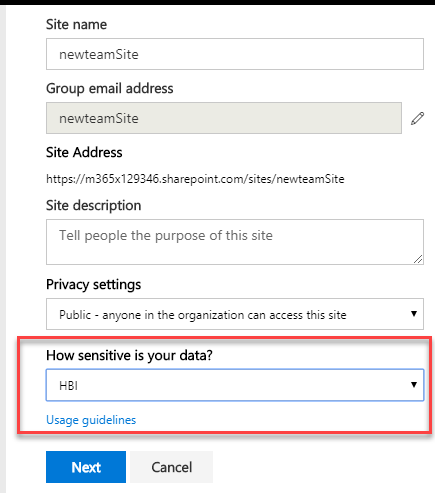
After enabling site classification, users can view new option in team
site creation page as shown in below image.
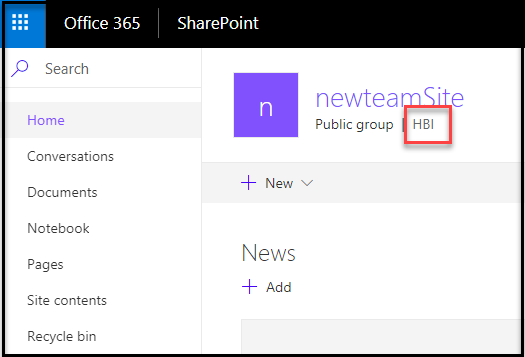
Once you created Team site with site classification, you can find the
classification name nearby group type
Add Site Classification
This command will help you to add new site classifications in existing
classification list
Add-PnPSiteClassification -Classifications “SBI”,”MBI”
Remove Site Classification
Using this command, you can remove the unwanted site classifications in
the existing list
Remove-PnPSiteClassification -Classifications “SBI”
Update Site Classification
Using this command, you can update existing site classification
properties.
Update-PnPSiteClassification -Classifications “HBI”,”LBI”,”Top Secret”
-UsageGuidelinesUrl “http://aka.ms/sppnp” -DefaultClassification “HBI”
Disable Site Classification
Using this command, you can disable site classification feature from
tenant
Disable-PnPSiteClassification
















