


Based on the repeated requests from customers for connecting on premise
data like SharePoint lists or SQL rows to Office 365 applications
(PowerApps, Microsoft Flow, Logic Apps, Power BI), Microsoft has
introduced on-premises data gateway. The on-premises data gateway acts
as a bridge in providing a quick and secure connection between on
premise data and Office 365 apps. Currently supported on premise
applications are SharePoint 2016 and SQL 2016 (Both Enterprise and
Express editions). Moreover, you can use a single gateway to connect
multiple on premise applications to multiple Office 365 applications at
the same time and it is dependent on the account with which you sign in,
which can be either your work or school, or personal Microsoft account.
This blog is breaked down as two major steps as below,
- Deployment of On-premises data gateway
- Connect on premise data to Office 365 Application
Deployment of On-premises data gateway
Steps to be performed before installation
- Download “On-premises data gateway” setup by navigating to Url –
https://powerapps.microsoft.com/en-us/downloads/
and download the “On-premises data gateway” setup as shown in the
below screenshot.

- “On-premises data gateway” need to be installed in an on premise
computer with seamless internet connectivity and satisfying
following prerequisites,
Hardware Requirements:
Hardware Requirements Value
CPU 8 Cores
RAM 8 GB
Software Requirements:
Software Requirements Value
.NET Framework Version – 4.5
Operating System Windows 7 / Windows Server 2008 R2, or later
Deployment of On-premises data gateway:
The deployment of on-premises data gateway is very simple, which
includes gateway setup installation and gateway registration. Following
are the steps involved in on-premises data gateway deployment,
Note: In each on premise machine, you can deploy only a single
gateway.
- After completing the prerequisites, just run the downloaded gateway
setup – “GatewayInstall.exe”.

- Read and accept, terms of use and privacy statement. Select the
installation path and click Install..

- After clicking Install, on-premises data gateway installation
gets initiated.

- Once installation is completed, click Sign in to register your
gateway.

- In the resulting window, provide the sign in credentials (work or
school, or personal Microsoft account) and click Sign in to
proceed with registering your gateway.

- After sign in, now you are ready to register the gateway. Select the
option Register a new gateway on this computer., as highlighted
in the below screenshot.

- Provide name, Recovery key and click Configure to complete the
gateway registration.

NOTE: If you are trying to deploy the gateway in a domain
controller, then you will receive the following error
Error
“Error generating an asymmetric key.
The requested operation cannot be completed. The computer must be
trusted for delegation and the current user account must be configured
to allow delegation.”
Workaround:
Open Services console, select On-premises data gateway service
change the service account .from NT SERVICEPBIEgwService to
Local System, as highlighted in the below screenshot and restart
the service.

Proceed with gateway registration:
Now click Configure again to proceed with gateway registration.

- Finally “On-premises data gateway” deployment is completed.

Deployment of On-premises data gateway
After deploying on-premises data gateway , now it’s time to connect on
premise data to Office 365 applications. We shall walk you through the
steps involved in connecting on premise SharePoint 2016 and SQL 2016 to
Office 365 using On-premises data gateway and accessing the on premise
data via PowerApps.
Steps Involved,
- Connecting SharePoint 2016 to Office 365
- Connecting SQL 2016 to Office 365
- Accessing SharePoint List – Items via PowerApps
- Accessing SQL Table – Records via PowerApps
Connecting SharePoint 2016 to Office 365
You can connect on premise applications to Office 365 by signing in as
account used to deploy gateway to any one of the Office 365 applications
like PowerApps or Microsoft Flow and add your required connections.
Note : Connection added in any one Office 365 application will be
available for access to all other applications. For example, if you
added on premise SQL connection by signing in to PowerApps, then you can
also use that SQL connection for Microsoft Flow.
Here, I sign in to PowerApps and add connection for SharePoint 2016 as
follows,
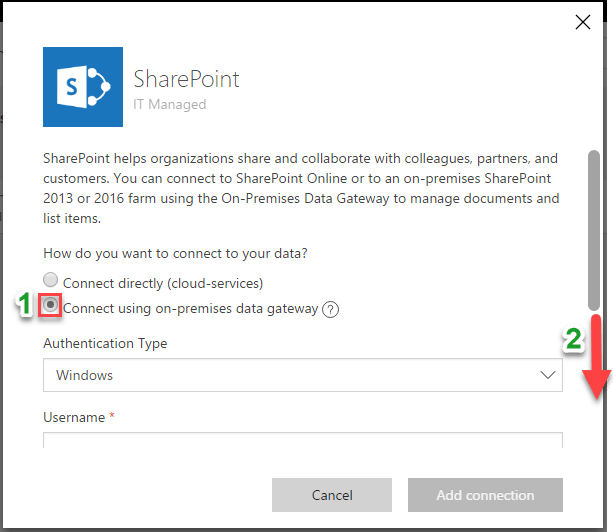
- In the SharePoint connection, select the optionConnect using
on-premises data gateway and scroll down.
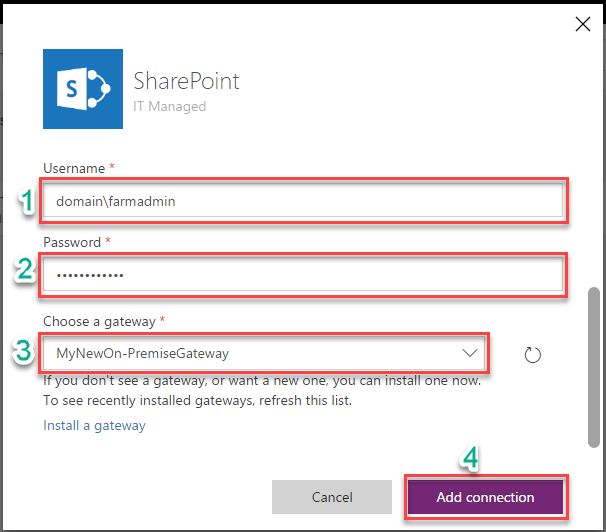
- After scroll down, provide SharePoint farm admin credentials and
select your relevant on-premises data gateway and click Add
connection.
Connecting SQL 2016 to Office 365
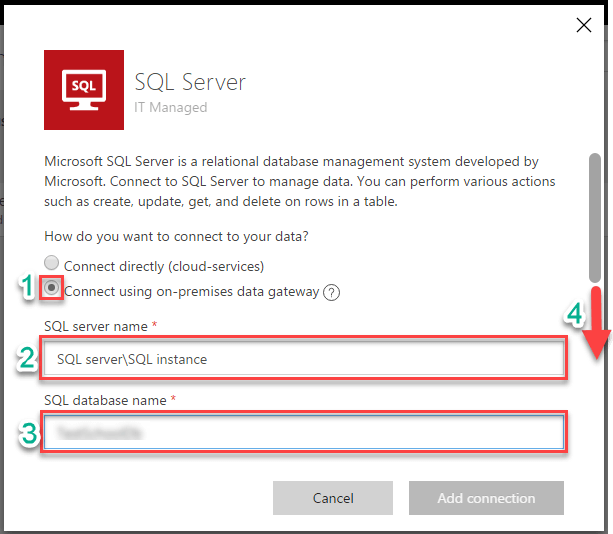
- In the SQL connection, select the option Connect using on-premises
data gateway, provide SQL server name, SQL database name and
scroll down.
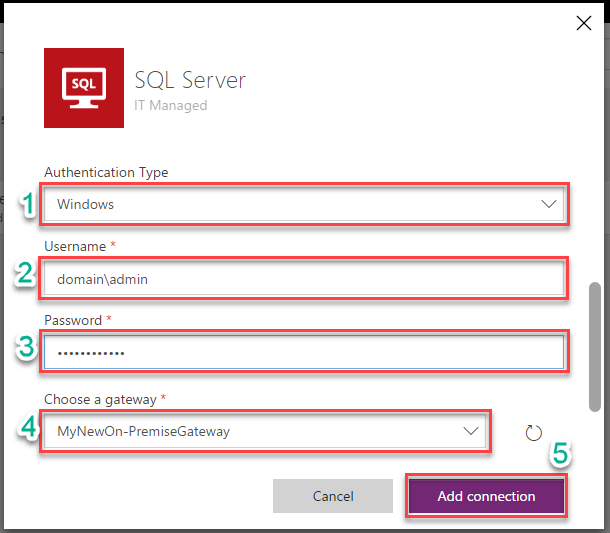
- After scroll down, select authentication type, provide user
credentials to connect SQL and select your relevant on-premises data
gateway and click Add connection.
**Note:**Using single on-premises data gateway you can create multiple
connections to connect multiple on premise applications to Office 365
applications.
Accessing SharePoint List – Items via PowerApps
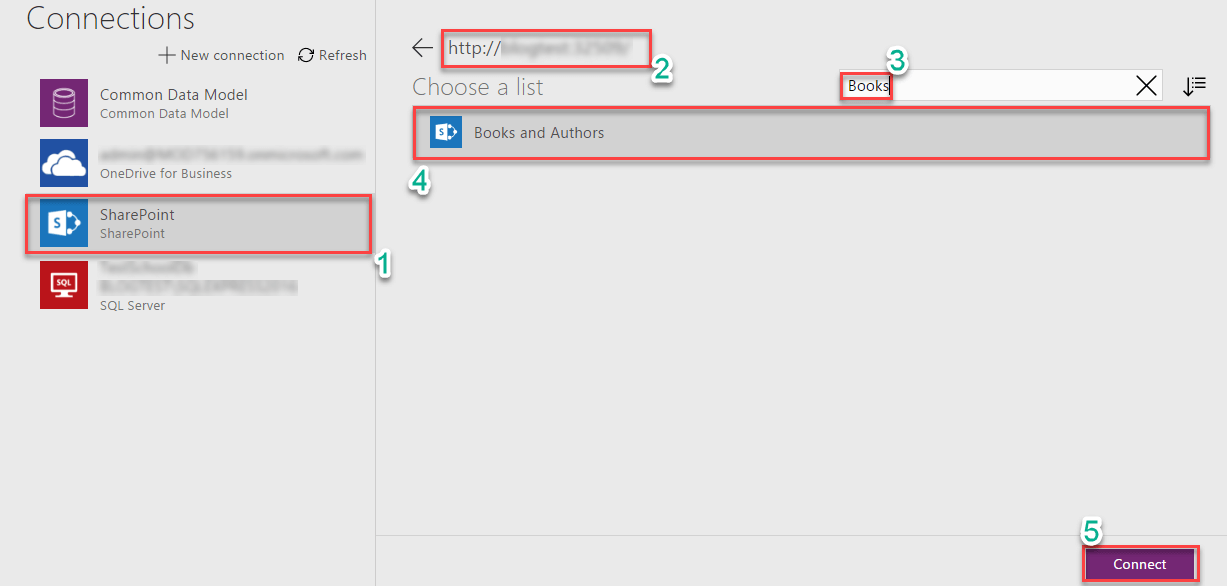
- For example, for creating of a new app for listing the items of
SharePoint List in PowerApps, you need to select the relevant
SharePoint connection, then provide the Url for corresponding
SharePoint site and connect to your required SharePoint List, as
shown in the below screenshot.
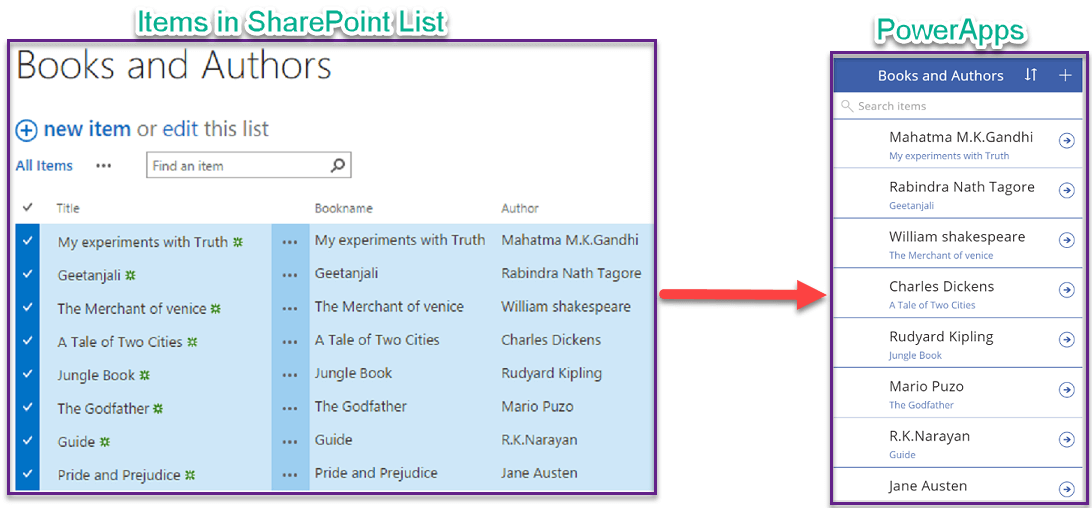
- Finally, you can access the items in your SharePoint List in
PowerApps as shown in the below screenshot.
Accessing SQL Table – Records via PowerApps
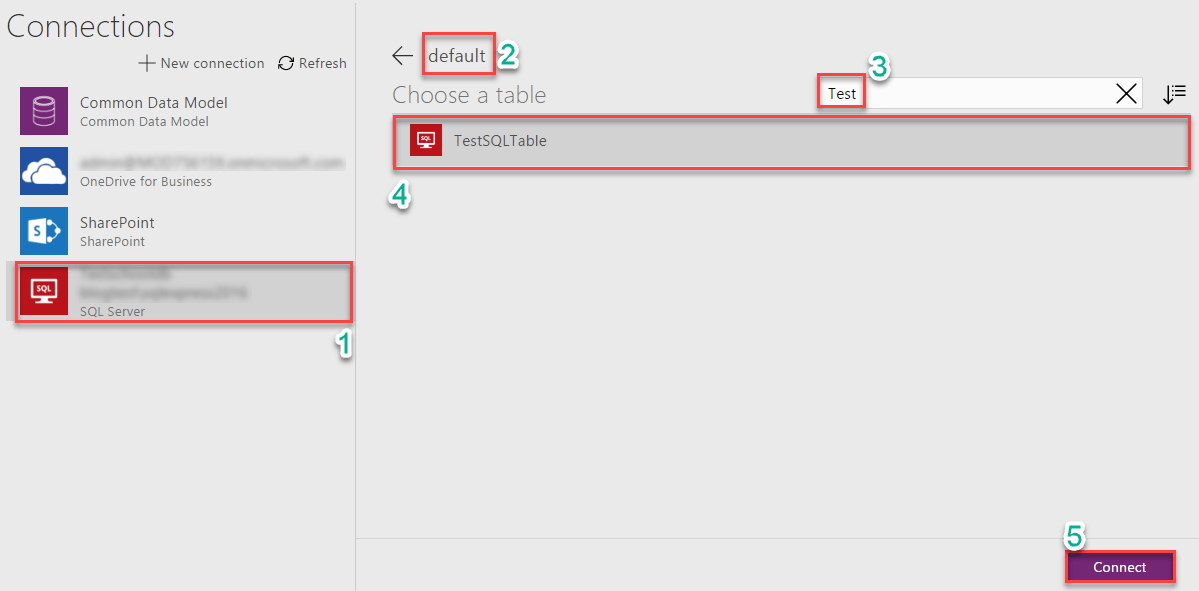
- Similarly, for creating of a new app for listing the rows of SQL
table in PowerApps, you need to select the relevant SQL connection,
then select the dataset for corresponding SQL database and connect
to your required SQL Table, as shown in the below screenshot.
- Finally, you can access the rows in your SQL Table in PowerApps as
shown in the below screenshot.

FAQ
Yes, but you will receive the following error,
“Error generating an asymmetric key. The requested operation cannot be completed. The computer must be trusted for delegation and the current user account must be configured to allow delegation.”
To fix the above error, open Services console, select On-premises data gateway service change the service account from NT SERVICEPBIEgwService to Local System and restart the service.
For more FAQs from Microsoft, refer the following links:
https://powerbi.microsoft.com/en-us/documentation/powerbi-gateway-onprem-faq
https://powerapps.microsoft.com/en-us/tutorials/gateway-reference
















