On September 26, 2016 Microsoft has introduced the Public Preview of
Microsoft StaffHub – the new app for deskless or desk-free workers.
Desk-free workers have nurtured the growth of organizations around the
world. In simple, they are the building blocks of any company, but
typically they don’t have a dedicated work space or computer, which
makes their hands tied from easily getting the required information to
perform better. Microsoft StaffHub is the one-stop app for managers to
create/managing shift schedules, which streamlines the work life of
desk-free users and helps them to communicate and share documents using
their mobile devices with the team members, which in turn improve their
productivity with ease.
Currently Microsoft StaffHub is available in public preview on the web,
iOS and Android. To access Microsoft StaffHub portal you need to visit
URL –https://staffhub.ms and request a promo
code for a Microsoft StaffHub Public Preview license. Also you need to
have one of the following Office 365 plans: K1, E1, E3 or E5. Moreover,
each desk-free worker and manager using Microsoft StaffHub must have an
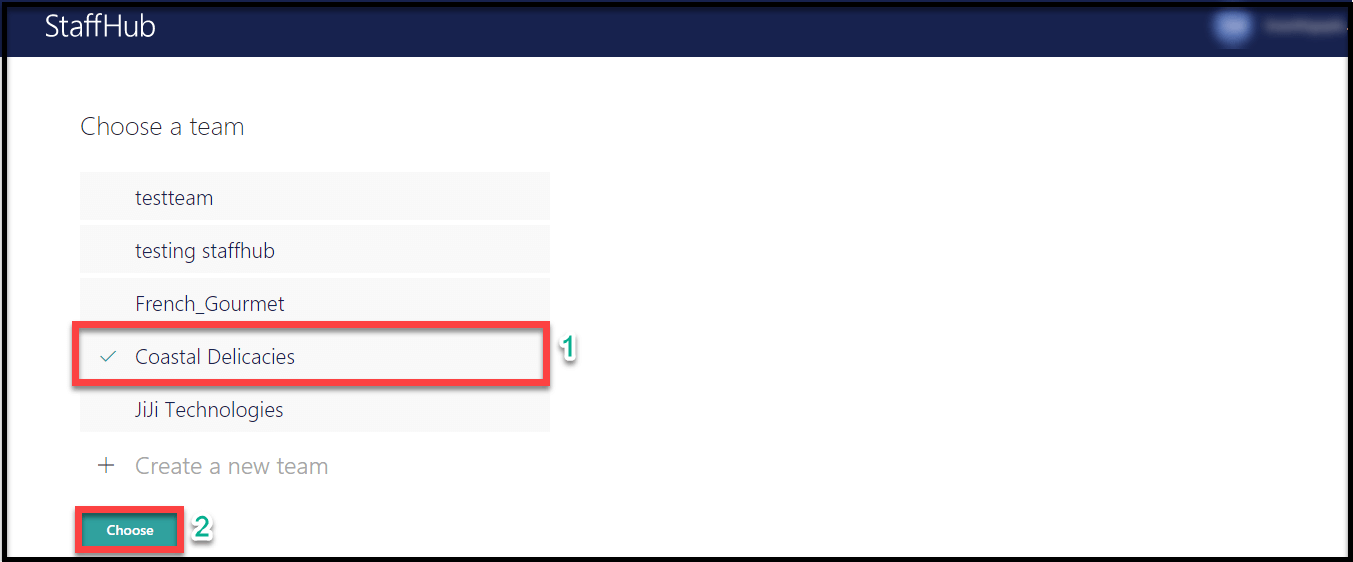
Office 365 account. As a manager, once you sign in to the portal using
web browser, you have the option to either choose an existing team or
create a new team. Here I select my team – Coastal Delicacies.
NOTE: Microsoft StaffHub is integrated to Office 365 Groups, such as
when you create a new team in Microsoft StaffHub, corresponding Office
365 group will be created. Also, files shared in Microsoft StaffHub are
stored in the corresponding Office 365 Group Files location
Before proceeding further, first let’s see who can do what with
Microsoft StaffHub – Public Preview.
Using Microsoft StaffHub – Managers can streamline the work life of
desk-free workers as follows,
- Managers:
Managers can create shift schedules, approve requests and share
information with their team of desk-free workers. - Desk-free workers:
Desk-free workers can view schedules, swap shifts, request time
off, find information and catch up with the team.
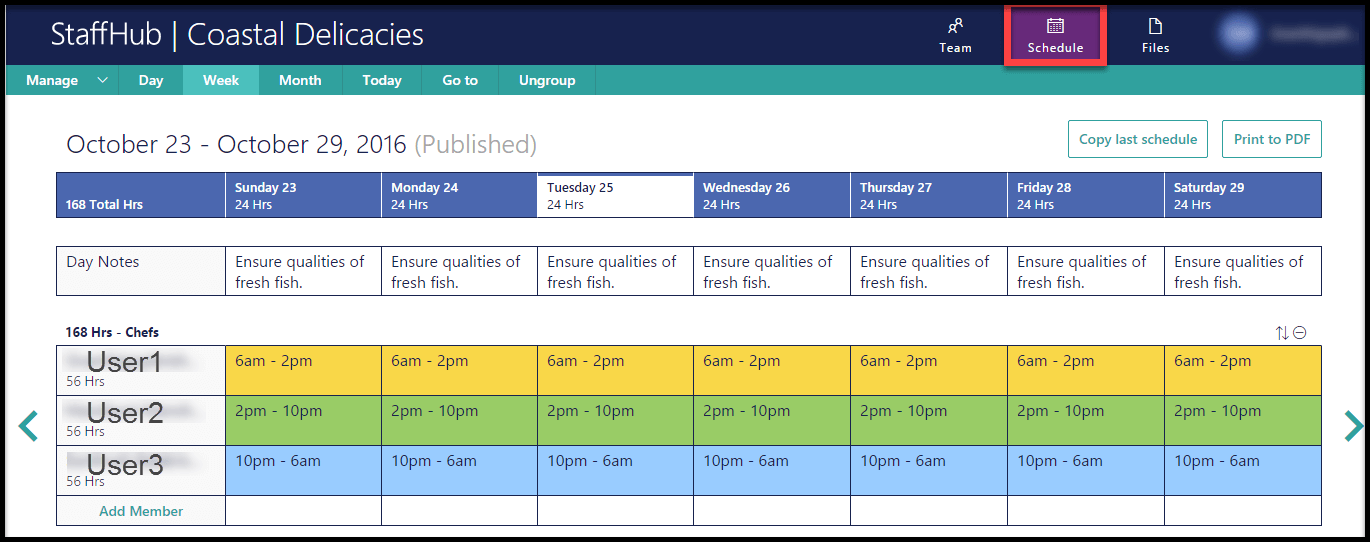
Coming back again, now as a manager, after selecting my team – Coastal
Delicacies, I am able to create shift schedules for my team.
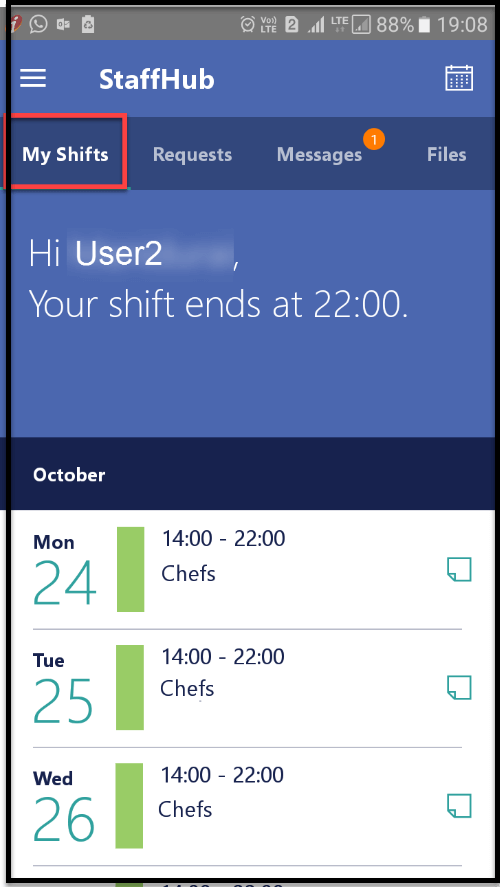
After creating schedules for my team – Coastal Delicacies, my team
of desk-free workers will be able to sign in to Microsoft StaffHub
mobile app in their mobile devices and view schedules, swap shifts,
request time off, find information etc. as shown in the below
screenshot.
View your Shifts
Here I present you the scenarios with steps involved in swapping the
shift and requesting time off by a desk-free employee with his
team member as follows.
Steps Involved in Swapping your Shift
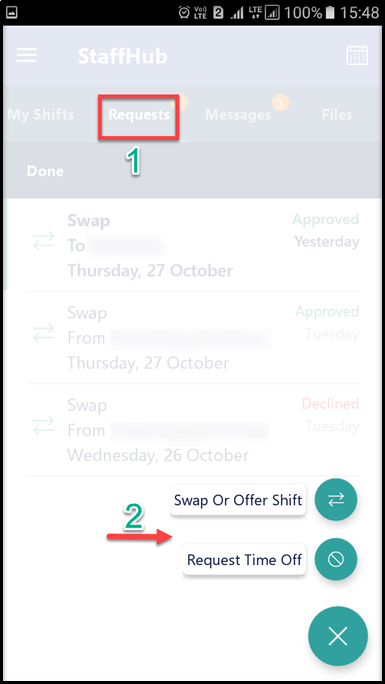
1. For your each shift, you can either Swap Or Offer Shift with
your team member or Request Time Off. Here, I login to Microsoft
StaffHub mobile app as desk-free user and swap my shift by selecting
Swap Or Offer Shift option.
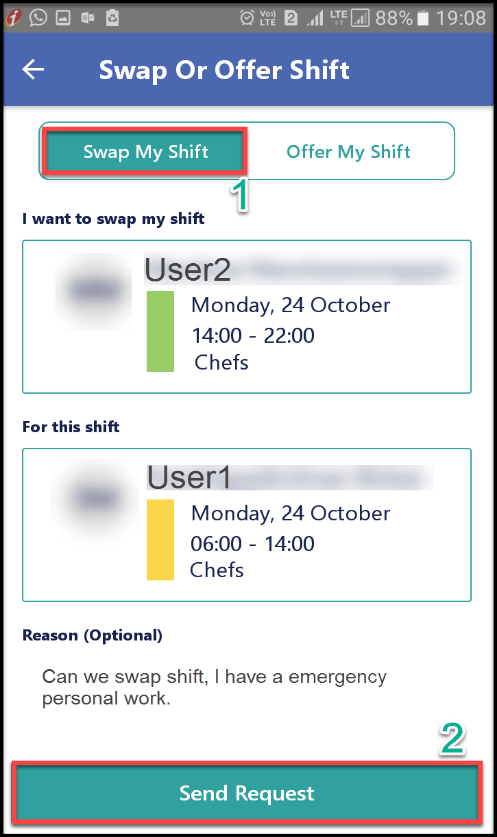
2. Send Swap Request
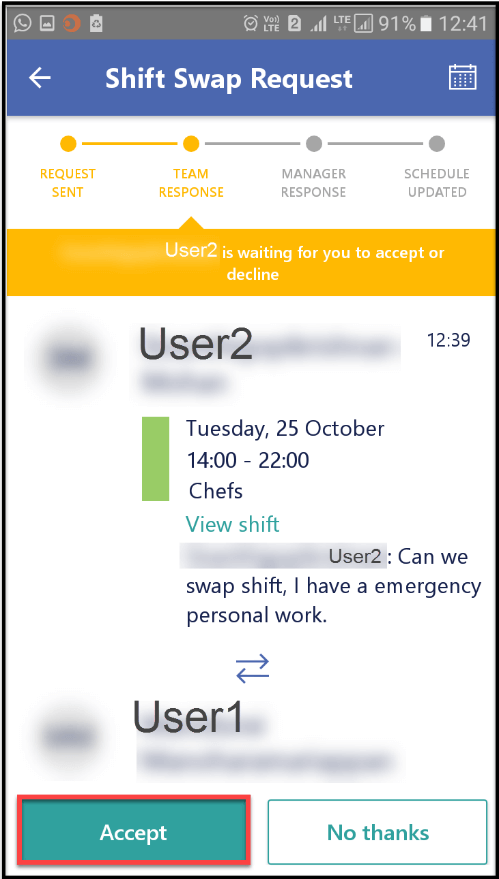
3. Team Response
4. Manager Response
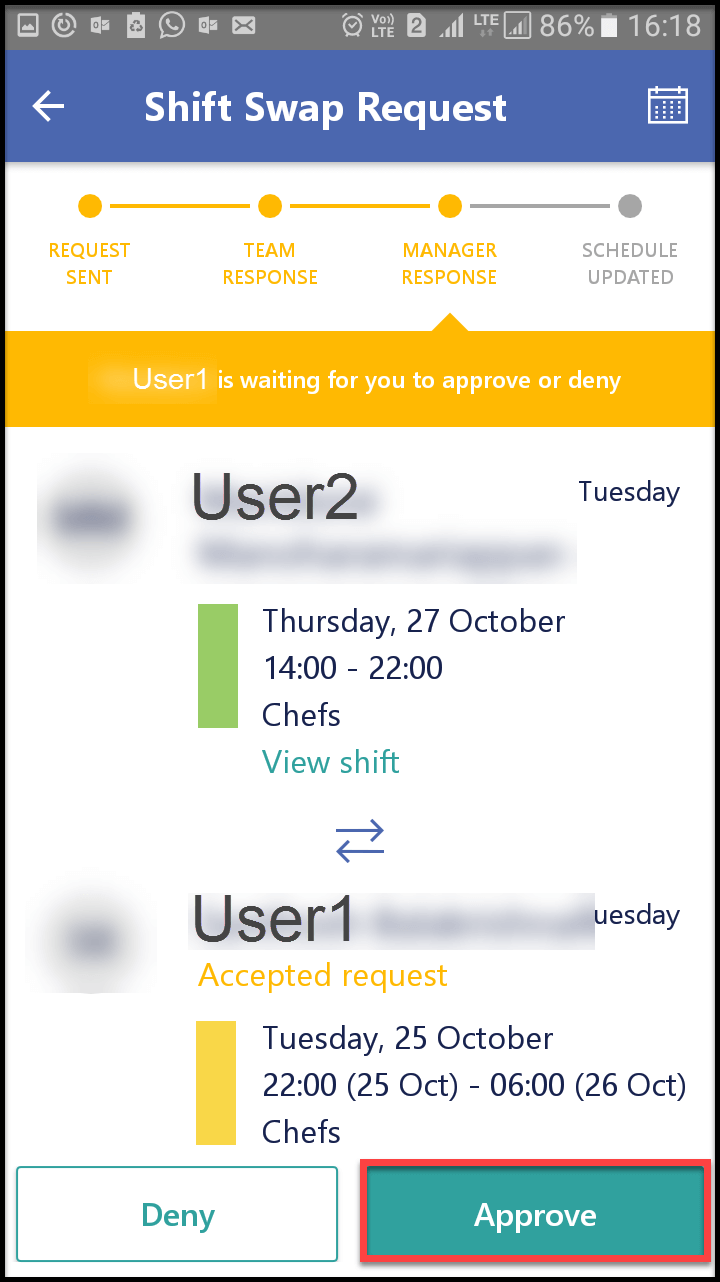
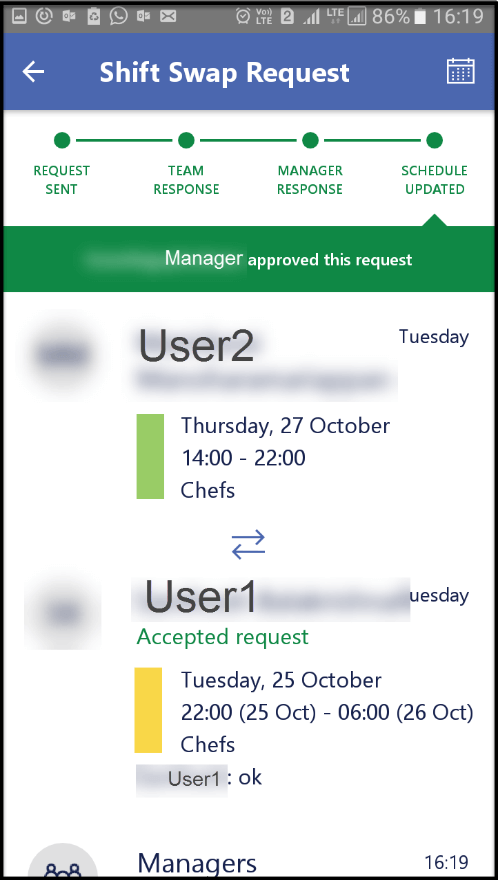
5. Finally, Schedule Updated
Steps Involved in Requesting Time Off
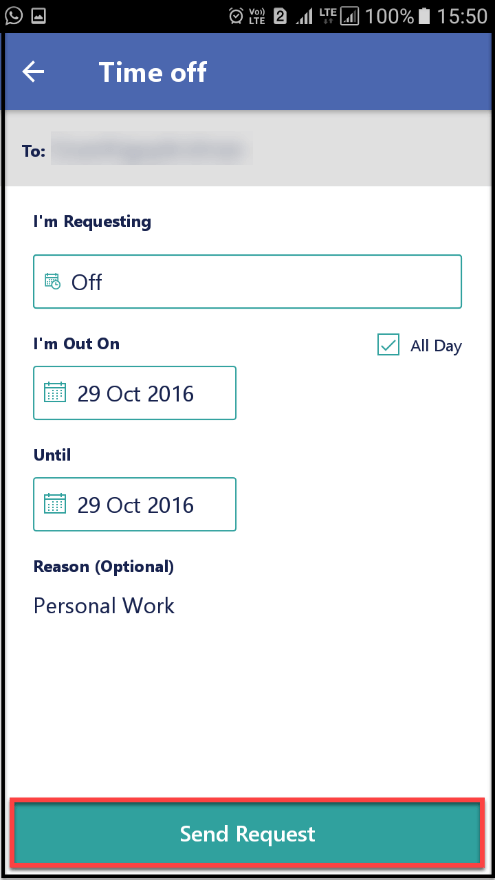
** Here, I request time off by selecting Request Time Off option and
in the resulting UI, I specify the details for time off as shown in the
below screenshot.
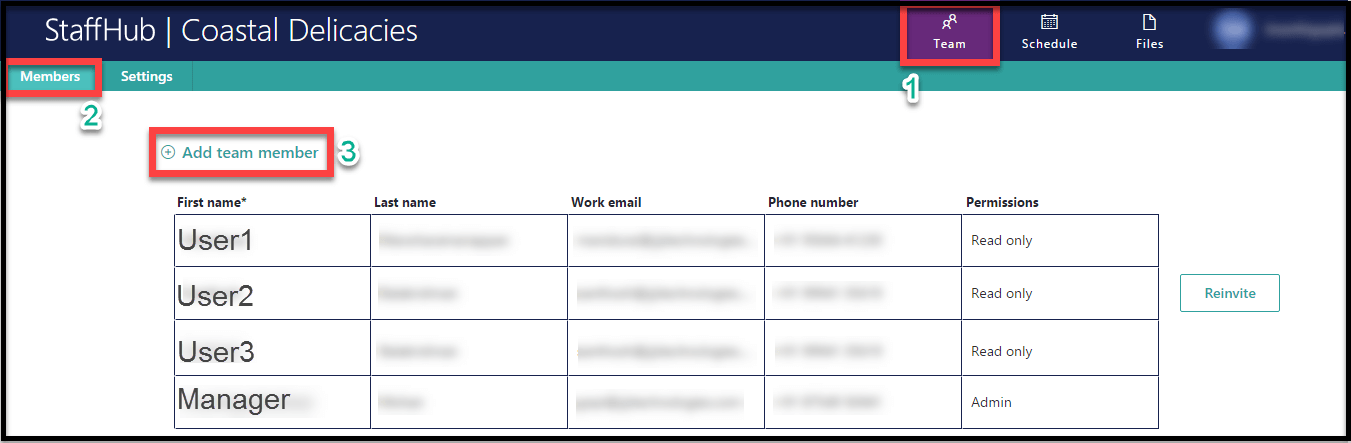
As a manager, you can add members to the team by navigating to Team
** Members** Click Add team member.
NOTE : By default, members (desk-free users) added to the team will
be automatically assigned with Read only permission, whereas the
manager who creates the team will be assigned with Admin permission.
You can change the permission of member from Read only to Admin
and vice versa. But you cannot change the permission of manager from
Admin to Read only.
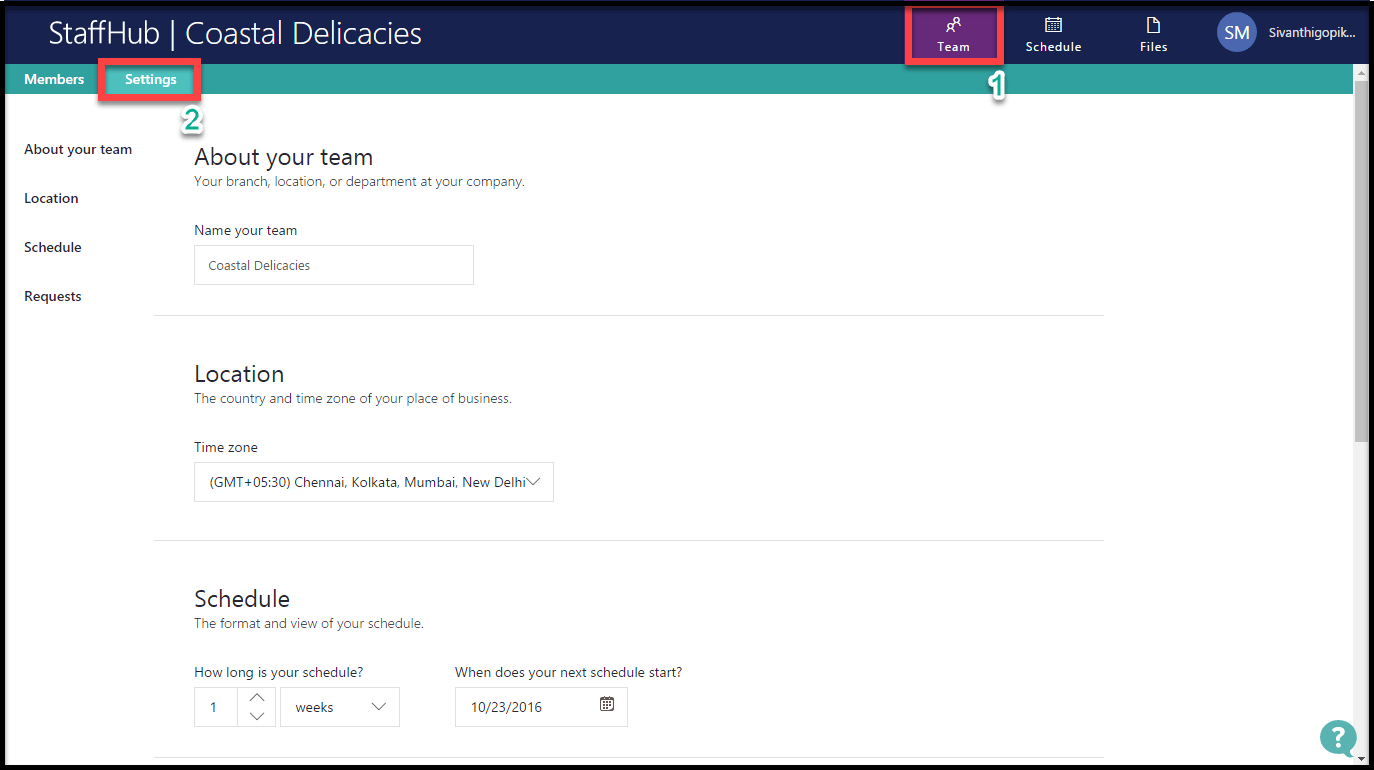
You can modify the team settings by navigating to Team **
Settings **, in which you can modify the name of your team, country
and time zone of your place of business, format and view of your
schedule.
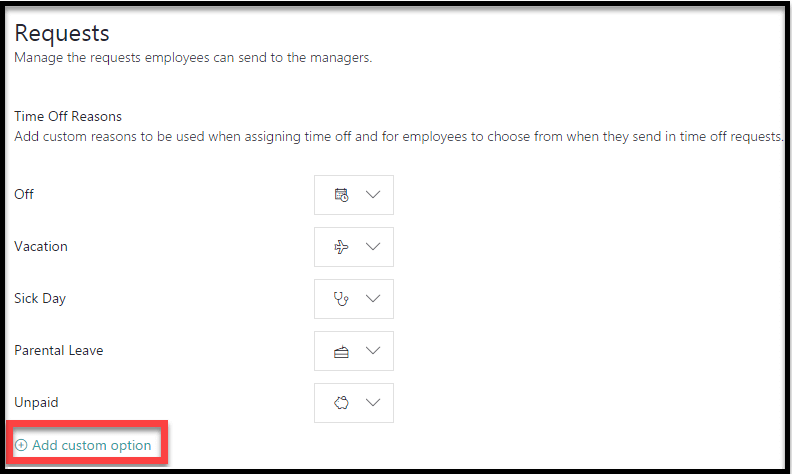
You can manage the employee’s requests to the managers, by adding
additional custom reasons for employees to choose when they need to send
time off requests. To add additional custom reasons, navigate to
Team ** Settings ** Click Add custom option.
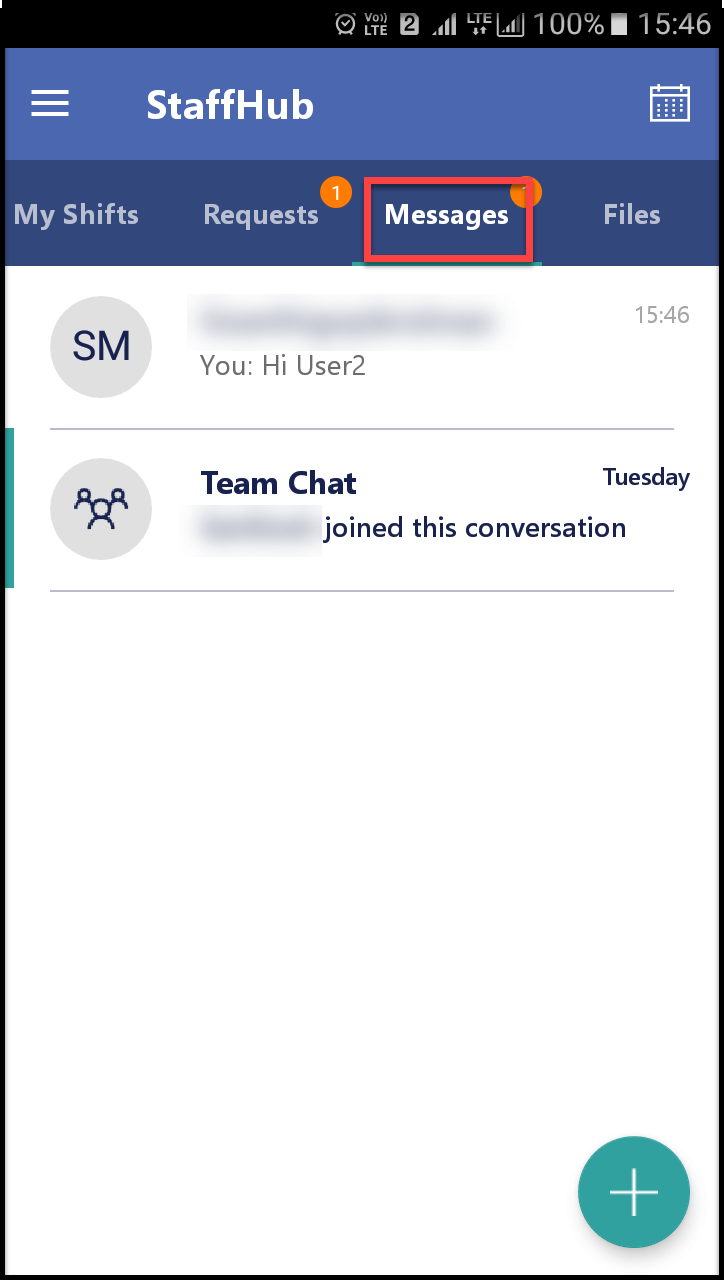
Generally, desk-free employees do not possess email address, therefore,
chat feature in Microsoft StaffHub will be very much helpful for them to
communicate with team.
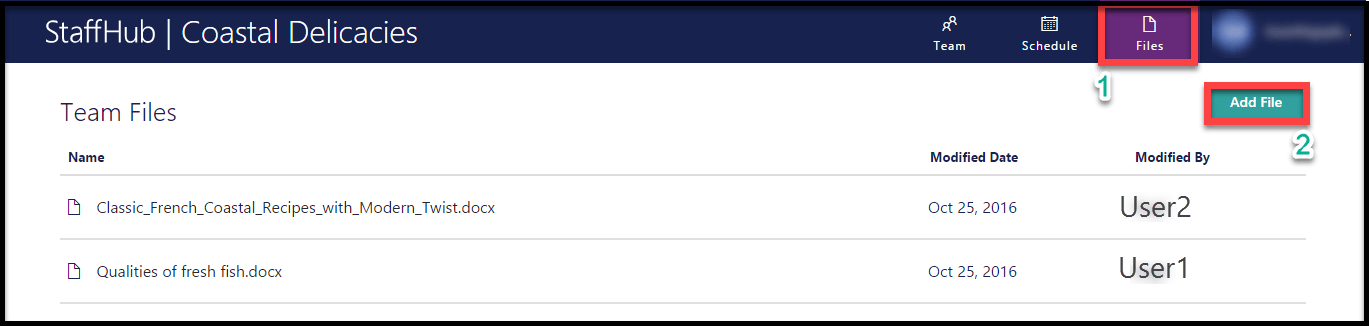
Managers can login to Microsoft StaffHub portal via web browser and
share files to team, by navigating to Files ** Add File.
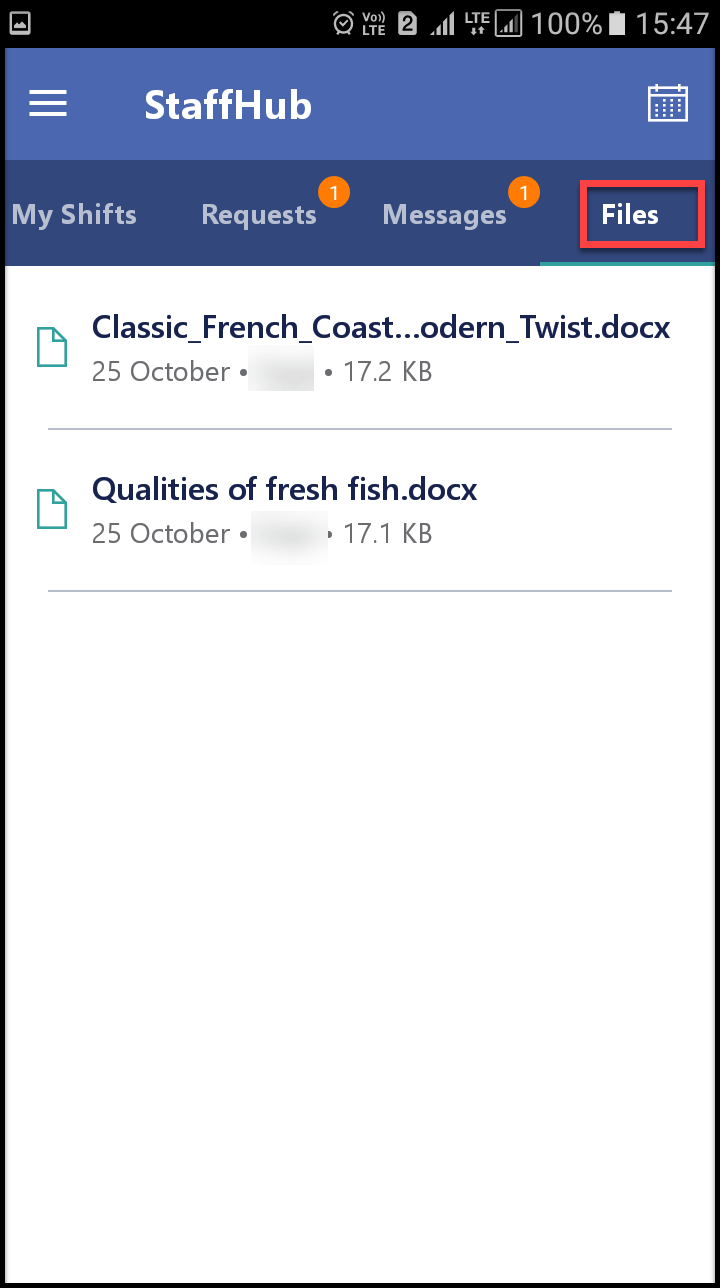
Both managers and desk-free users can login to Microsoft StaffHub mobile
in their mobile devices and can view the team files.