


In Office 365 Video, videos are managed in a professional and
centralized way, such as an IT admin will control and manage the channel
permission from Office 365 Video portal. But in Stream, Microsoft has
broken the shackles from closed network to social platform with improved
security, such as owner of the channel or video has full control on
his/her channel or video. In this blog, we will compare permissions of
Microsoft Stream with Office 365 Video and dive deep in to Microsoft
Stream permissions.
In Stream, Channel permission depicts who can contribute videos to the
channel and does not interfere with the individual Video’s permission
inside the channel. Each Video in Channel, has its own permission. In
Stream, the permissions are granular and it binds with the individual
Video in Channel.
Note: Currently Microsoft Stream is in preview. The Stream team
actively receiving feedback from users and Microsoft will provide more
IT controls in future. You can submit or vote for existing ideas
here.
Comparison on Permissions of Microsoft Stream Vs Office 365 Video
S.No
Insight on Permission
Microsoft Stream (Preview)
Office 365 Video
- Permission Approach
Granular – Owner of a channel or video assigns permission
Centralized – IT admin assigns permission
- Permission Scope
Both channel and video
Only channel
- Channel Permission
Owner, Contributor
Owner, Editor, Viewer
- Video Permission
Owner, Viewer
NOTE – Video permissions are unique and does not depend on channel
permission
Owner, Editor, Viewer (inherited from its channel (container))
- Channel owner
Single user (user who created channel)
Multiple users
- Video owner
Single user (user who uploaded video)
Multiple users (inherited from its channel (container))
Insight on Stream Video Permission
Video is the top level permission of the Stream because only user with
valid permission can view the video. For example, if a user has
permission for channel, but don’t have permission for video, in that
condition user will not be able to view the video.
Who can add the video?
Everyone in the organization can add the video in the permitted channel.
Who can Delete the video?
Only owner of the video can delete the video.
Stream Video – Permission Types:
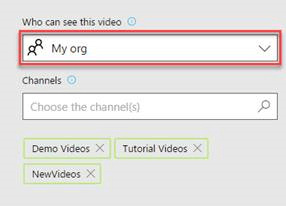
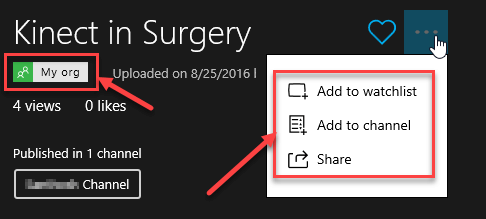
1. My Org
This is the default scenario. In this scenario, anyone in your
organization can view and share your videos.
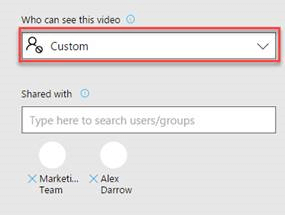
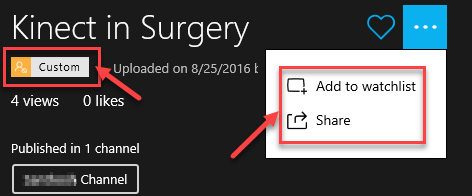
2. Custom
In this scenario, only selected user can view and share the videos.
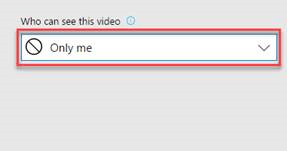
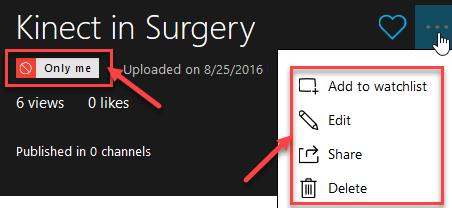
3. Only me
In this scenario, only owner can view videos.
Stream Video Permission Table
Permission Type
Video Owner
Viewer
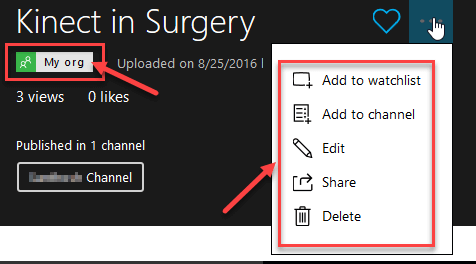
My Org
Add to watchlist,
Add to channel,
Edit video,
Share video,
Delete video
Add to watchlist,
Add to channel (if Channel Contributor),
Share video
Custom
Add to watchlist,
Edit video,
Share video,
Delete video

Add to watchlist,
Share video
Only me
Add to watchlist,
Edit video,
Delete video
-N/A-
Note:
** Edit video actions for Video owner – title, description,
permission settings, thumbnail, captions
Effect on Permission Type Change
Custom, Only me ** My Org
Video owner and viewer can add video to permitted channel lists.
My Org ** Custom
Can’t add video to channel list and existing channel list not removed.
only me ** Custom
Can’t add video to channel list
My Org, Custom ** Only me
Can’t add video to channel lists and existing channel lists for the
video are removed.
Insight on Stream Channel Permission
Channel is the second Level of permission in the office 365 Stream
because it does not control who can view the video, so everyone in the
organization can view/play the video in any channel, but channel
permission can control only channel setting, that is Add video to
channel and Edit channel (name, description, privacy settings,
channel cover image).
Who can add the Channel?
Everyone in the organization can add the Channel
Who can Delete the Channel?
Only owner of the channel can delete the channel.
Channel – Permission Type
In Stream, when you create a channel, you can allow permission to
contribute to your channel in the following scenarios,
- ** My Organization
- ** Custom
1.My Organization
This is the default scenario. In this scenario, anyone in your
organization can contribute to your channel.
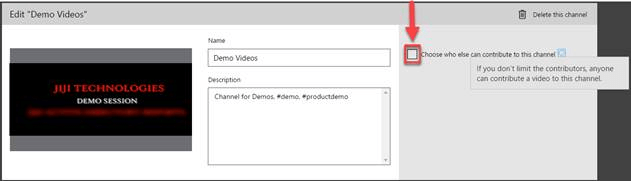
2.Custom
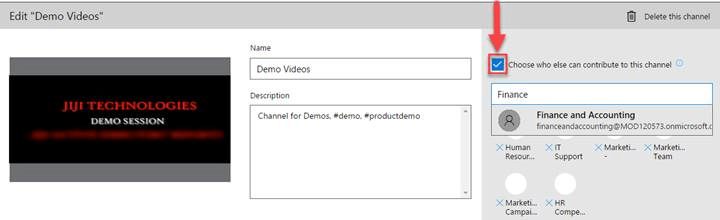
As a channel owner you can restrict who can contribute to your channel
by enabling “Choose who else can contribute to this channel” option
and add your required users or groups to contribution list. After
enabling this option, anyone in your organization can still view your
channel, but only selected custom users/groups can contribute videos.
Channel Permission Table
Type
Owner
Contributor
Non-Contributor
My Organization
- Add Video to channel
- Edit channel
- Name
- Description
- Permission Settings
- Channel cover image
- Delete channel
- Follow/Unfollow channel
- Add video to channel,
- Follow/unfollow channel,
There is no non contributor because everyone in the organization have
Contributor permission.
Custom
- Add Video to channel
- Edit channel
- Name
- Description
- Permission Settings
- Channel cover image
- Delete channel
- Follow/ Unfollow channel
- Add Video to channel
- Edit channel
- Name
- Description
- Channel cover image
- Follow/Unfollow channel
















