Microsoft Teams released the most awaited feature “Private Channel”.
Using this feature, users can create a new private channel for select
people collaboration. Each Teams team need to discuss sensitive
information and share document with select users within a team,
previously there is no option, they have to create a new team for this
purpose and now this requirement can be solved by the private channel.
What is Microsoft Teams Private channel?
The private channel is another kind of channel in a team, we can assign
select people as a member of this channel. Members of private channel
pick only from existing team members, you cannot select people outside
the parent Team.
The private channel provides true privacy, so only private channel
members and owners can view and access the channel details, content and
other team members cannot view and access the channel. Even the team
owner can’t access the private channel content, if he is not a member.
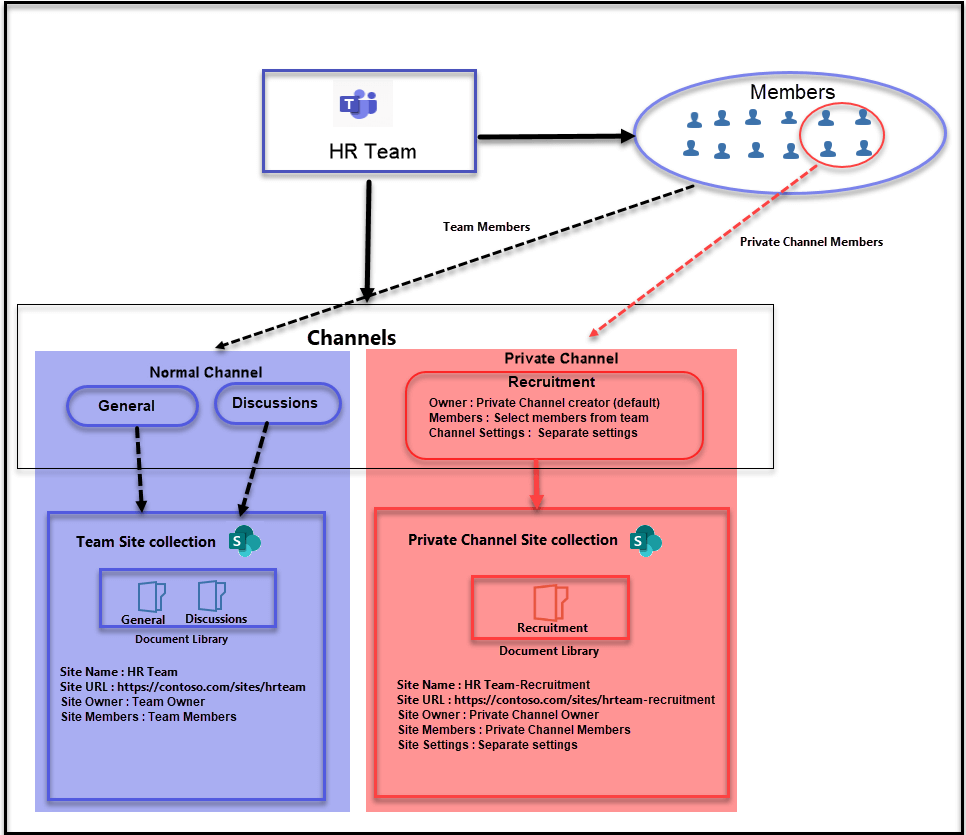
Private Channel Architecture
In standard team channel, a folder is created for each channel in the
team’s SharePoint site collection. Microsoft Teams provides true privacy
for the private channel, so it is designed with
- Separate SharePoint Site Collection for each Private Channel.
- Separate owner and team members for each Private Channel.
- Site Collection owner and members are mapped to corresponding
private channel owners and members. - Independ private channel settings does not depend on team settings.
Only the private channel owner and members have access to the private
channel conversation and site collection, other team members don’t have
permission to access the conversation and files. This true privacy
applicable for the team owner also, if the parent team owner is not a
member of the private channel, then the team owner doesn’t have access
to the private channel site collection and conversation.
Comparison between Private Channel and Standard Channel
| Feature | Standard Channel | Private Channel |
|---|---|---|
| Create channel | Any members can create the channel. | Any members can create the channel. Except guest users. |
| View channel | All the members can view the channels. | Only private channel members can view private channel. |
| Delete channel | All the members can delete the channels. | Only private channel owner and team’s owner can delete the channel. |
| Restore Channel | Only team owner can restore the channel. | Only private channel owner can restore the Private channel. |
| Edit Settings | Only team owner can change channel settings. | Only private channel owner can change channel settings. |
| Add Members | There is no separate option for normal channel. Team owner can add the member to teams. | Only private channel owner can add member to Private Channel. |
| Remove Members | There is no separate option for normal channel. Team owner can remove the member in teams. | Only private channel owner can remove member in private channel. |
| Name and Description | Team owner and members can view the name and description from Manage team Channels. | Team owner and private channel owner and member can view the name and description from Manage team Channels. |
| Tabs | Supports all apps including Microsoft first Party apps and third-party apps. | Supports all apps including Microsoft first Party apps (except Planner, Stream, Forms) and third-party apps. |
| Meeting | Supported. | Not Supported. |
| Files | Each channel has separate folder in document library in the parent team SharePoint site collection. | Each private channel will create new site collection and it will not depend on parent team SharePoint Site collection. |
| e-discovery | Supported. | Supported. |
| Channel limit | We can create up to 200 channels including deleted channels. | We can create up to 30 channels including deleted channels. |
| Members limit | We can add members up to 5000. | We can add members up to 250. |
This setting depends on Teams member permissions settings.
Who can create the Private channel?
All team members can create private channels except guest users, but we
can control private channel creation for members in the following
methods.
- Teams member permission
- Teams Policies
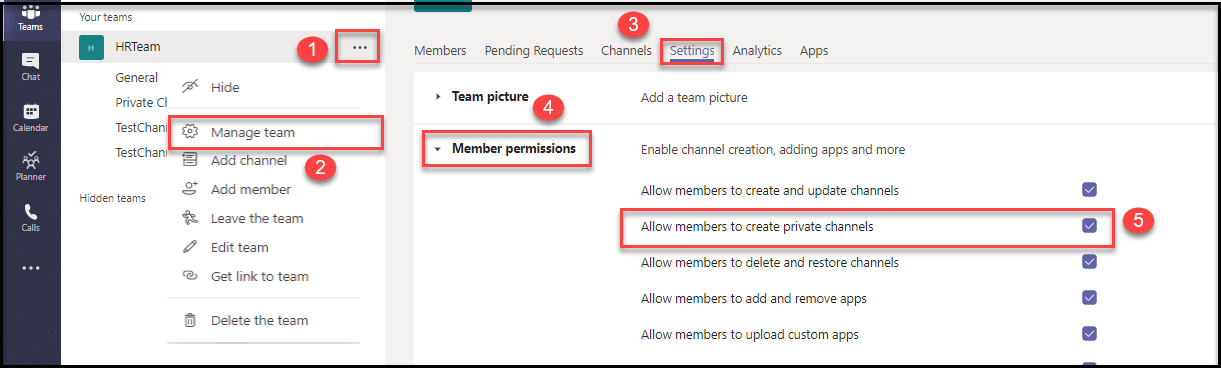
Teams member permission
We can manage this setting from individual teams. TeamsManage teams
SettingsMember permissionsAllow members to create private channels. If
this setting is disabled, only the team owner can create the private
channel.
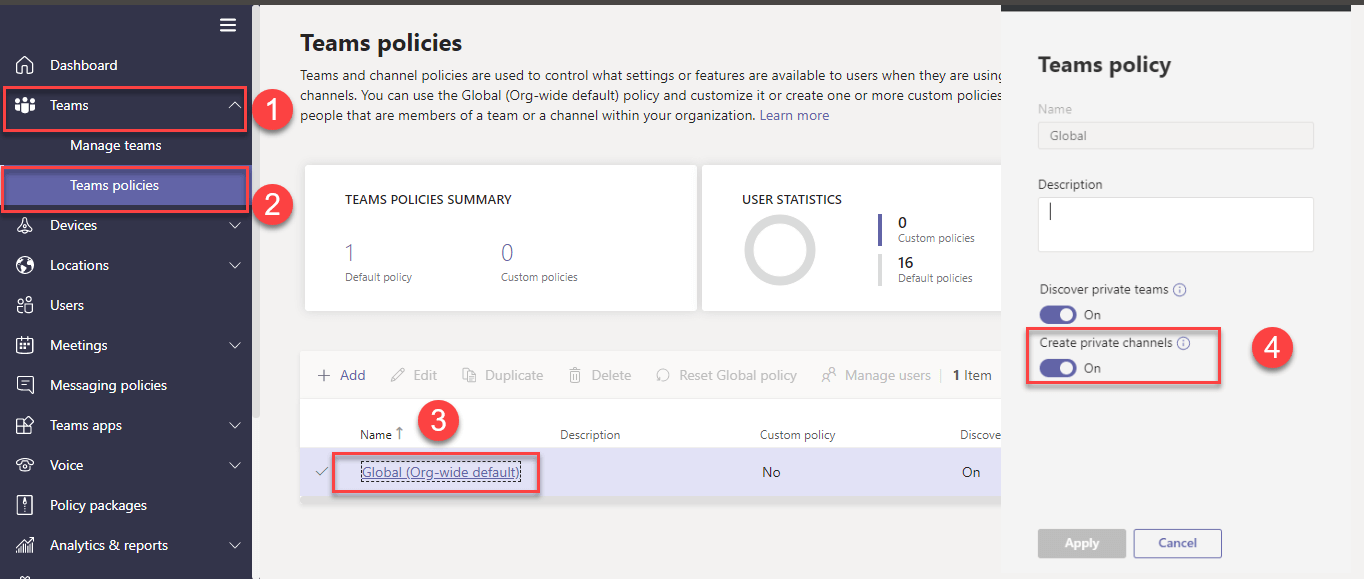
Teams Policies
We can manage this setting from Teams admin center, **TeamsTeams
PoliciesGlobal (Org-wide default)**Enable the Create private
channels option. By default, Global (Org-wide default)- Team
Policies applied for all tenant users and Create private channels
option also enabled in this policy.
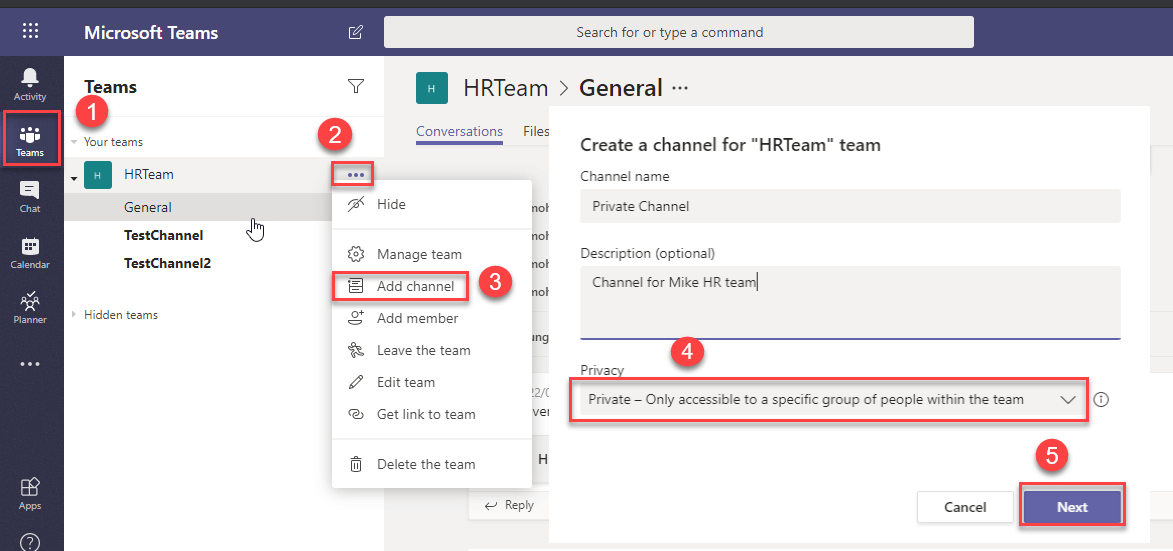
How to create private channel.
We can create a private channel on any team. TeamsSelect required
teamClick more option (…)Add ChannelChange Privacy to Private.
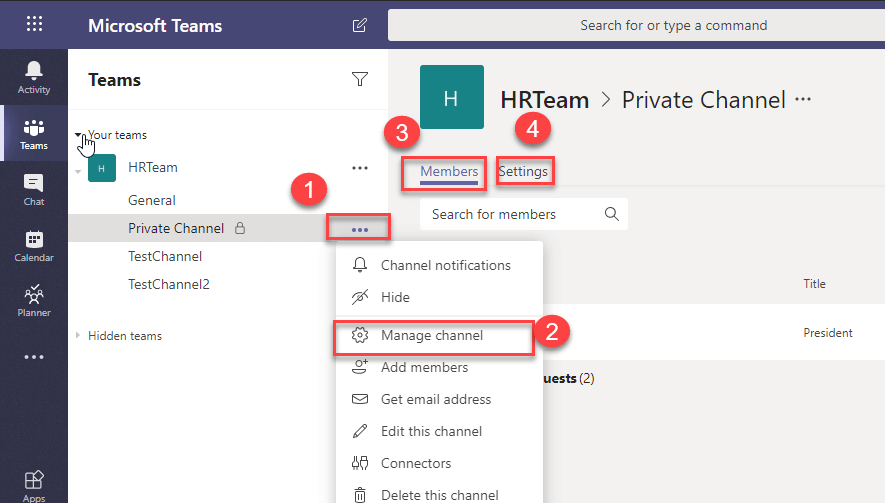
How to manage private Channel.
Each private channel has unique members and settings. We can manage
members and settings from the Manage channel option.
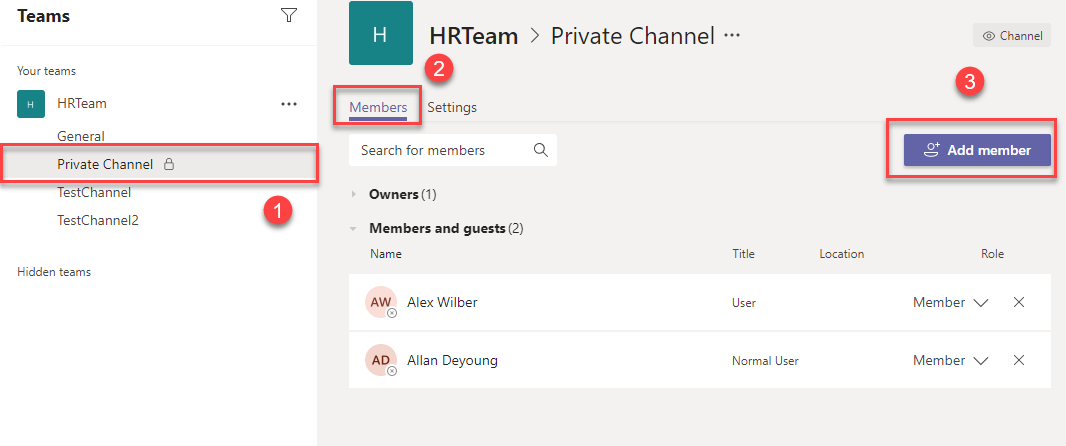
Members
We can add and remove members from this section. We can add members only
from the existing Team members list. If we remove any specific user from
the parent team, that user will also automatically be removed from all
private channels in the team.
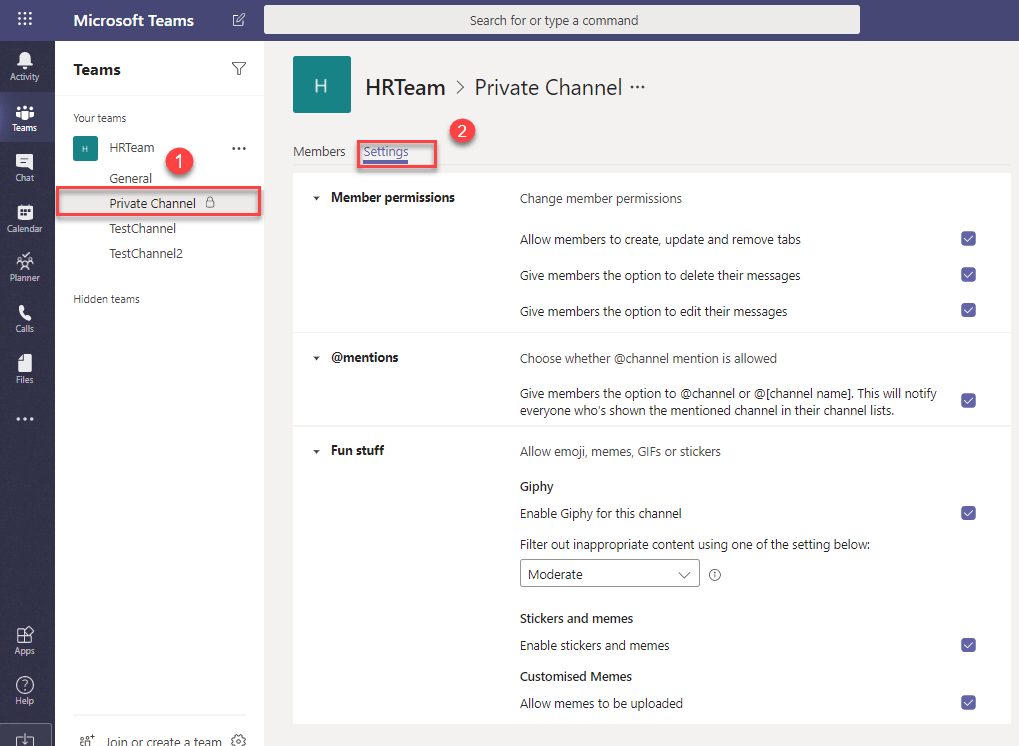
Settings
Each private channel has unique settings. The private channel has the
following settings.
- Member Permission (settings for tabs and message)
- @mentions
- Fun Stuff (settings for Giphy, Stickers, Memes)
The above setting does not depend on parent team settings. For example,
@mention setting enabled in parent team settings but it’s disabled in
the private channel setting. Now a member of the private channel can’t
use @mention in the particular channel, but the same member can use
@mention in the other normal channels.
How to view private channel members
All private channel members can view the members of the private channel.
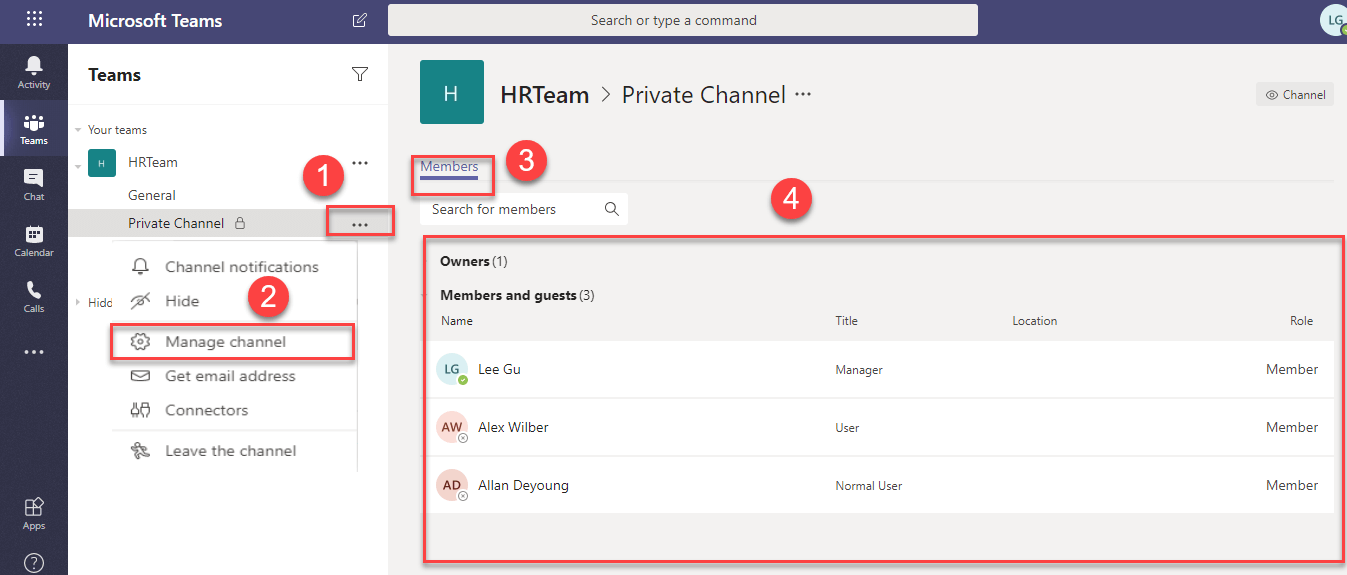
We can view private channels members from the following option.
- Members in Manage Channel.
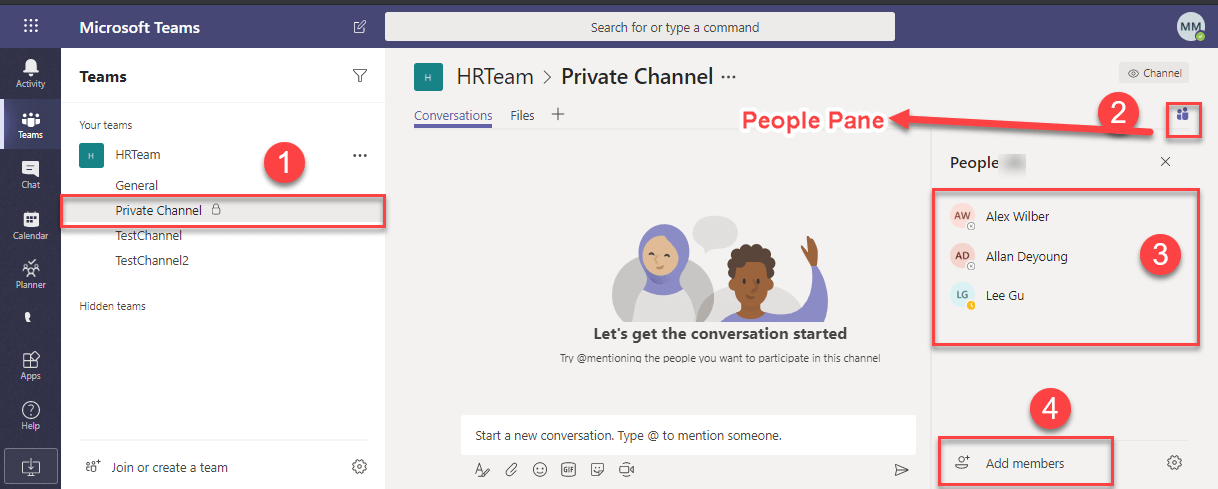
- People pane
Members in Manage Channel.
Private channel members and owners can view the member in private
channel from Manage channelMembers.
People pane
People pane options will show all members of the private channel. This
option visible for private channel members and owners. Private channel
admin can add the user from people pane option.
Private channel File System
Each private channel has own site collection and the name of the private
channel site collection will be like “Parent Team Name”- “Private
Channel Name”.
Example: If the parent team name is HRTeam and Private Channel name
is Provisioning Team, then the corresponding site collection name
will be HRTeam- Provisioning Team
Private channel files are directly connected with the corresponding site
collection document library. If you remove the private channel, the
corresponding site collection also removed from SharePoint online and
moved to recycle bin. If you restore the private channel, the
corresponding site collection also restored automatically. You cannot
directly add a member to Private channel site collection.
Site collection permission
Private channel site collection permissions will be in following manner.
- Private channel Owner set as site collection administrator.
- Private channel member set as site collection member.
If you add any user in default SharePoint groups (Owner, Member, Visitor
), the new users will be removed automatically if they are not in the
channel members list, because SharePoint site collection automatically
syncs to a private channel in certain time intervals so other than
private channel members will be removed automatically in the site
collection.

e-Discovery
The private channel support e-discovery but different from standard team
channel because the copy of standard team channel conversation stored in
the team mailbox, but private channel conversation stored in all the
private channel members mailbox. Similarly, the file system also
different from the normal team channel because each private channel has
a separate site collection.
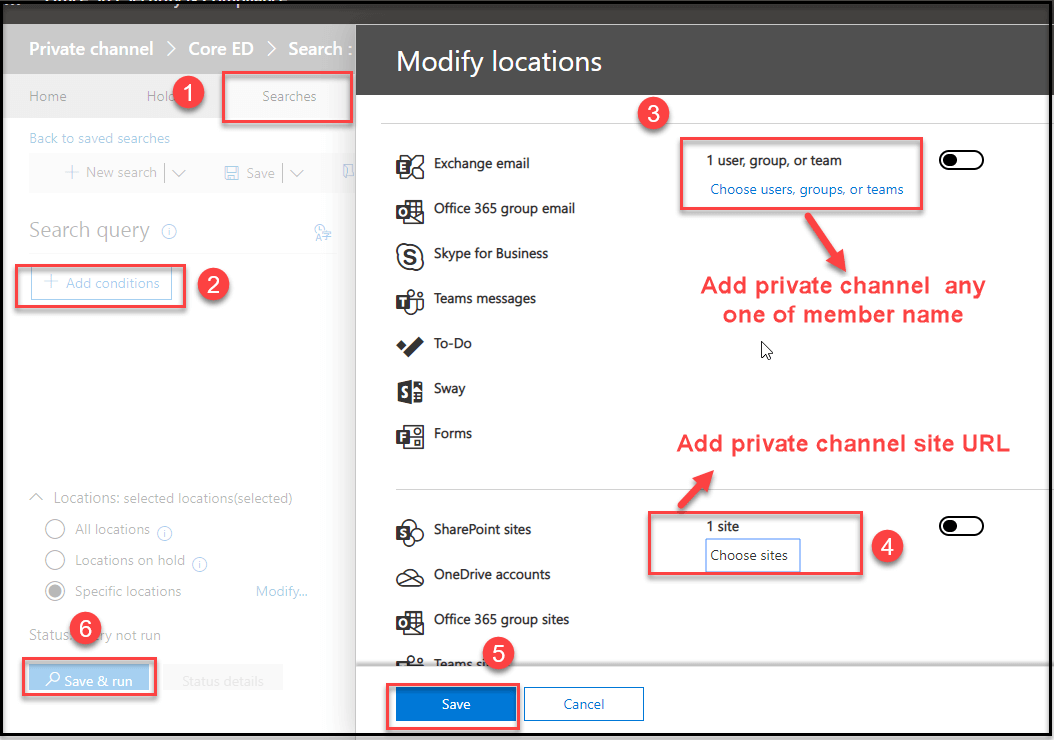
How to discover content from private channel.
If you want to discover the content in private channel conversation,
need to add any one of member mailbox in the e-discovery search.
Similarly, if you want to search file in a private channel, we need to
add a private channel site URL in the e-Discovery search. Refer to the
below image.