


Managing office 365 license based on Groups is one of the most expected
feature. Using this feature admin can easily assign user licenses based
on Groups. This feature is fully automated so when an user is added or
removed from group, the user’s license will be reassigned automatically.
Also it is powered with the intelligence to handle users with multiple
licenses. For example, if an user is in multiple Groups and each group
has different licenses(Group1 – E3 & Group2 – E5), then features in both
the licenses will be available for the user. At the same time, if the
user is removed from one group (Group1 – E3) then the user is licensed
with the license available in another Group (Group2 – E5).
Note:
This feature available only in Azure Portal and you need to have Azure
AD Premium P1 subscription.
Supported Group Types
- Security Groups
- Mail Enabled Security Groups
- Dynamic Security Groups
- Self-service enabled groups
How to assign licenses based on Groups?
First you need to login
https://portal.azure.comthen then follow
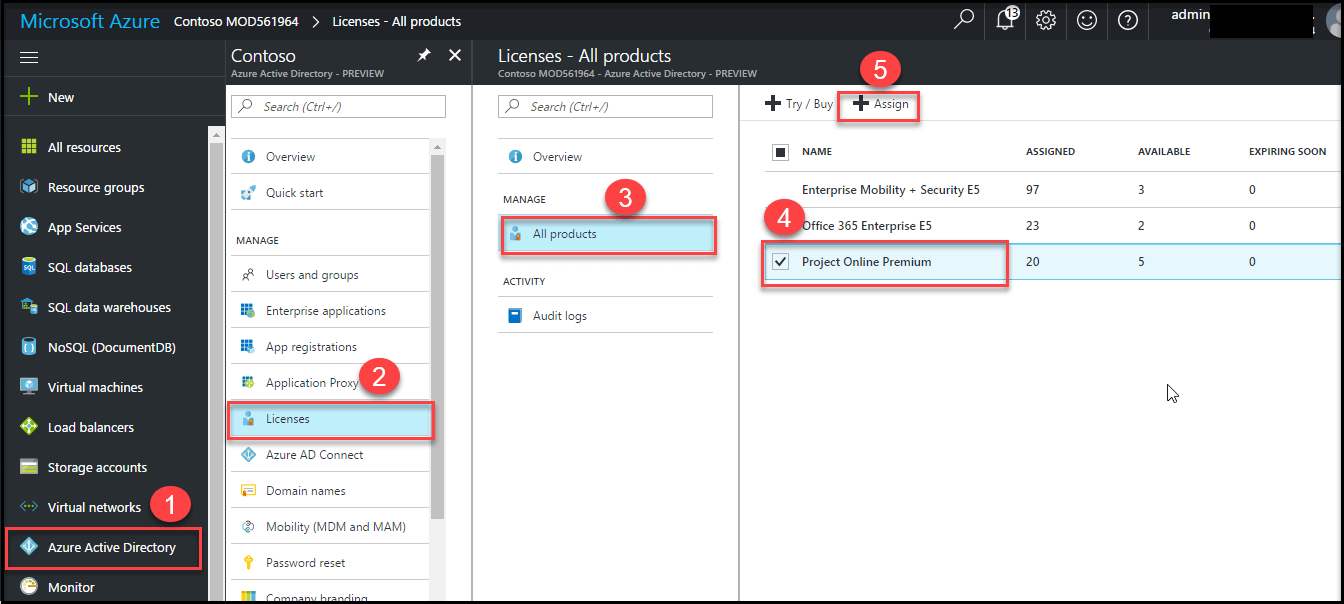
below steps and the numerical points as in the below screenshots
Select License
**
Select Groups
After selecting license ,click link Assign, it will open new window
to select group. then follow numerical points as in the below
screenshots.
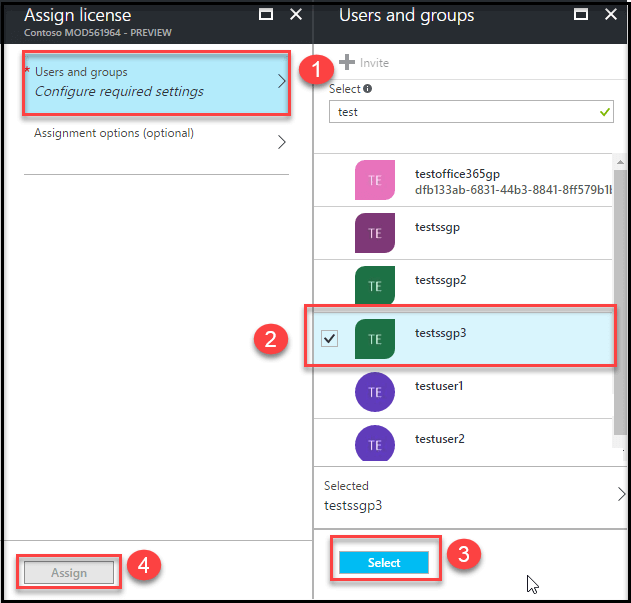
Now the licenses will be automatically applied to the Group members.
How to find groups based on licenses assigned?
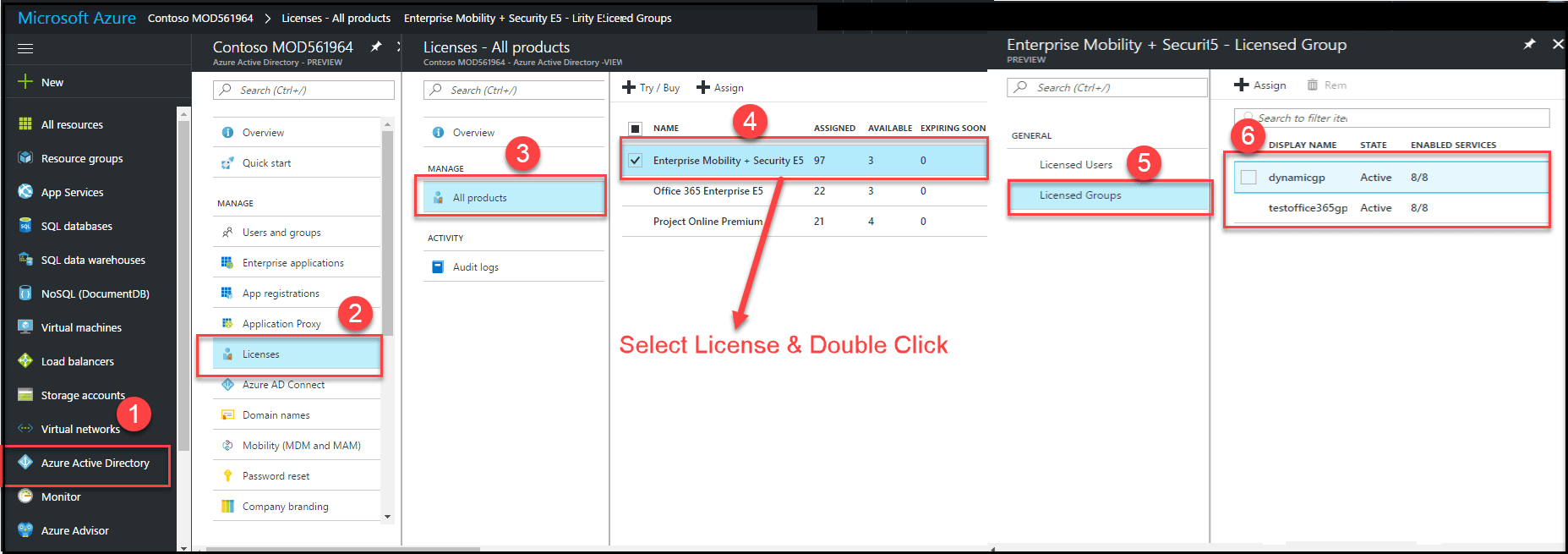
You can get list of Groups based on every single license, follow
numerical points as in the below screenshots
**
How to find Users based on license assigned?
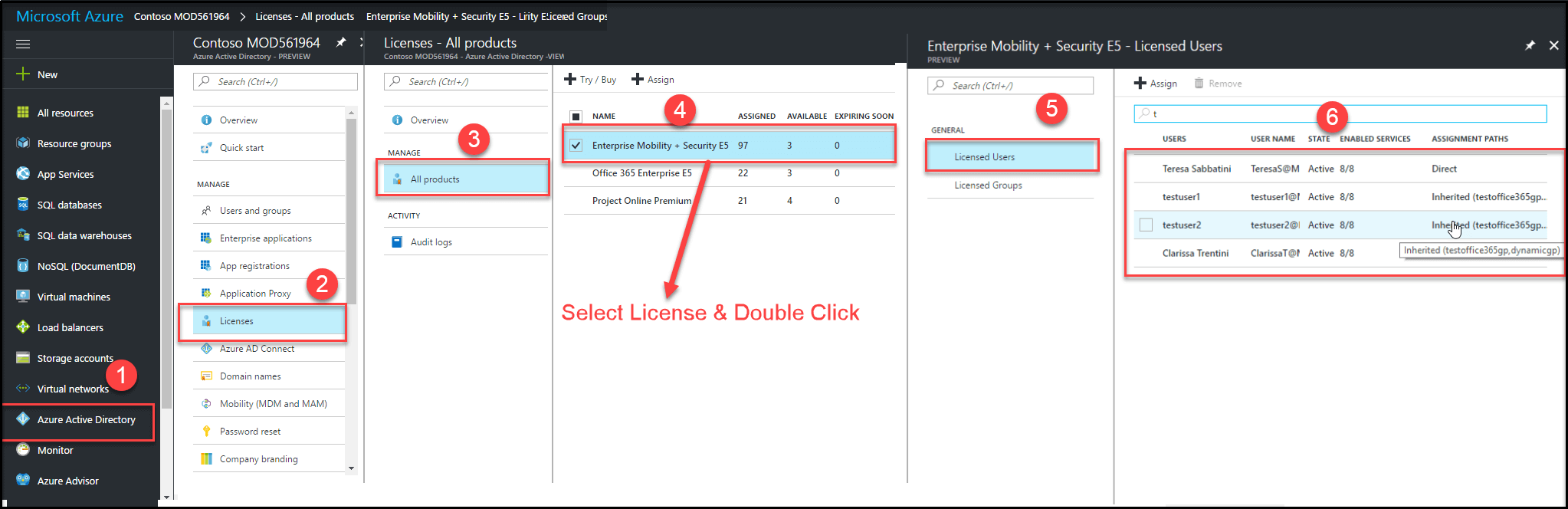
You can easily find users with specific licenses assigned and also how
the licenses has been applied to users, whether direct or inherited
license (This type is called Group based inherited license ). There are
cases in which you will remove a Group from particular license but user
still have that license applied because of the inheritance. So it is
recommended to verify what kind of license is assigned into users.
**
Limitation
- This feature is only available in Azure portal and con not be manged
from Admin Center or by using PowerShell script. - Once the license is assigned based on groups, then it is not
possible to edit user license from Admin Center. You will see error
message when you try to do so. - This feature is not supported for nested Group , if license is
applied to nested group it will be applied for first level users
alone.
For more details, refer the following link
–https://docs.microsoft.com/en-us/azure/active-directory/active-directory-licensing-group-advanced#limitations-and-known-issues
















