Microsoft recently launched new SharePoint admin feature Conditional
access by network location. Using this feature you can able to control
IP address range to access SharePoint and OneDrive sites. Users can’t
access from other IP address range and it will block all access from
Browser, OneDrive client sync , Mobile Device Access, SharePoint
PowerShell (SPO Services, PnP Online).
Note
These features available to all First Release commercial & GCC tenants.
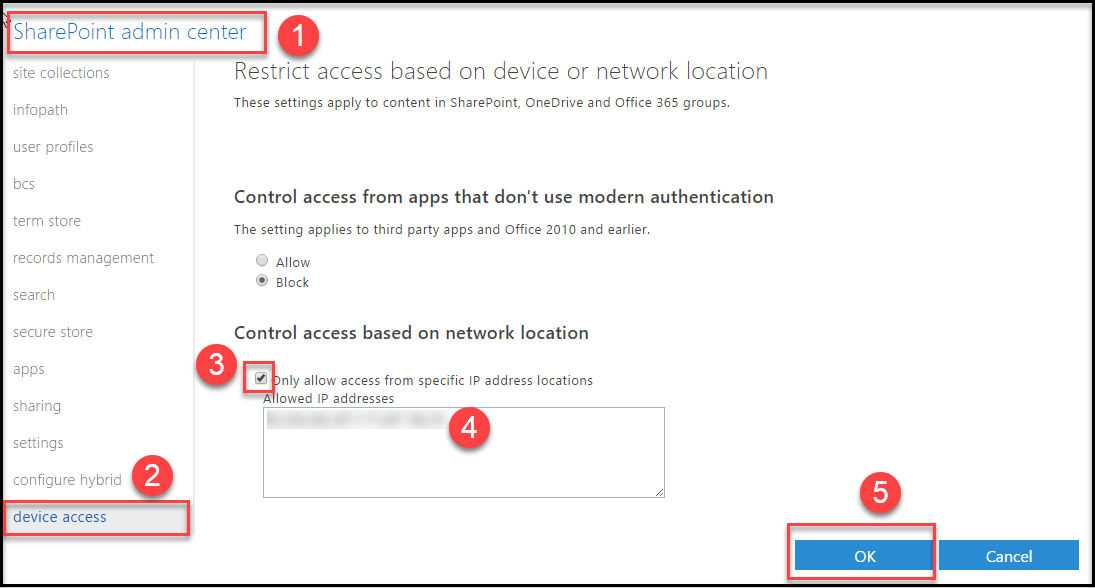
How To Enable Control Acess Based On Network Location
Follow the numerical points as in the below screenshot to create control
access based on network location
Note
Before entering the IP address double check if IP address is correct.
Once IP address is enforced and if you have entered wrong IP address
range, administrator can’t connect SharePoint admin center to
reconfigure. If you face similar problem, you need to contact Microsoft
support to reestablish connectivity.
If you have already applied Azure Active Directory Premium (AADP) to
restrict location access by IP network range setting, that will take
higher precedence of SharePoint admin control access based on network
location setting.
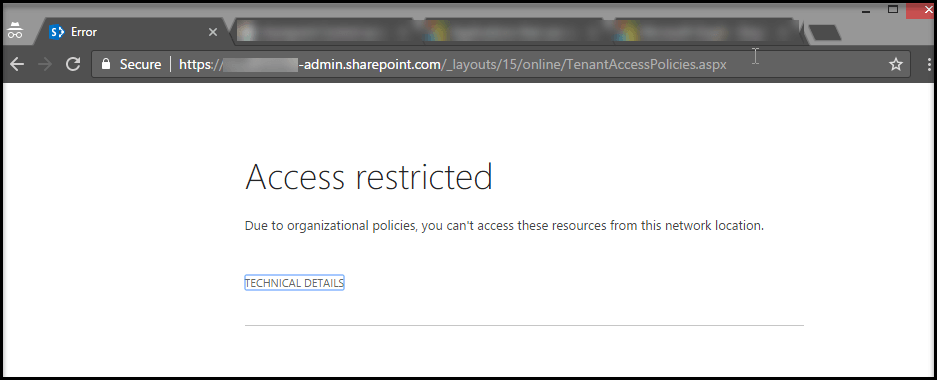
How to find the control access based on network location setting is working?
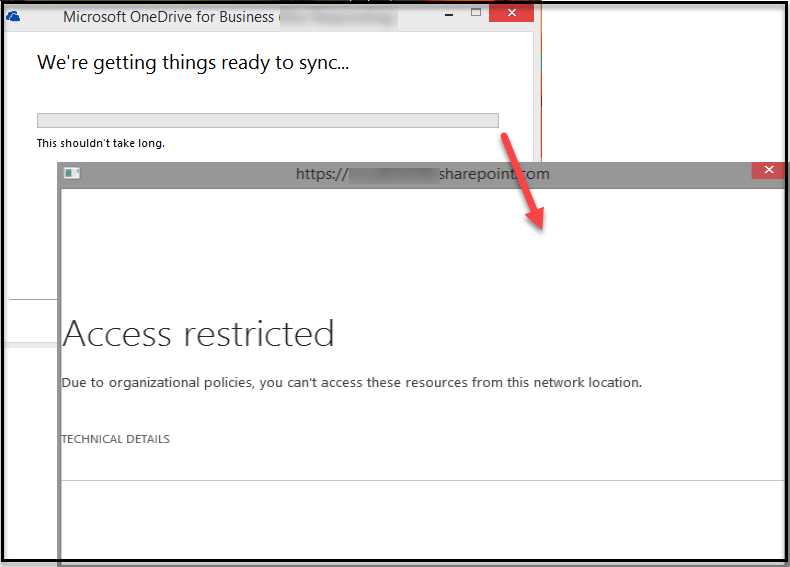
It’s very simple if you access undefined IP address range, you will get
Access restricted error message and below we have listed all kind of
warring messages like Browser, OneDrive client sync, SharePoint
PowerShell (SPO Services, PnP Online).
Browser Warning Message
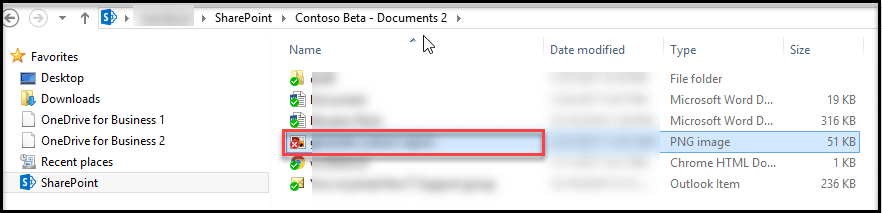
OneDrive client sync Warning message
It will block both create new sync connection and already existing sync
connection.
1. Create New Sync Connection
2. Existing Sync Connection
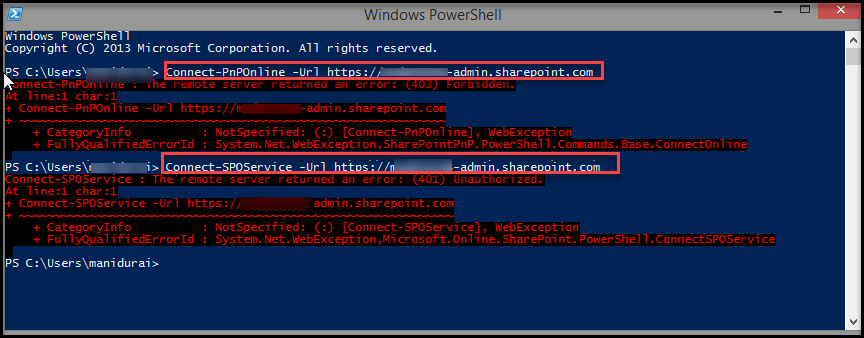
SharePoint PowerShell Warning message
It also blocks SharePoint PowerShell connection from undefined network
location.