


OneDrive for Business Admin Center is the most awaited control that was
requested by many users for a long time. The wait is over! You can
access the OneDrive for Business Admin Center preview from
https://admin.onedrive.com .
The new Admin center preview will help admins to control and manage
users OneDrive of Business easily from a central location. Earlier it
was difficult to manage users OneDrive because it can be controlled via
PowerShell. Now new Admin center has made this job easier because it
supports tenant level control for Sharing, Storage, Sync, Device access
and Compliance management.
Sharing
External sharing is very sensitive in OneDrive and Admins need to manage
this according to their business policies. The following controls are
available at tenant level.
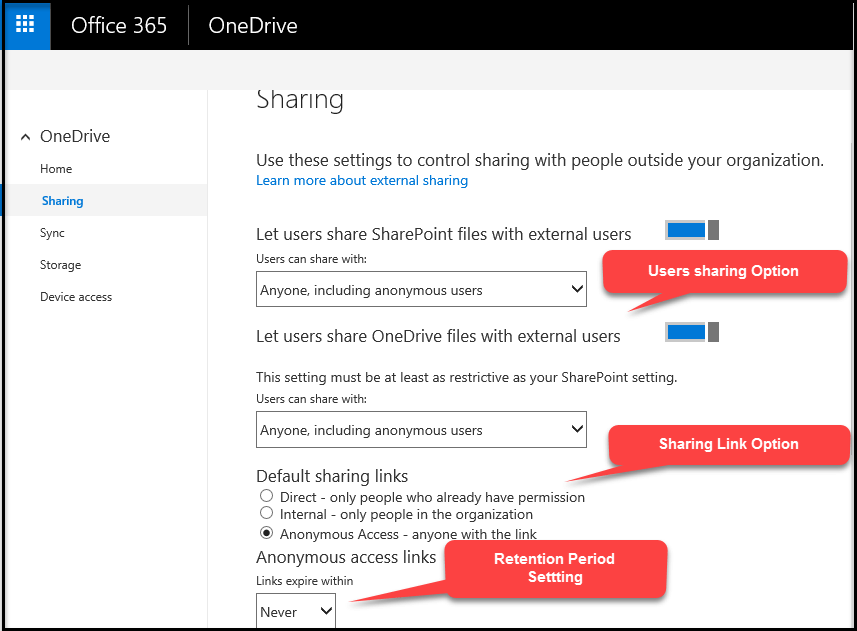
- Users default sharing Option
- Default sharing link
- Retention period of anonymous Link access
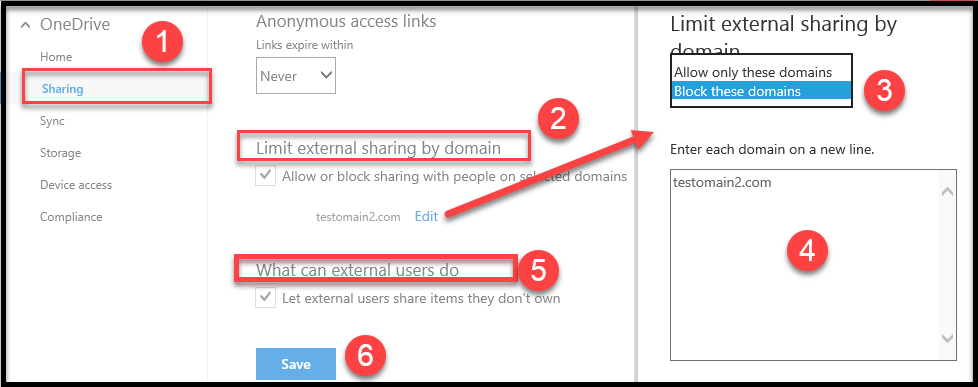
- Limiting External sharing by domain, limiting further external
sharing documents to others.
1. Sharing and Sharing Link Setting
You can control sharing and sharing link for all OneDrive for Business
users as highlighted in below screenshot.
2. Limit External Sharing by Domain and External User Sharing
Follow the numerical points as in below screenshot to Allow or Block
external sharing by domain.
Sync
Sync files to OneDrive for Business can be limited and controlled using
following settings.
- Install Sync client from the OneDrive website
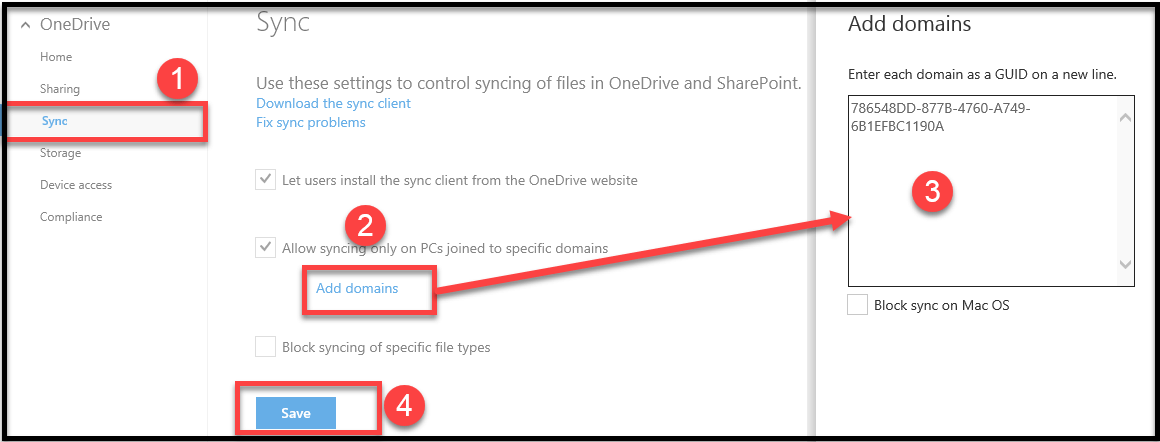
- Allow syncing only on PC Jointed to specific domains,
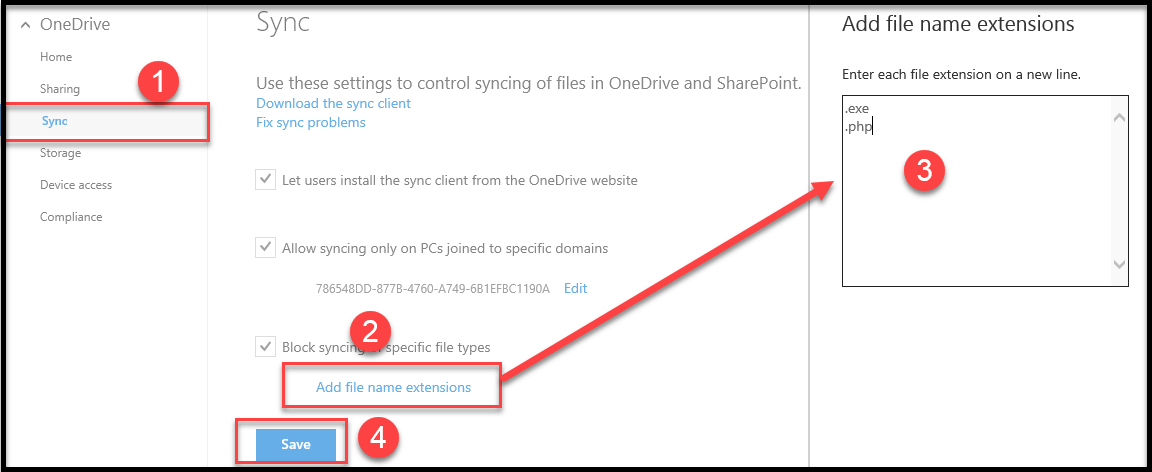
- Blocking syncing of Specific file types.
1. Allow syncing only on PC Jointed to specific domains
Using this option, you can allow OneDrive to sync files to PC that are
joined to specific domains.
2. Blocking syncing of Specific file types
Admin can block unwanted file types from syncing to OneDrive as
highlighted in below screenshot.
Storage
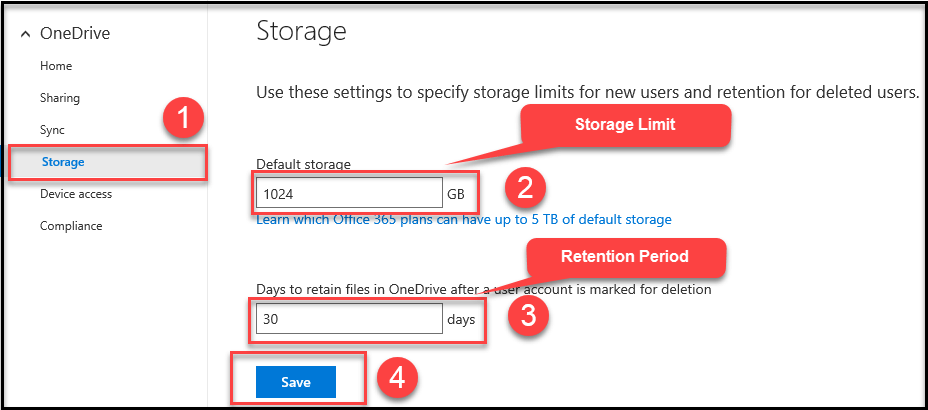
From here you can set default OneDrive storage size for all OneDrive
users and also you can set file retention period for after deleting file
from OneDrive
Device Access
From here you can able to control OneDrive for Business PC and Mobile
client access based on network location.
- Control Access based on Network Location
- Allow/Block modern authentication
- Intune policies for iOS and Android
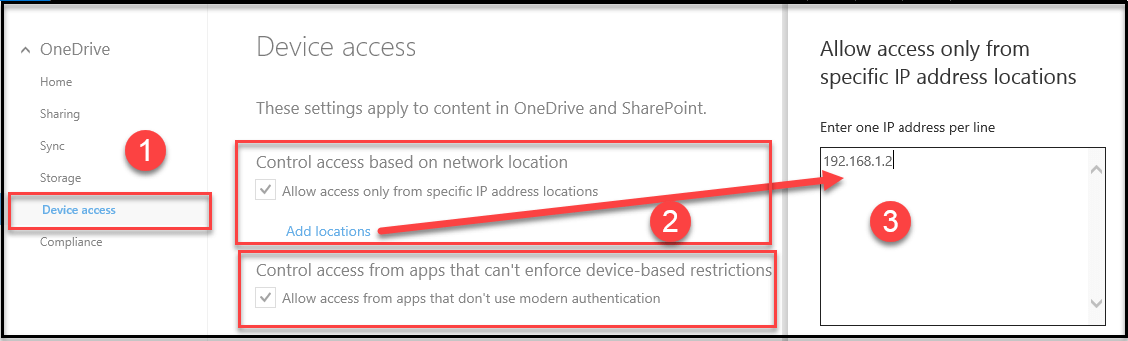
1. Control Access based on Network Location
Using this feature you can control selective range of IP address from
where the client is accessible.
2. Intune Policy Setting
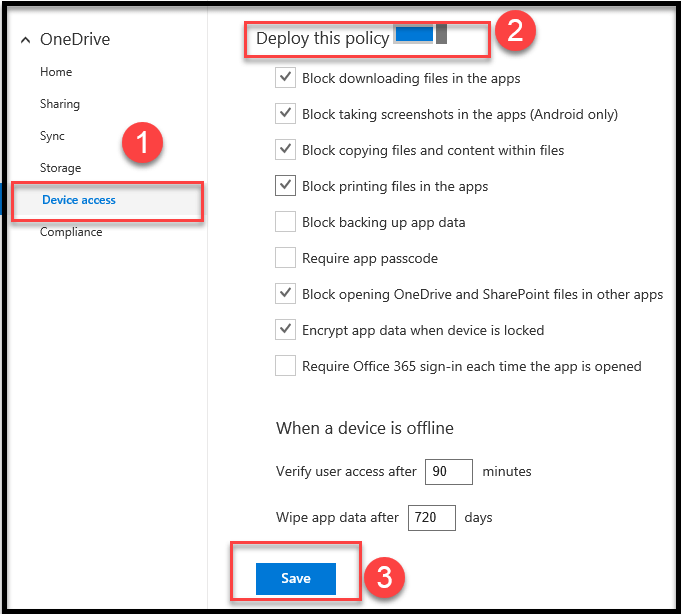
Using this feature you can control access like block download file ,take
screenshot ,copy file, print file, etc.. from SharePoint and OneDrive
mobile apps but if you created other policy in Intune. If there are
other policies created in Intune, those will take precedence.
Compliance
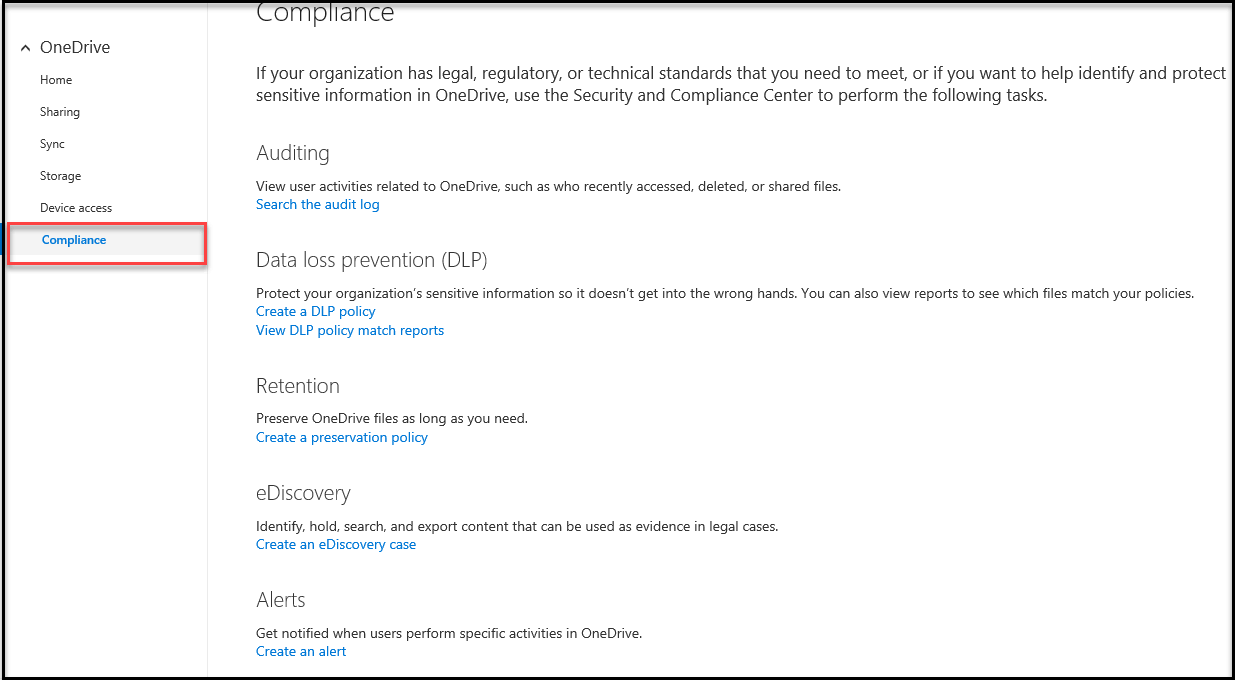
You can manage Compliance Center key features such as Auditing, Data
Loss Prevention, Retention, and eDiscovery. But if you click any link it
will redirected into Office 365 Security and Compliance Center to manage
this.
Now OneDrive Admin center is in preview some of the new features will be
rolled out in early 2017. As of now, the following will be available in
next update
- OneDrive for Business Admin Center Home page – Office 365 Message
Center posts and usage reporting related to OneDrive for Business. - OneDrive for Business Admin Center accessible from Office 365 Admin
center.
















