The fast growth of Office 365 Groups is due its rich features like
SharePoint Document Library, SharePoint Team Site, Planner, Mail
Conversation, One Note etc. These features help members of Office 365
Group to easily collaborate with each other to share ideas, reduce time
consumption for tasks and improve efficiency. Recently Microsoft
announced the integration of Yammer Groups to Office 365 Groups.
NOTE : Once Yammer Groups integrated to Office 365 Groups, users can
choose to have group conversations in either Yammer or Outlook.
In this blog, we will discuss the following points,
- ** How to integrate Yammer Groups to Office 365 Groups
- ** New features in Yammer Groups
- Directly create new file (word, Excel, SharePoint) from Yammer
Files - Attach the document from OneDrive
- Preview image for document and link
- Share the SharePoint file to Yammer Group
- Manage Yammer Groups from Office 365 Admin center
- Directly create new file (word, Excel, SharePoint) from Yammer
How to integrate Yammer Groups to Office 365 Groups
Microsoft announced that Yammer Groups will be integrated with Office
365 Groups. But, if you wish to manually force the integration of Yammer
Group to Office 365 Groups, you need to follow the following steps in
Yammer Admin center,
Steps
- 1. Open Office 365 Admin center, navigate to Admin centers
section and select Yammer. - 2. . Now in the Yammer Admin center, navigate to Content
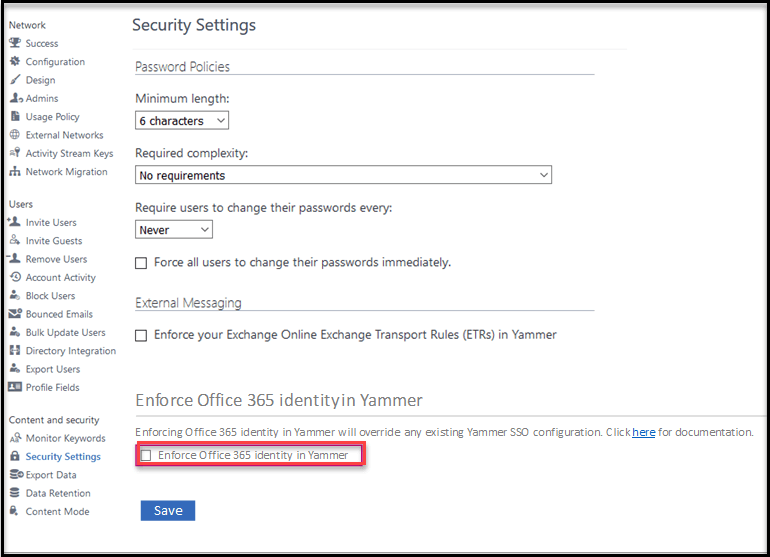
and security section and select Security Settings option. - 3. In the Security Settings page, enable Enforce Office
365 identity in Yammer checkbox.
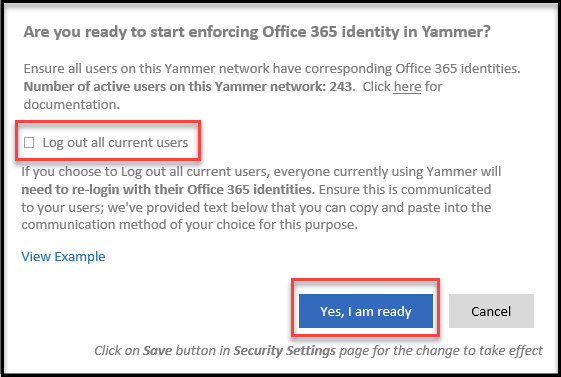
4. After enabling Enforce Office 365 identity in Yammer
checkbox, a popup window will be displayed with active user count
information in your Yammer Network. If you wish to enforce Office 365
identity in Yammer, you need to enable Log out all current users
check box. Finally click Yes I am Ready as shown in the below
screenshot.
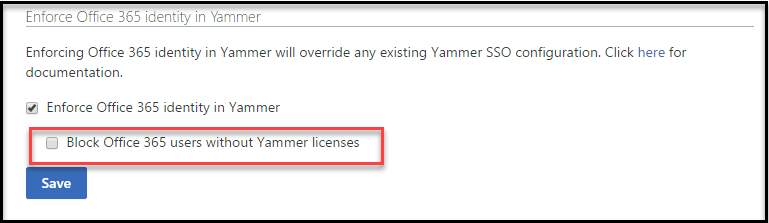
5. After enabling Enforce Office 365 identity in Yammer option,
a new check box will be visible – Block Office 365 users without
Yammer licences, which helps you to limit Yammer users only with valid
license. Finally click Save.
Note:
You can also easily revert the integration, by disabling Enforced
Office 365 identity in Yammer checkbox.
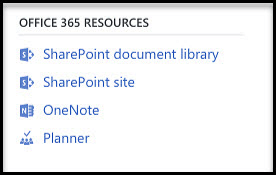
After enabling Enforced Office 365 identity in Yammer setting you
can access SharePoint Document Library, SharePoint team site, One Note
and Planner in Yammer Group page, which is available in the right-side
navigation below Office 365 Resources section, as shown in the below
screenshot.
Note :
Office 365 Groups will initially only be available for Yammer networks
that are associated with one Office 365 tenant (1:1 tenant networks) and
it’s not supported for external user.
New features in Yammer Groups
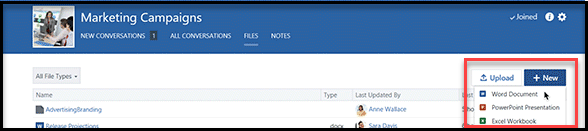
Directly create new Document (word, Excel, SharePoint) from Yammer Files
Previously Yammer Files supported only upload file option, but now you
can directly create new document from Yammer Files and also supports –
Word Online, Excel Online, PowerPoint Online. Document management
features include the following :
co-author documents with colleagues, view version history, mark
important files as official, share.
Attach the document from OneDrive
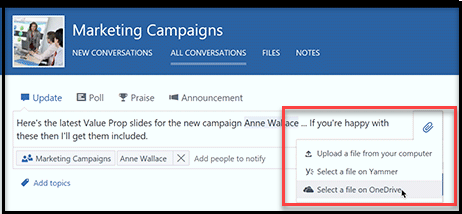
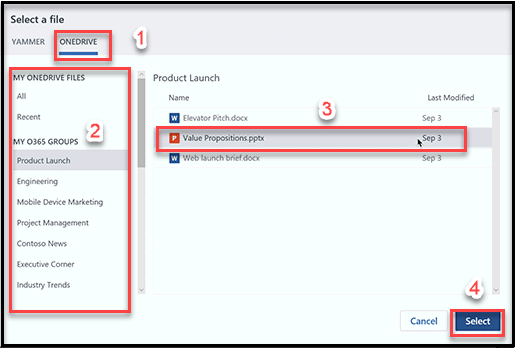
Now you can attach documents from One Drive and Office 365 Group –
Files, in addition to previously supported options – Upload a file
from your computer and Select a file on Yammer.
Using following screenshots, you can upload a file on One Drive.
step 1:
step 2:
Preview image for document and link
Now you can view the improved image preview for documents, link and also
now supported image gallery view in conversation, which will be helpful
for locating the right document.

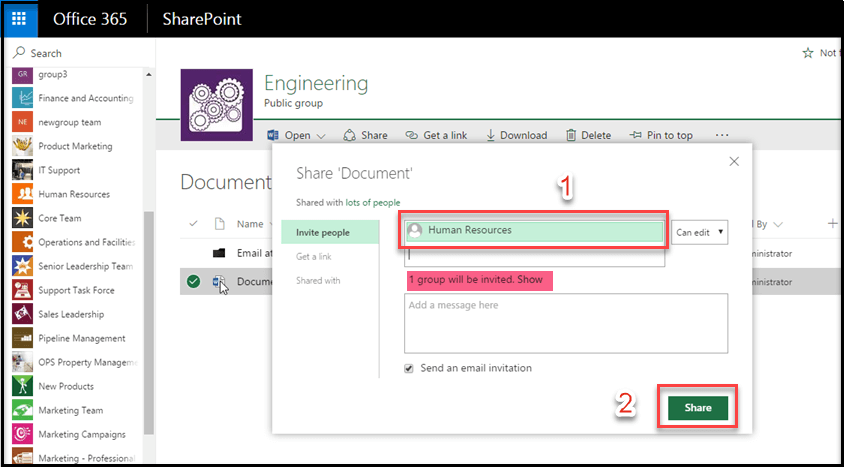
Share the SharePoint file to Yammer Group
Now Yammer Group integrated with Office 365 Group, as a result Yammer
Group will exist as an entry in Global access list (GAL). So you can
share document to Yammer Group, therefore members of the group are
automatically granted access to the document.
You can share file from SharePoint document to Yammer Group using the
numerical points as highlighted in below screenshot.
Manage Yammer Groups from Office 365 Admin center
Previously you can manage Yammer Group only from Yammer portal. But now
Yammer Group integrated with azure active directory, so you can now
manage Yammer Group from azure portal, admin center portal and Yammer
portal. You can find the below screenshot for managing Yammer Groups
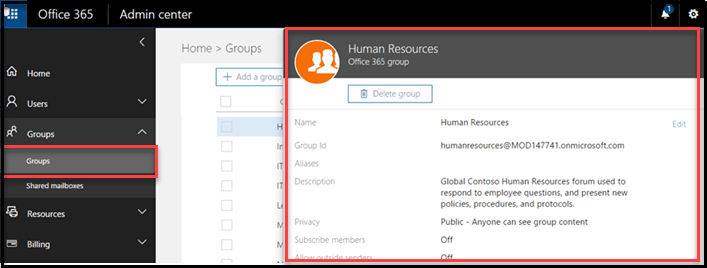
from Office 365 Admin center.