

Supervisory Review Policy is a new feature implemented in Security &
Compliance admin center, which allows administrators to define
policies that capture communications in your organization so they can be
examined by internal or external reviewers. Reviewers can then classify
these messages, make sure they’re compliant with your organization’s
policies, and escalate questionable material if necessary. As of now,
Supervisory Review is still in preview and only captures communications
via email, but it is expected to expand in the future.
Supervisory Review includes the following components,
- Supervisory Review Policies – Defines which communications to be
reviewed and who will review. - Supervisory App for Reviewers – To perform supervisory review and
classify the communication as- Compliant, Non-Compliant, Questionable, Resolved
In this blog we deal with the following topics,
- Permission Configuration
- Supervisory Review Policy creation
- Supervisory App installation for Supervisory Review
- Supervisory Review of communications
- Supervisory Review Report
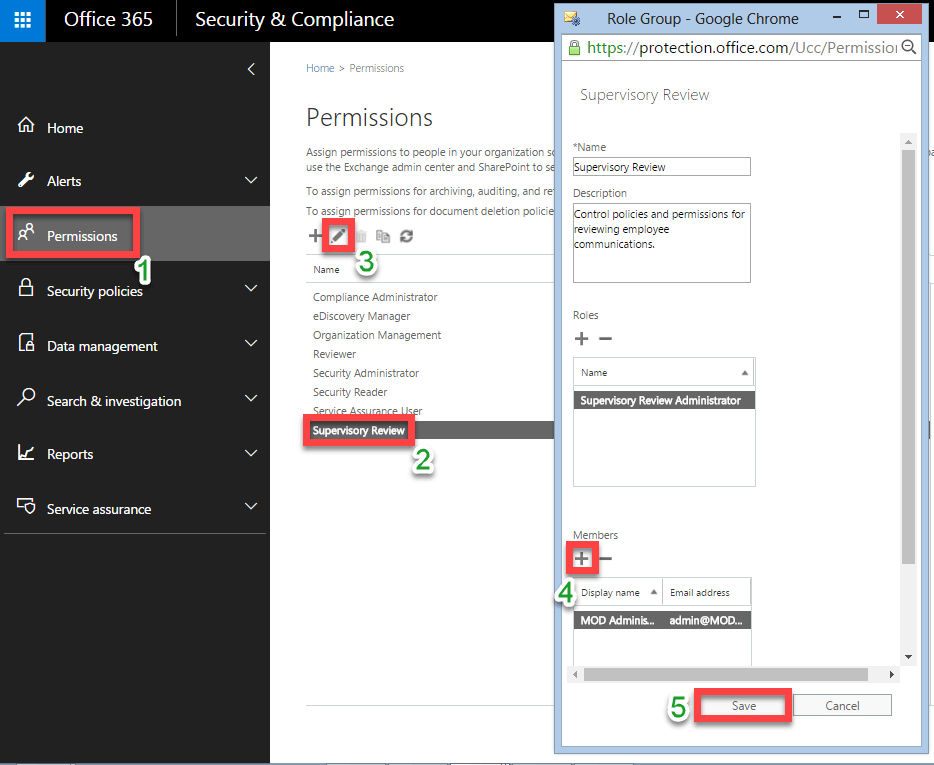
1.Permission Configuration
Assign permissions to your required users/groups in your organization to
create/control Supervisory Review policies and to review employee
communications
2. Supervisory Review Policy creation
The Supervisory Review Policy creation includes the following steps,
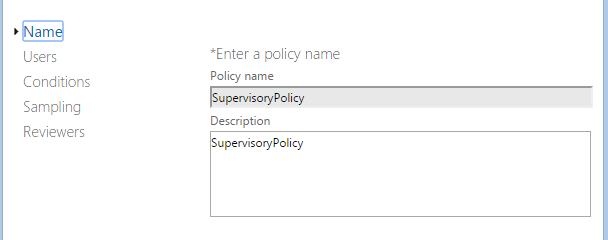
Step1:- Name your policy
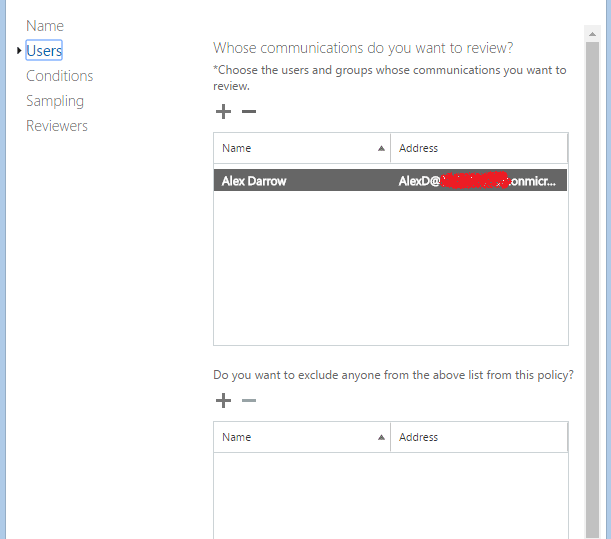
Step2:- Choose users and groups whose communication need to be
reviewed.
NOTE:
If you have selected a distribution group for this policy and
if you wish to exclude specific users or groups within the selected
distribution group from Supervisory Review, then you can use the section
- do you want to exclude anyone from the above list from this
policy?to exempt them from supervision under this policy.
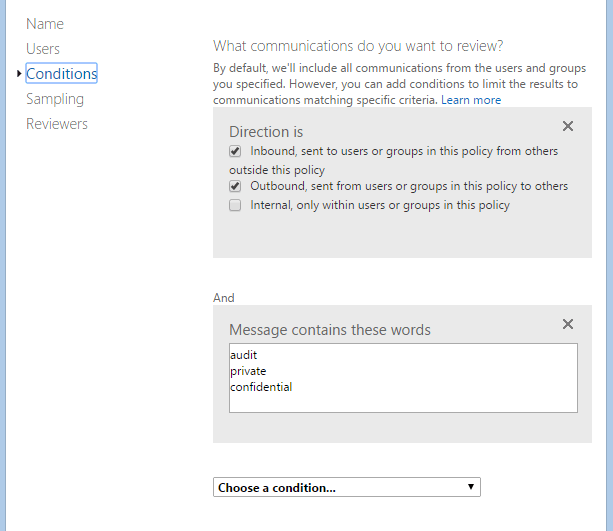
Step3:- Add your required conditions to capture the specific
communication of the selected users and groups.
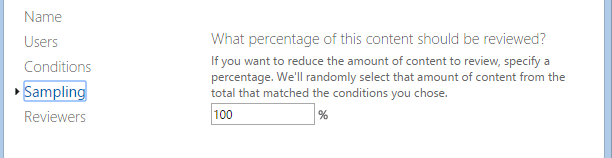
Step4:-Specify the percentage of content to be reviewed
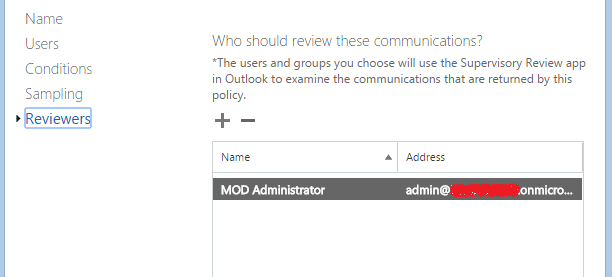
Step5:- Choose users and groups who will use Supervisory app to
review and classify the communications based on this policy.
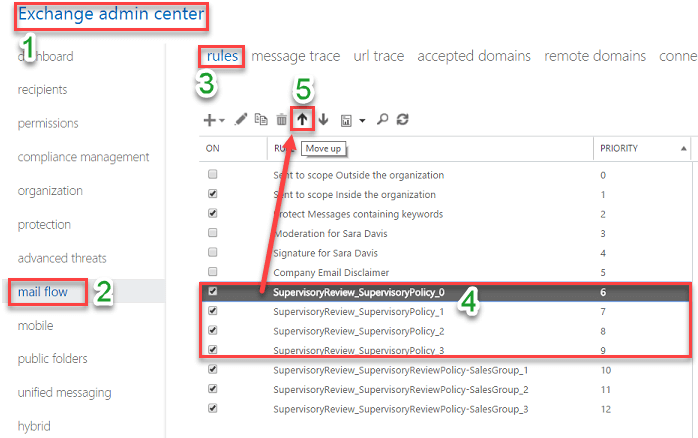
NOTE:
Whenever you create a new Supervisory Review Policy in Security &
Compliance admin center, which in turn creates corresponding
transport rules in Exchange admin center. Moreover, transport
rules created earlier may block the transport rules specific to your
Supervisory Review Policy, therefore you can make sure proper working of
your Supervisory Review Policy by changing the priority of corresponding
transport rules as highlighted in the below screenshot.
3. Supervisory App installation for Supervisory Review
To allow the reviewers to perform Supervisory Review, Microsoft has
created an app that need to be installed in the Outlook web portal of
reviewers. To install the app, run the following command in remote
PowerShell by connecting to your Exchange Online tenant using Global
administrator credentials.
PowerShell Command:
New-App -OrganizationApp -Url https://complianceclientsdf.blob.core.windows.net/srapp/manifest.xml -ProvidedTo
SpecificUsers -UserList "user1","user2","user3","user4","user5" -DefaultStateForUser Enabled
NOTE: In the above PowerShell command, you need to replace each user
in the list with the Email address or Alias or Display name or Name for
each reviewer (user or group).
Powershell Output:

4. Supervisory Review of communications
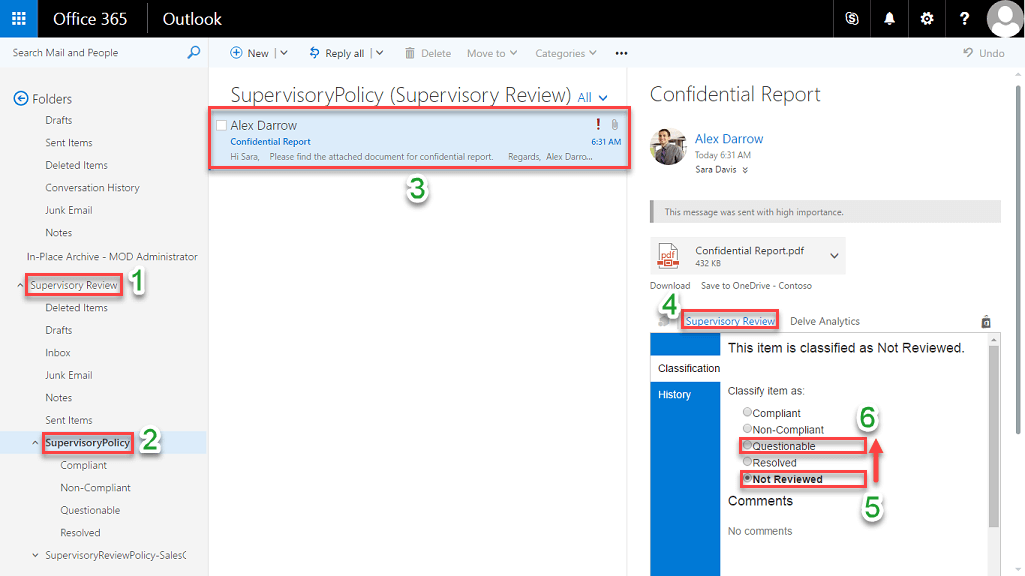
Reviewers can login to their Outlook web portal and find/review
communication and classify the communication as Compliant,
Non-Compliant, Questionable, Resolved. Once you installed the
Supervisory Review app, Outlook organizes communications in to folders
that correspond to Supervisory Review policy under a main folder called
Supervisory Review.
Here, as receiver when I login in to my Outlook web portal, I was able
to find a communication available for review, as highlighted in the
below screenshot. Since, the communication deals with confidential
information, it needs to be escalated with concerned authorities, so I
classify the item asQuestionable.
NOTE: The default state for communication before the review process
is Not Reviewed.
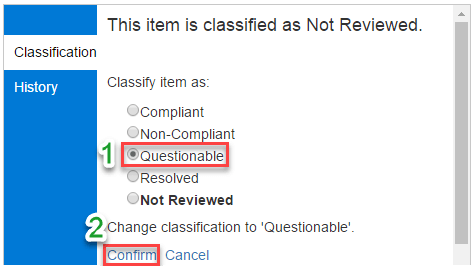
After classifying the item as Questionable, click Confirm to
confirm the changes, which in turn moves the item (email) to
corresponding sub-folder (Questionable) with in the policy.
5.Supervisory review Report
To generate the Supervisory report, go to Security & Compliance admin
center, expand Reports menu and select View Reports option, in
the right-pane select Supervisory review report, then in the
resulting window, view the report of your required policy as highlighted
in the below screenshot.
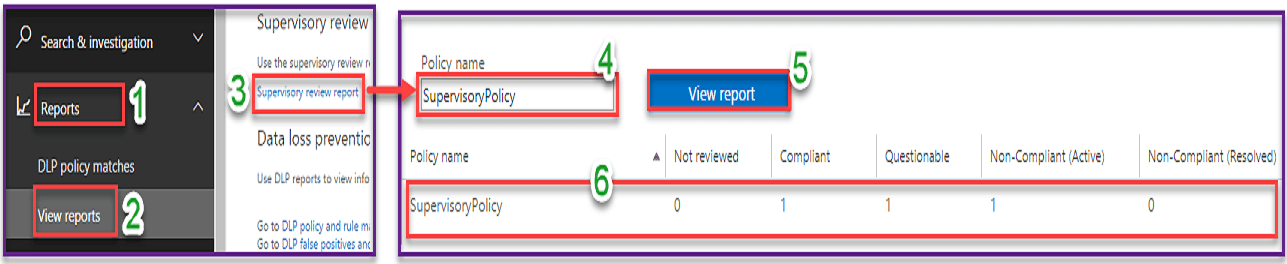
Using the Supervisory review report, you can verify,
- Whether Supervisory Review policies are working as you intended?
- How many emails are being identified for review?
- How many emails are outside of compliance?
- How many emails are critical(questionable) and needs escalation?
- How quickly emails identified for review are being processed?
- Whether there is a backlog (Not Reviewed) in review process?
Using the above information from Supervisory review report, you can
fine-tune your policies, and if required change(add/remove) the number
of reviewers.
















