


As an admin, if your company has a complicated structure, you may need
to update the members of your security or distribution groups based on
changes to some attributes (For Example – Department). In this blog we
deal with updating membership for specific Exchange Online Distribution
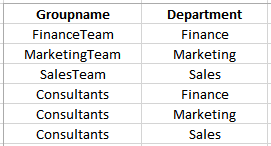
Groups via two CSV files. First CSV file for Groups with Groupname and
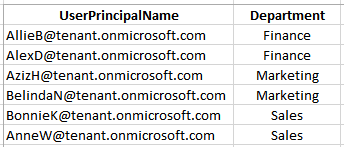
Department values, whereas the second CSV file for Users with
UserPrinicipalName and corresponding Department. Finally group
membership for Groups in first CSV file will be updated with Users in
second CSV file based on Department using PowerShell cmdlet –
Update-DistributionGroupMember. This cmdlet replaces all members of
distribution groups and mail-enabled security groups, and it is
available in on-premises Exchange and Exchange Online.
Following are the CSV files for Group and User information:
Groups.csv
Users.csv
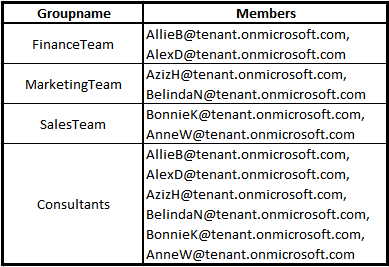
Requirement on Group Membership:
Based on the above CSV files, my requirement is to update the group
membership as shown in the below table.
PowerShell Script
Following PowerShell script is used to update Group Membership based on
Department via CSV using PowerShell cmdlet
–Update-DistributionGroupMember.
$UserCredential = Get-Credential
$Session = New-PSSession -ConfigurationName Microsoft.Exchange -ConnectionUri
https://outlook.office365.com/powershell-liveid/ -Credential $UserCredential -Authentication Basic -AllowRedirection
Import-PSSession $Session

$GroupCsv= Import-Csv 'C:UsersGroups.csv'
$rec = @()
foreach($line in $GroupCsv){
$Groupname=$line.Groupname
$Department=$line.Department
$csv = Import-Csv 'C:UsersUsers.csv'
foreach($r in $csv){
if($r.Department -eq $Department )
{
$DLGP = "" | Select "UserPrincipalName","GPname"
$DLGP.UserPrincipalName = $r.UserPrincipalName
$DLGP.GPname = $line.Groupname
$rec+= $DLGP
$DLGP=$null
}
}
}
$rmgp=@()
foreach($ln in $rec){
If($rmgp -notcontains $ln.GPname)
{
$rmgp+=$ln.GPname
}
}
foreach($gpl in $rmgp){
$Disgp=$gpl
$GPuser=@()
foreach($uln in $rec){
If($Disgp -eq $uln.GPname)
{
$GPuser+=$uln.UserPrincipalName
}
}
Update-DistributionGroupMember -Identity $($Disgp) -Member $GPuser -Confirm:$false-
BypassSecurityGroupManagerCheck
$GPuser=$null
}
Result:
After executing the above script, now I run the PowerShell cmdlet
–Get-DistributionGroupMemberfor each distribution group specified in
the Groups.csv file to confirm my requirement is solved.
For distribution group – FinanceTeam:
| Get-DistributionGroupMember -Identity FinanceTeam | select |
| PrimarySmtpAddress, Department | Sort-Object |
Output:

For distribution group – MarketingTeam:
| Get-DistributionGroupMember -Identity MarketingTeam | select |
| PrimarySmtpAddress, Department | Sort-Object |
Output:

For distribution group – SalesTeam:
| Get-DistributionGroupMember -Identity SalesTeam | select |
| PrimarySmtpAddress, Department | Sort-Object |
Output:

For distribution group – Consultants:
| Get-DistributionGroupMember –Identity Consultants | select |
| PrimarySmtpAddress, Department | Sort-Object Department |
Output:

Hence, from the above outputs we can confirm that my requirement on
updating Group Membership based on Department via CSV using PowerShell
is solved.
















