1. How to disable External Sharing for site collection?
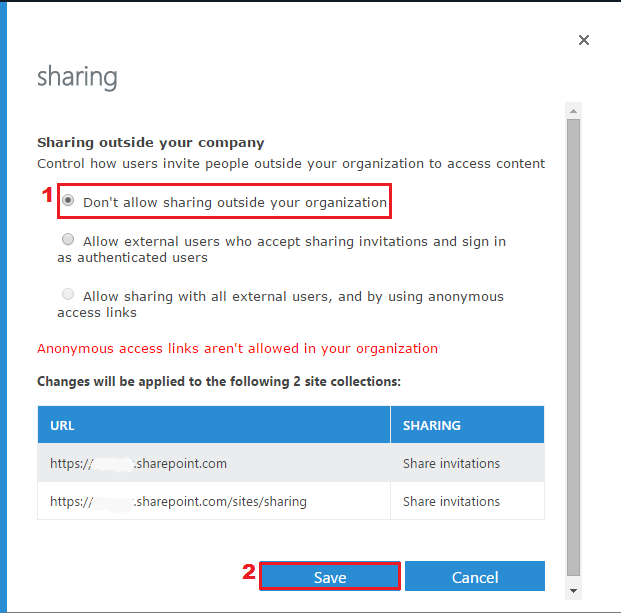
To disable external sharing for site collection,
- Go to SharePoint admin center
- Select site collections
- Select your required site collections -> click Sharing
- Finaly in the sharing window, select Don’t allow sharing
outside your organization -> Save
2. How to disable External Sharing for entire organization?
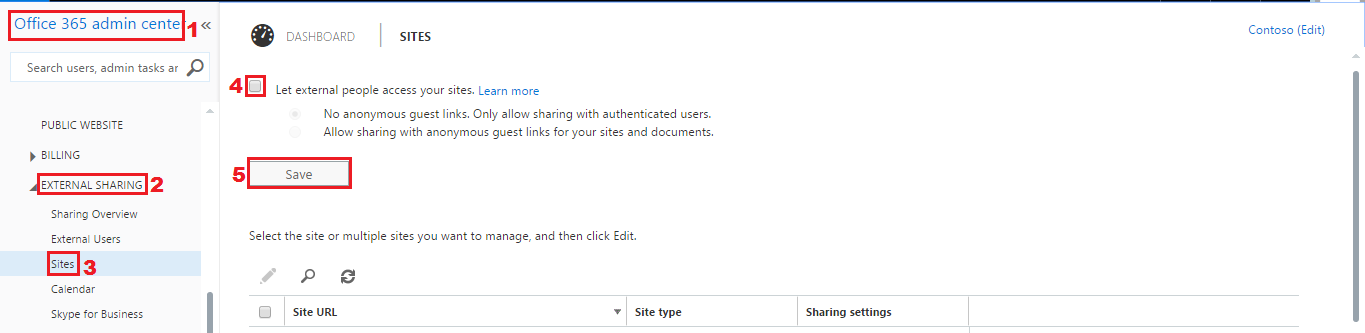
To disable external sharing for entire organization,
- Go to Office 365 admin center
- Navigate to EXTERNAL SHARING -> Sites
- In SITES page, uncheck “Let external people access your sites”
-> Save.
3. How to disable External Sharing for all OneDrive for Business users?
In an Office 365 tenant, external sharing for OneDrive for Business is
enabled for all users by default. To disable external sharing for all
OneDrive for Business users,
- Go to SharePoint admin center
- Select site collections
- Select https://tenantname-my.sharepoint.com -> click Sharing
- Finally in the sharing window, select Don’t allow sharing
outside your organization -> Save.
4. How to disable External Sharing for OneDrive for Business PER USER?
For disabling the external sharing for specific OneDrive for Business
user, we need to follow the following steps,
- First, enable external sharing for OneDrive for Business’s parent
site collection ( https://tenantname-my.sharepoint.com), if
already disabled. - Then you can disable external sharing for OneDrive for Business PER
USER using Set-SPOSite –SharingCapability command.
PowerShell Command:
Following PowerShell command disables external sharing for specific
OneDrive for Business user,
Set-SPOSite https://tenant-my.sharepoint.com/personal/user_tenant_onmicrosoft_com -SharingCapability Disabled
NOTE:
If external sharing disabled for OneDrive for Business’s parent site
collection (https://tenantname-my.sharepoint.com), you cannot enable
external sharing for a specific OneDrive for Business user (PER USER),
this is because we can’t provide less restrictive setting than its
parent site collection.
For an external sharing disabled OneDrive for Business’s parent site
collection, when we try to enable external sharing for a specific
OneDrive for Business user, error occurred as shown in the below
screenshot, which confirms the above statement.

5.What are the various external sharing options available?
Following are the external sharing features options:
- Turn external sharing on or off globally for an entire SharePoint
Online tenant – Turning external sharing off at the tenant level
means no documents, sites, or site collections can be shared
externally. - Turn external sharing on or off for individual site collections
– This provides you with the ability to secure content on specific
site collections that you do not want to be shared. - Share sites and documents with authenticated users –
Authenticated users are those who are invited to sign in by using a
Microsoft account or work or school account. - Share documents with guest users – Guest users, also called
anonymous users, don’t need a Microsoft account or work or school
account to access documents. They access the document via a guest
link that you or your employees give to them.
6. How to time bound the external sharing?
By default, any invitations you send to external users will expire in 90
days. If an invitee does not accept the invitation within 90 days, and
you still want that person to have access to your site, you’ll need to
send a new invitation. By default, there is NO time limit for expiration
for anonymous or guest links, you need to explicitly set time limit for
expiration for anonymous links using Set-SPOTenant
–RequireAnonymousLinksExpireInDays command, which applies time limit
for expiration days for guest links in the SharePoint Online tenant, for
both existing and newly created guest links. The acceptable values are
between 1 to 730 days.
PowerShell Command:
Set-SPOTenant -RequireAnonymousLinksExpireInDays 45
The above command sets MANDATORY 45 DAYS expiration limit on all
anonymous or guest links generated from SharePoint Online tenant.
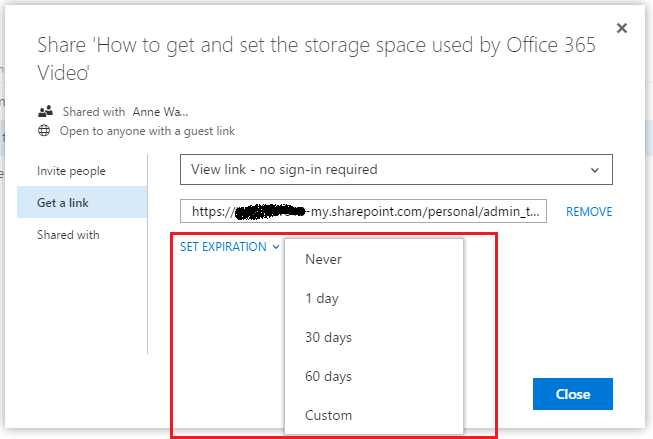
Individual users also can specify the expiration time for the shared URL
during the sharing operation. But the above command have precedence over
this.
7. How to allow / deny list of domains or IP for external sharing?
You can allow or deny sharing with list of domains, either using
SharePoint admin center or PowerShell.
Using SharePoint admin center:
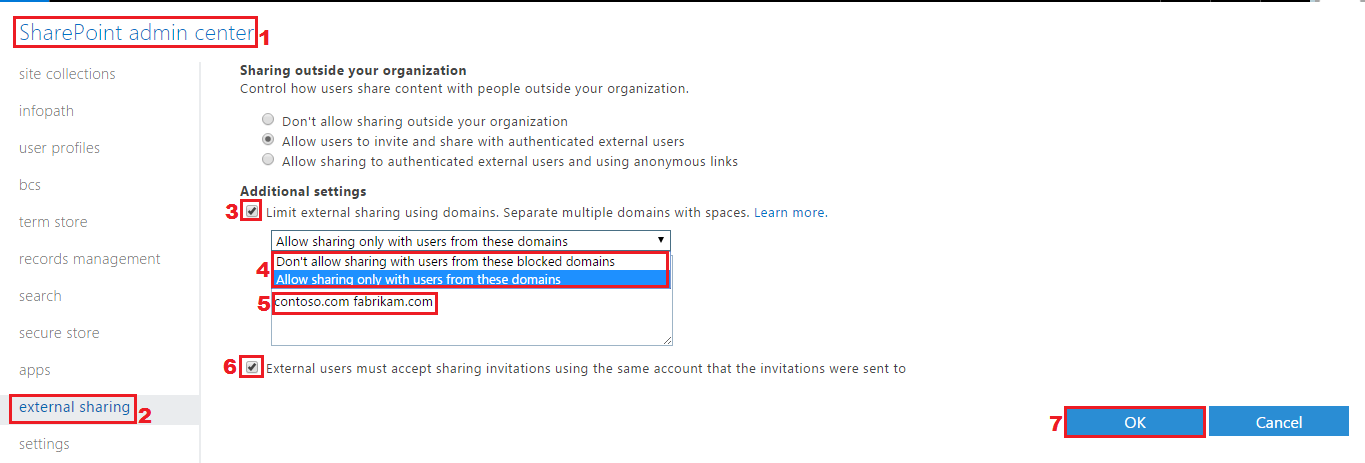
- Go to SharePoint admin center
- Select external sharing -> enable “Limit external sharing
using domains…” - Select either Allow sharing only with users from these domains
or Don’t allow sharing with users from these blocked domains,
and add the external email domains to allow or deny external
sharing.
Using PowerShell:
User Set-SPOTenant cmdlet, to allow configuration of restricted domains
using PowerShell. Use these new parameters depending on how you plan to
use the feature. They are:
- SharingDomainRestrictionMode
- SharingAllowedDomainList
- SharingBlockedDomainList
PowerShell Command:
Set-SPOTenant -SharingAllowedDomainList "adatum.com fabrikam.com" -SharingDomainRestrictionMode AllowList
The above example adds adatum.com and fabrikam.com to the
allowed domain list and allows the Allow List feature.
8.How to restrict sharing only to Owners alone?
Recent roll out added a new feature to restrict external sharing for
SharePoint Online site collection only to Site Owners, in order to
prevent data leakage, intentionally or unintentionally. Allowing
non-owners to invite new users setting is enabled by default. You can
restrict external sharing only to Owners, either using SharePoint admin
center or PowerShell.
Using SharePoint admin center:
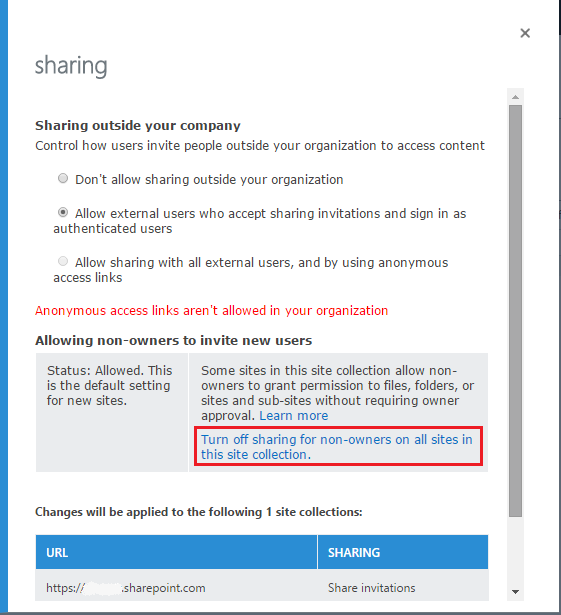
- Go to SharePoint admin center
- Select site collections
- Select your required site collections -> click Sharing
- Finally in the sharing window, click Turn off sharing for
non-owners on all sites in this site collection
Using PowerShell:
Use Set-SPOSite cmdlet to restrict external sharing to Owners only, as
shown in the below command,
Set-SPOSite –Identity –DisableSharingForNonOwners
9. How to re-enable “Allowing non-owners to invite new users”?
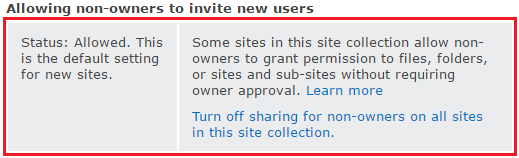
In the sharing window for the selected site collection, when you
click Turn off sharing for non-owners on all sites in this site
collection link, then the status changes to Status: not allowed and
Only owners can invite new users as shown in the below screenshot.

Once you disabled non-owner sharing, there is no direct option to
“enable non-owners to invite new members” neither from UI nor using
PowerShell. Only way to re-enable non-owner sharing is by configuring
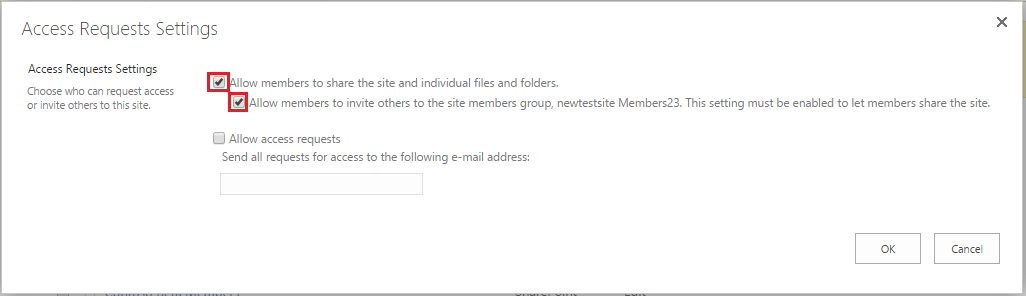
Access Request Settings. So to re-enable non-owner sharing, go to
the root site
(https://tenantname.sharepoint.com/sites/sitecollection) of the
non-owner sharing disabled site collection and navigate to Site
Settings -> Site Permissions -> Access Request Settings. Then in
Access Request Settings window, enable options to allow members to
share the site and individual files and folders, and allow members to
invite others to the site members group, as shown in the below
screenshot.
Finally, when you check the sharing window for the site collection,
you can confirm that non-owner sharing is enabled.
10.How to audit content of external user email invitation?
It is most important to audit the content shared by internal users with
external users in their external sharing invitations, to control and
identify leakage of critically important content from the organization.
To audit the content of external user email invitation, you can use
Set-SPOTenant –BccExternalSharingInvitationsList command to specify
the email addresses to receive the bcc copy of invitation emails, as a
result a copy of every invitation will be sent to the specified
mailboxes and remain available for later auditing or review.
PowerShell command:
Set-SPOTenant –BccExternalSharingInvitations $true –BccExternalSharingInvitationsList
email1@domain.onmicrosoft.com,email2@domain.onmicrosoft.com
11.How to get external users in tenant?
You can get the external users, either using Office 365 Admin Center or
PowerShell.
Using Office 365 admin center:
- Go to Office 365 admin center
- Navigate to EXTERNAL SHARING -> External Users -> external
users in the tenant will be listed.

Using PowerShell:
Use Get-SPOExternalUser cmdlet to get all external users in a
SharePoint Online tenant
Get-SPOExternalUser –PageSize 50
The above example returns 50 external users in the SharePoint Online
tenant.
12.How to get external users for site collection?
You can get the external users for each site collection, either using
Office 365 Admin Center or PowerShell.
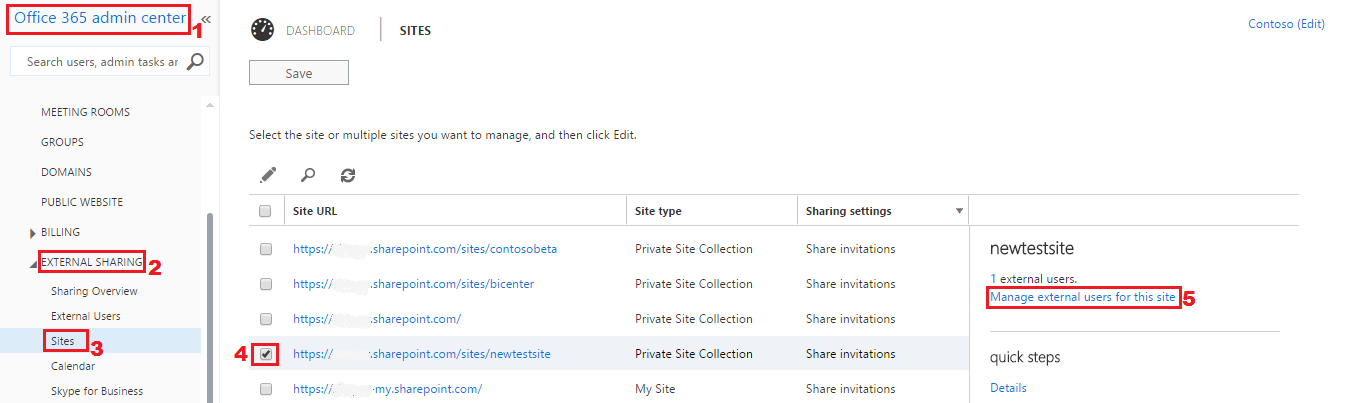
Using Office 365 Admin Center:
- Go to Office 365 admin center
- Navigate to EXTERNAL SHARING -> Sites
- Select your required site collection -> click Manage external
users for this site
Using PowerShell:
Use Get-SPOExternalUser cmdlet to get external users for site
collection,
Get-SPOExternalUser –SiteUrl -PageSize 50
The above example returns 50 external users for the specific site
collection.
13. How to get list of files shared to external users?
To get the list of files shared to external users, you can use
Compliance Search with query keyword as follows,
ViewableByExternalUsers:true AND ContentType:document NOT
FileExtension:aspx

NOTE: The above query will list only externally shared document name
and sender name, but it will not displays the external user name.
14. How to audit external sharing and external users activity in Office 365?
You can get the audit on external sharing and external user activity
using the following,
Using Office 365 Admin Center:
- Search-UnifiedAuditLog cmdlet
- Office 365 Protection Center
Following audit events on sharing activities can be searched in
Protection Center,

You can also get the external user information via
Search-UnifiedauditlogPowerShell cmdlet, with parameters
“operations” such as “SharingInvitationCreated”. It will show both
sender and external user name.
PowerShell Command:
Search-Unifiedauditlog –StartDate 3/21/2016 -EndDate 4/1/2016 –operations “SharingInvitationCreated”
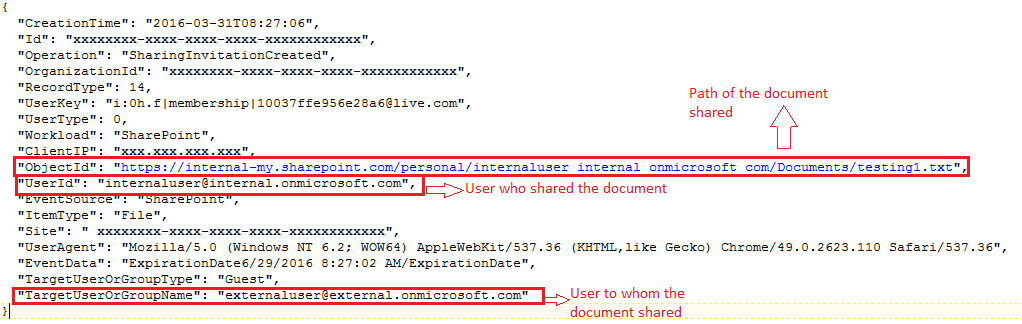
Sample Audit Log:
From the below sample audit log, you can find the type of sharing
operation performed usingOperations field, “who shared” using
UserIds field and for more information on sharing such as what
file/folder shared from which site, who shared, to whom shared, shared
from which client IpAddress etc., you can check AuditData field.
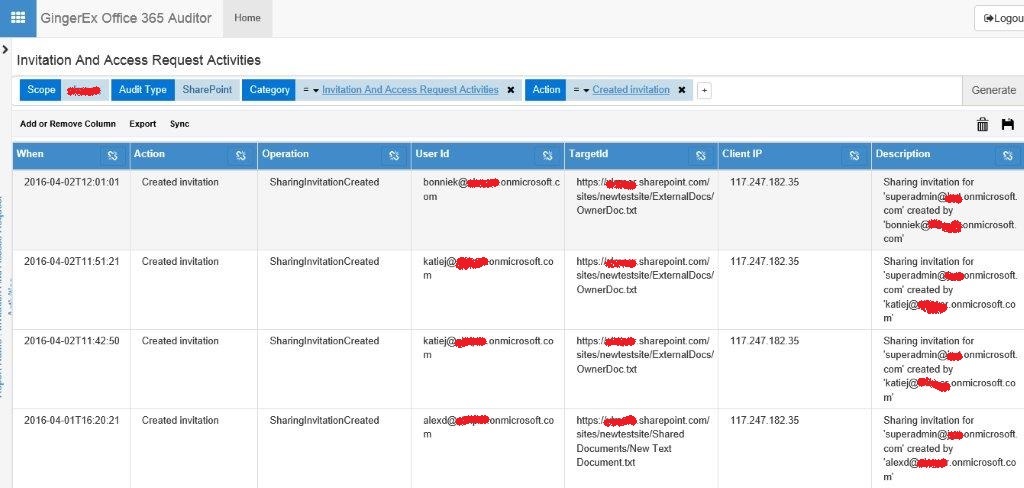
GingerEX Office 365
Auditor
provides audit report of sharing activities which includes client
information – IpAddress, OS, Device, etc…