


“Channels” in Office 365 Video are used to categorize your videos, such
as you can use a channel for a department or a team. When a new channel
created in Office 365 Video, corresponding site collection will be
created in your SharePoint Online tenant with url –
https://tenant.sharepoint.com/portals
as a result videos uploaded to a channel occupies the storage quota of
the SharePoint Online tenant. So in this blog we share the steps to get
the Storage used in all Office 365 Video Channels using PowerShell.
Before starting the process, download and install – SharePoint Online
Management Shell from this
linkand
SharePoint Online CSOM from this
link.
Then execute the script in PowerShell (with Run as Administrator
privilege) by connecting to SharePoint Online as Global administrator.
How to Get the Storage Used in all Office 365 Video Channels
Following PowerShell script is used to get the storage used in all
Office 365 Video channels for a SharePoint Online tenant using
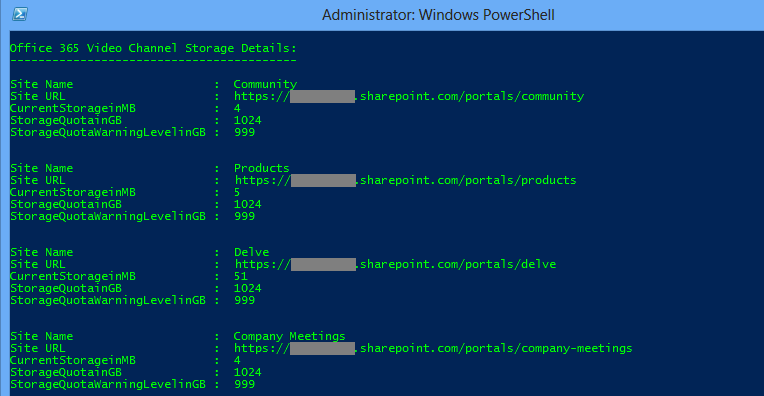
“Get-SPOSite” cmdlet and CSOM. Finally, following information will be
displayed as the result: Site Name (ChannelName), Site URL (ChannelURL),
CurrentStorage, StorageQuota, and StorageQuotaWarningLevel.
NOTE: It is recommended to execute the below script as .ps1 file
with elevated privilege (Run as Administrator).
Download URL for the script –
Get-AllVideoChannelStorage.ps1
















