Even though OneDrive for Business comes with 1TB of personal storage (by
default) for every Office 365 user, several organizations have requested
the ability to set smaller storage quota to limit the amount of data
stored for information protection reasons and also to limit the OneDrive
content from occupying local drive during sync operation. In this blog,
we share the steps for setting OneDrive storage quota using PowerShell.
Before starting the process, download and install the SharePoint Online
Management Shell from this
link
and execute the following PowerShell Scripts as Global administrator in
the SharePoint Online Management Shell by connecting to SharePoint
Online.
Also ensure that the SharePoint online setting “Site Collection Storage
Management” is set as Manual.
You can download the scripts from
here.
How to set OneDrive Storage Quota for all Office 365 Users
Input Parameters Required
$Fulldomain – Office 365 domain name (Example: tenantname.com or
tenantname.onmicrosoft.com)
$Quota – Value for OneDrive Storage Quota (MB)
Following PowerShell script is used to set OneDrive Storage Quota for
all Office 365 Users,
Step1: Get values for input parameters:
$Fulldomain="tenantname.onmicrosoft.com"
$Quota="4096"
Step2: Connect to SharePoint Online and MsolService:
$credential = get-credential
Connect-SPOService -Url “https://tenantname-admin.sharepoint.com/” -Credential $credential
Connect-MsolService -Credential $credential
Step3: Set OneDrive Storage Quota for all Office 365 Users:
$users=Get-MsolUser
$users | Foreach-Object{
$user=$_
$username=($user.userprincipalname –Split “@”)[0]
$Dname=($Fulldomain -Split ".")
If($Dname[2] -ne $null)
{
$Firstname=$Dname[0]
$Secondname=$Dname[1]
$thirdname=$Dname[2]
$sitename= "https://"+$Firstname+"-my.sharepoint.com/personal/"+$username+"_"+$Firstname+"_"+$Secondname+"_"+$thirdname
}
Else
{
$Firstname=$Dname[0]
$Secondname=$Dname[1]
$sitename= "https://"+$Firstname+"-my.sharepoint.com/personal/"+$username+"_"+$Firstname+"_"+$Secondname
}
Set-SPOSite –Identity “$sitename” -StorageQuota $Quota
}
NOTE:
During the execution of above script, for some users you may receive –
“Set-SPOSite : Cannot get site
https://tenantname-my.sharepoint.com/personal/username_tenantname_onmicrosoft_com.”,
which occurs, when that particular user account does not have valid
license or never connected to OneDrive. But the storage quota will be
successfully set for valid users.
How to set OneDrive Storage Quota for Group Members
Input Parameters Required
$Fulldomain – Office 365 domain name (Example: tenantname.com or
tenantname.onmicrosoft.com)
$Quota – Value for OneDrive Storage Quota (MB)
$GroupName – Security Group
NOTE: Security Group is used for controlling OneDrive and
SharePoint access and for Mobile Device Management for Office 365.
Following PowerShell script is used to set OneDrive Storage Quota for
Group Members,
Step1: Get values for input parameters:
$Fulldomain="tenantname.onmicrosoft.com"
$Quota="7168"
$GroupName =”TestGroup”
Step2: Connect to SharePoint Online and MsolService:
$credential = get-credential
Connect-SPOService -Url “https://tenantname-admin.sharepoint.com/” -Credential $credential
Connect-MsolService -Credential $credential
Step3: Set OneDrive Storage Quota for Group Members:
$Group = Get-MsolGroup |Where-Object{$_.DisplayName -like $GroupName}
$members = Get-MsolGroupMember -GroupObjectId $Group.ObjectId
$members | Foreach-Object{
$member = $_
$username=($member.EmailAddress -Split "@")[0]
$Dname=($Fulldomain -Split ".")
If($Dname[2] -ne $null)
{
$Firstname=$Dname[0]
$Secondname=$Dname[1]
$thirdname=$Dname[2]
$sitename= "https://"+$Firstname+"-my.sharepoint.com/personal/"+$username+"_"+$Firstname+"_"+$Secondname+"_"+$thirdname
}
Else
{
$Firstname=$Dname[0]
$Secondname=$Dname[1]
$sitename= "https://"+$Firstname+"-my.sharepoint.com/personal/"+$username+"_"+$Firstname+"_"+$Secondname
}
Set-SPOSite –Identity $sitename -StorageQuota $Quota
}
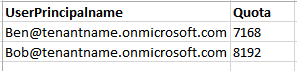
How to set OneDrive Storage Quota for Bulk Office 365 users via CSV file
Following PowerShell script is used to set OneDrive Storage Quota for
Bulk Office 365 users via CSV file,
Step1: Connect to SharePoint Online and MsolService:
$credential = get-credential
Connect-SPOService -Url “https://tenantname-admin.sharepoint.com/” -Credential $credential
Connect-MsolService -Credential $credential
Step2: Set OneDrive Storage Quota for Bulk Office 365 users via CSV
file:
$csv = Import-Csv D:foldernameStorageQuota.csv
foreach ($line in $csv)
{
$username=($Line.UserPrincipalname -Split "@")[0]
$Fulldomain =($Line.UserPrincipalname -Split "@")[1]
$Dname=($Fulldomain -Split ".")
$Quota=[convert]::ToInt32($Line.Quota)
If($Dname[2] -ne $null)
{
$Firstname=$Dname[0]
$Secondname=$Dname[1]
$thirdname=$Dname[2]
$sitename= "https://"+$Firstname+"-my.sharepoint.com/personal/"+$username+"_"+$Firstname+"_"+$Secondname+"_"+$thirdname
}
Else
{
$Firstname=$Dname[0]
$Secondname=$Dname[1]
$sitename= "https://"+$Firstname+"-my.sharepoint.com/personal/"+$user.name+"_"+$Firstname+"_"+$Secondname
}
Set-SPOSite –Identity $sitename -StorageQuota $Quota
}
Sample CSV File