

In our previous
blog,
we dealt with how to track the storage used by Office 365 groups. Since
Office 365 Groups’ files consume the storage space from the quota
allocated for Site Collections in a SharePoint Online tenant, for more
information refer
thislink.
So in this blog we share the steps to limit the storage used by Office
365 Groups’ files by setting Storage Quota for Office 365 Groups using
PowerShell.
Before starting the process, download and install the SharePoint Online
Management Shell from this
link.
Then execute the script in PowerShell (with Run as Administrator
privilege) by connecting to SharePoint Online as Global administrator.
Also ensure that the SharePoint online setting “Site Collection Storage
Management” is set as Manual.
How to Set Storage Quota for a Specific Office 365 Group
Following PowerShell script is used to Set Storage Quota for a Specific
Office 365 Group. This script uses “Set-SPOSite” to set StorageQuota and
StorageQuotaWarningLevel for a Specific Office 365 Group in the
SharePoint Online tenant. Finally after setting storage quota, following
information will be displayed as result: GroupName,
StorageQuotaWarningLevel, CurrentStorage, and StorageQuota.
NOTE: It is recommended to execute the below script as .ps1 file
with elevated privilege (Run as Administrator).
Copy the below script to notepad and save it as .ps1 file or download
.ps1 file from
here
Step1: Get values for input parameters
$SPOAdminCenterUrl=Read-Host "Enter the admin URL(https://domainanme-admin.sharepoint.com):"
$Quota=Read-Host "Enter the Storage Quota value in MB:"
$WarningQuota=Read-Host "Enter the Warning Storage Quota value in MB:"
$Gpname=Read-Host "Enter the Office 365 GroupName:"
Step2: Connect to SharePoint Online using “Connect-SPOService”
cmdlet
Import-Module Microsoft.Online.SharePoint.Powershell -Verbose
$credential = get-credential
Connect-SPOService -Url $SPOAdminCenterUrl -Credential $credential
Step3: Connect Exchange Online
$Session = New-PSSession -ConfigurationName Microsoft.Exchange -ConnectionUri
https://ps.outlook.com/powershell -Credential $credential -Authentication Basic -AllowRedirection
Import-PSSession $Session
Step4: Set Storage Quota for a Specific Office 365 Group
$Group=Get-UnifiedGroup $Gpname -Erroraction SilentlyContinue
If($Group -ne $null)
{
$GName=$Group.Alias
$SiteURL=$Group.SharePointSiteUrl
If($SiteURL -ne $null){
Set-SPOSite -Identity $SiteURL -StorageQuota $Quota -StorageQuotaWarningLevel $WarningQuota
$site=Get-SPOSite -Identity $SiteURL -Detailed
      New-Object -TypeName PSObject -Property @{
      GroupName=$GName
      CurrentStorage=$site.StorageUsageCurrent
      StorageQuota=$site.StorageQuota
      StorageQuotaWarningLevel=$site.StorageQuotaWarningLevel
}
}
Else
{
Write-Host "$($GName) Group Member never accessed Group File site. So $($GName) Group Site not Created." -ForegroundColor Green
}
}
Else
{
Write-Host "$($line.Groupname) Group name is Invaild" -ForegroundColor Red
}
How to Set Storage Quota for all Office 365 Groups
Following PowerShell script is used to Set Storage Quota for all Office
365 Groups. This script uses “Get-UnifiedGroup” to list all Office 365
groups, then uses “Set-SPOSite” to set StorageQuota and
StorageQuotaWarningLevel for all Office 365 groups in the SharePoint
Online tenant. Finally after setting storage quota, following
information will be displayed as result: GroupName,
StorageQuotaWarningLevel, CurrentStorage, and StorageQuota.
NOTE: It is recommended to execute the below script as .ps1 file
with elevated privilege (Run as Administrator). Copy the below script to
notepad and save it as .ps1 file or download .ps1 file from
here
Step1: Get values for input parameters
$SPOAdminCenterUrl=Read-Host "Enter the admin URL(https://domainanme-admin.sharepoint.com):"
$Quota=Read-Host "Enter the Storage Quota value in MB:"
$WarningQuota=Read-Host "Enter the Warning Storage Quota value in MB:"
Import-Module Microsoft.Online.SharePoint.Powershell -Verbose
Step2: Connect to SharePoint Online using “Connect-SPOService”
cmdlet
$credential = get-credential
Connect-SPOService -Url $SPOAdminCenterUrl -Credential $credential
Step3: To get all the Office 365 groups, we use “Get-UnifiedGroup”
cmdlet, which depends on Exchange Online
$Session = New-PSSession -ConfigurationName Microsoft.Exchange -ConnectionUri https://ps.outlook.com/powershell -Credential $credential -Authentication
Basic -AllowRedirection
Import-PSSession $Session
$Groups=Get-UnifiedGroup
$Groups | Foreach-Object{
$Group = $_
$GName=$Group.Alias
$SiteURL=$Group.SharePointSiteUrl
If($SiteURL -ne $null){
Set-SPOSite -Identity $SiteURL -StorageQuota $Quota -StorageQuotaWarningLevel $WarningQuota
$site=Get-SPOSite -Identity $SiteURL -Detailed
      New-Object -TypeName PSObject -Property @{
      GroupName=$GName
      CurrentStorage=$site.StorageUsageCurrent
      StorageQuota=$site.StorageQuota
      StorageQuotaWarningLevel=$site.StorageQuotaWarningLevel
}}}|select GroupName, CurrentStorage, StorageQuota, StorageQuotaWarningLevel
How to Set Storage Quota for Bulk Office 365 Groups via CSV file import
Following PowerShell script is used to Set Storage Quota for Bulk Office
365 Groups via CSV file import. This script uses “Get-UnifiedGroup” to
read bulk Office 365 groups from CSV file, then uses “Set-SPOSite” to
set StorageQuota and StorageQuotaWarningLevel for those groups in the
SharePoint Online tenant. Finally after setting storage quota, following
information will be displayed as result: GroupName,
StorageQuotaWarningLevel, CurrentStorage, StorageQuota.
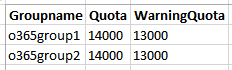
The script defines a function “Get-FileName” to assist you browse and
pick your CSV file as input to the script.
Sample CSV:
NOTE: It is recommended to execute the below script as .ps1 file
with elevated privilege (Run as Administrator). Copy the below script to
notepad and save it as .ps1 file or download .ps1 file from
here.
Step1: Get values for input parameters
$SPOAdminCenterUrl=Read-Host "Enter the admin URL(https://domainanme-admin.sharepoint.com):"
Function Get-FileName($initialDirectory)
{
    [System.Reflection.Assembly]::LoadWithPartialName("System.windows.forms") | Out-Null

    $OpenFileDialog = New-Object System.Windows.Forms.OpenFileDialog
    $OpenFileDialog.initialDirectory = $initialDirectory
    $OpenFileDialog.filter = "CSV (*.csv)| *.csv"
    $OpenFileDialog.ShowDialog() | Out-Null
    $OpenFileDialog.filename
}
$CSVPath=Get-FileName
Import-Module Microsoft.Online.SharePoint.Powershell -Verbose
Step2: : Connect to SharePoint Online using “Connect-SPOService”
cmdlet
$credential = get-credential
Connect-SPOService -Url $SPOAdminCenterUrl -Credential $credential
Step3: : To get all the Office 365 groups, we use “Get-UnifiedGroup”
cmdlet, which depends on Exchange Online
$Session = New-PSSession -ConfigurationName Microsoft.Exchange -ConnectionUri https://ps.outlook.com/powershell -Credential $credential -Authentication
Basic -AllowRedirection
Import-PSSession $Session

$csv = Import-Csv $CSVPath
foreach ($line in $csv)
{
$Group=Get-UnifiedGroup $line.Groupname -Erroraction SilentlyContinue
If($Group -ne $null)
{
$GName=$Group.Alias
$SiteURL=$Group.SharePointSiteUrl
If($SiteURL -ne $null){
Set-SPOSite -Identity $SiteURL -StorageQuota $Line.Quota -StorageQuotaWarningLevel $Line.WarningQuota
$site=Get-SPOSite -Identity $SiteURL -Detailed
      New-Object -TypeName PSObject -Property @{
      GroupName=$GName
      CurrentStorage=$site.StorageUsageCurrent
      StorageQuota=$site.StorageQuota
      StorageQuotaWarningLevel=$site.StorageQuotaWarningLevel
}
}
Else
{
Write-Host "$($GName) Group Member never accessed Group File site. So $($GName) Group Site not Created." -ForegroundColor Green
}
}
Else
{
Write-Host "$($line.Groupname) Group name is Invaild" -ForegroundColor Red
}
}
















