Starting from February 1, 2016, Yammer was being activated on any
existing or new Office 365 tenants in three waves,
Wave Yammer Rollout Details
Wave 1 Started from February 2, 2016 and includes Office 365 customers with a business subscription who purchased fewer than 150 licenses that includes Yammer and who have zero or one custom domains for Yammer.
Wave 2 Starts on March 1, 2016 and includes Office 365 customers with a business subscription who purchased fewer than 5,000 licenses that includes Yammer. This does not include customers with an education subscription.
Wave 3 Starts on April 1, 2016 and includes all remaining customers with a business subscription and all customers with an education subscription.
But many organizations are not ready to roll out Yammer in their network
and some need to disable Yammer which was already in use. In real-time,
once Yammer turned on in your tenant, there is no tenant wide disable
option available. Only possible solution to block Office 365 users from
Yammer roll-out is to un-assign Yammer license for each user. This is
tedious process for Admin as there is no way in Office 365 admin console
to bulk un-assign user licenses. You can use ‘Office 365 License
Management Tool’ from TechNet to simplify this process.
https://gallery.technet.microsoft.com/Office365-License-cfd9489c
Un-assign Yammer license
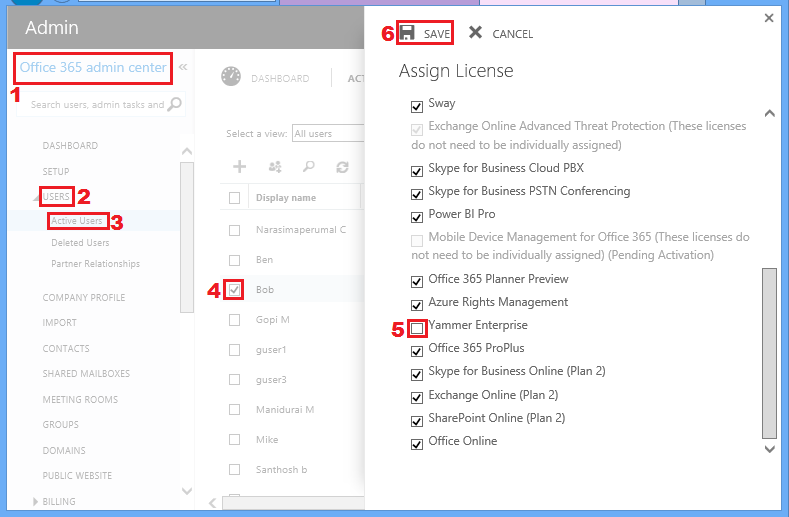
NOTE: Currently un-assigning Yammer license from Office 365 users
only removes the Yammer tile, but users can still login to Yammer via
web URL ( https://yammer.com/login).
So to block Office 365 users from login to Yammer, follow the following
steps,
Step 1: Deactivate Users
This step is optional, this step is required only for users who have
already logged in to Office 365 Yammer. This step can be skipped for new
Office 365 users, who have never logged in to Yammer, so that you can
directly proceed to Step 2.
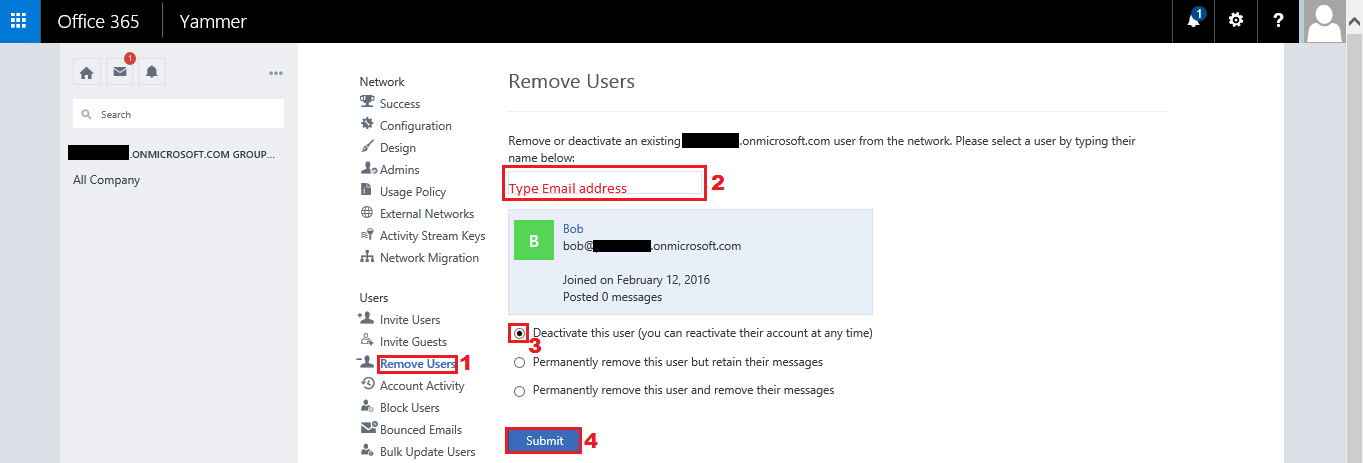
NOTE: Deactivated users can reactivate their account within 90 days
by enabling their email account and logging on to Yammer, where they
will receive an email with links to reactivate. Else after 90 days, user
will be permanently deleted.
Step 2: Block Users
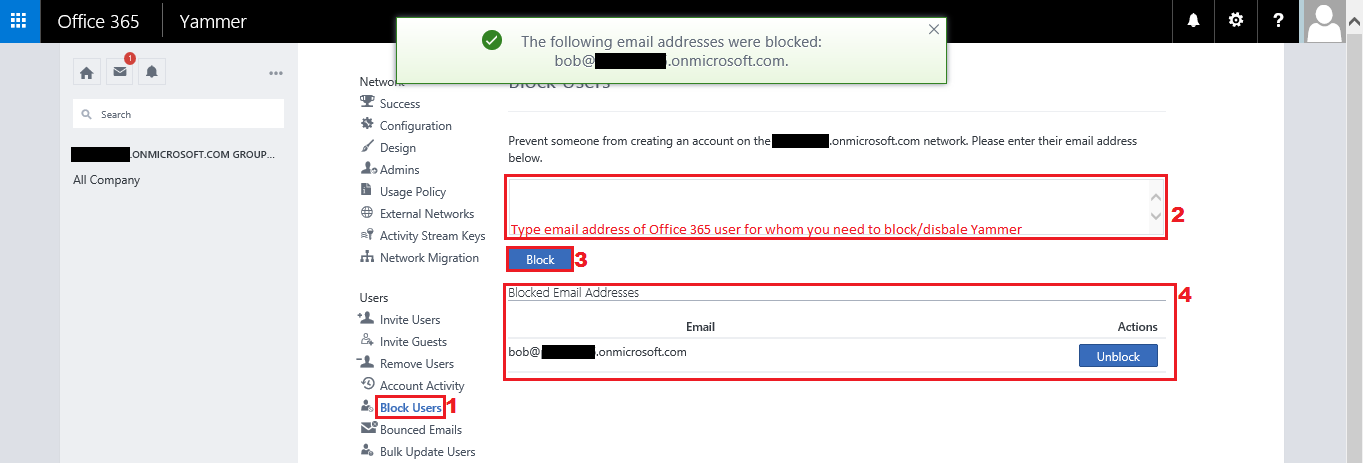
NOTE: Users with blocked email addresses will not be able to join
Yammer network unless global admin unblocks them.
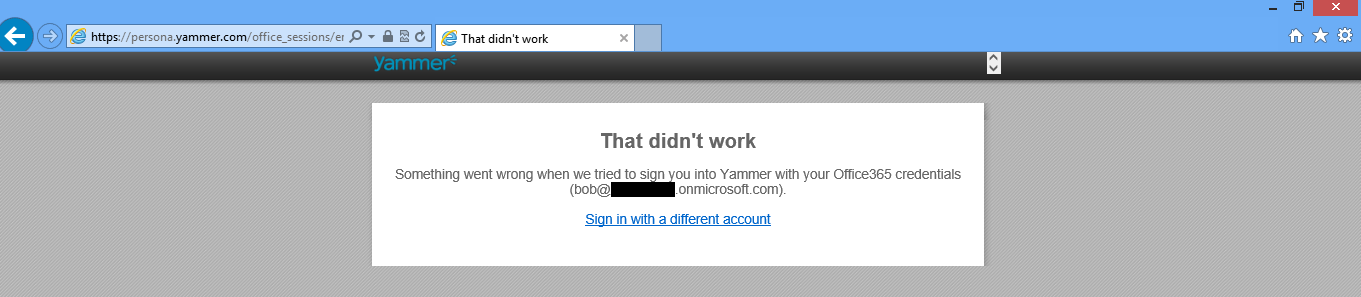
Finally when tried to login in to Yammer portal with blocked email
address, login to Yammer is disabled.