


To optimize the licensing cost for Office 365, it is essential to get
the various services usage details such as Exchange Online, SharePoint
Online, Skype for business etc. In simple words, if we are able to
capture the active users across each service, then we will be able to
design our Office 365 licensing model and thereby cut down the excess
licensing cost from budget. For example, there are users who are using
only mail and that too in OWA and mobile, but never uses outlook client,
in this case we can just go for Office 365 E1 plan which costs just $8
instead of spending $20 for E3 plan.
The objective of this blog is how to retrieve the Office 365 services
usage details.
How to get Office 365 Services Usage Details
Following are the methods to get Office 365 Services Usage Details
Method 1:
Get-LicenseVsUsageSummaryReport cmdletMethod 2: Getting the last logon time
Method 3: Azure Active Directory Reports
Method 4: Office365 Activity Management API
Before going in depth into the blog, I want to remind the readers that
Method 4: Office365 Activity Management API seems to be a good option
for this topic, others have its own limitation.
Method 1:
Get-LicenseVsUsageSummaryReport cmdletThe exchange online cmdlet
Get-LicenseVsUsageSummaryReport returns the number of licenses across each service and also it returns number of
active users across each service.
Below is the screen shot for one of the trial tenant.
 Since the above
result is from trial tenant, the license counts are shown under the
column “TrialEntitlements”. The column “ActiveUsers” shows the user
count across each Office 365 service.
Cons:
This method is a straight forward and simple one. But it does not
returns who are those active users. Only if you can get those active
users, then you can assign the licenses most optimally.
Method 2: Getting the last logon time
The below script will return the users who have not logged in since
12/30/2015 to exchange.
                    get-mailbox -RecipientTypeDetails UserMailbox | Where-Object {$_.skuassigned -eq $true} |
                    Get-MailboxStatistics | Where-Object {$_.LastLogonTime -lt 12/30/2015} | Select DisplayName, LastLogonTime | fl
The below script will return the users who have never logged in at all
to Exchange.
                    get-mailbox -RecipientTypeDetails UserMailbox | Where-Object {$_.skuassigned -eq $true} |
                    Get-MailboxStatistics | Where-Object {$_.LastLogonTime -eq $null} |Select DisplayName, LastLogonTime | fl
Cons:
Right now, we can get the last login time only for exchange and it’s
not available for Sharepoint and skype for business. Also in your tenant
if all the users are not migrated to exchange online, this method is not
useful.
Method 3: Azure Active Directory Reports 1. Application Usage Azure
Active Directory report
Azure AD – Application Usage Report provides the summary for all SaaS
applications integrated with your Azure AD. This report provides the
following information.
- Active users count across each application
- Break-down of who are those active users for each application
- Last sign-in date with number of sign-ins
This report not just lists the Office 365 services(exchange, sharepoint,
skype for business), it lists all the applications that you have added
in your Azure Active Directory.
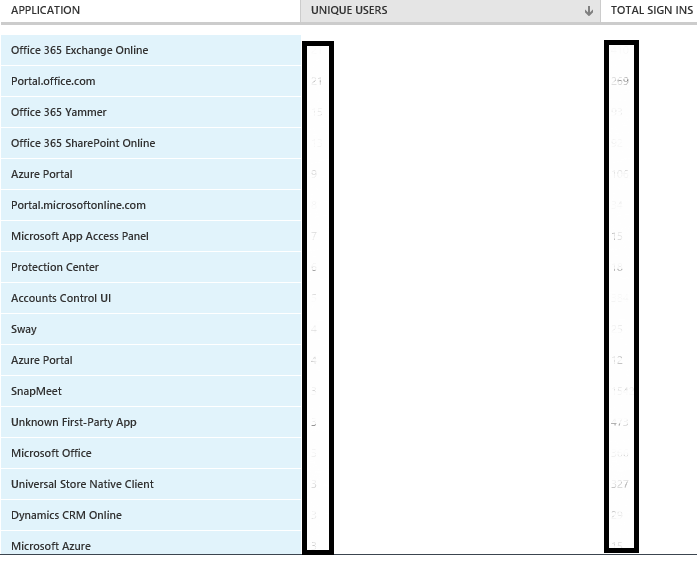 The above
screen-shot is part of the Application Usage Report, the actual report
spans to 3 pages.
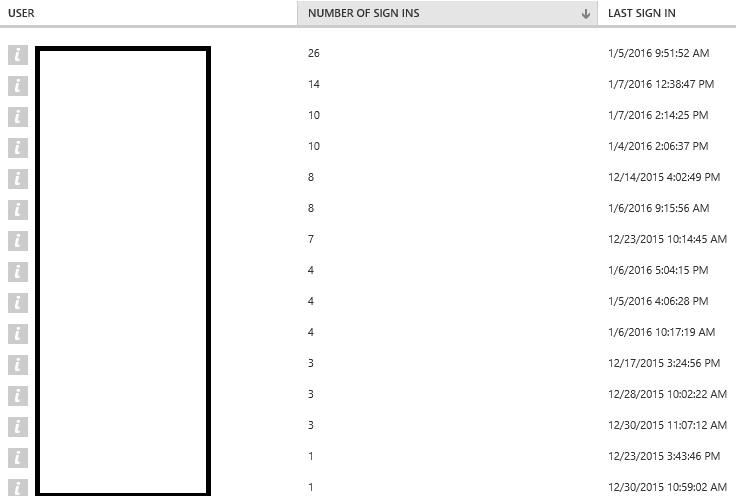 The above
screen-shot is for the yammer usage details. If you click on the
individual application it will lists the users with sign-in details.
Cons:
This is an premium report and it is available only if you have Azure AD
Premium license.
2. User Activity report
This report provides activity of each user separately. It is not a
premium report and it is available for all.
For more
info:https://azure.microsoft.com/en-in/documentation/articles/active-directory-view-access-usage-reports/#user-specific-reports
To get this report you need to navigate to each individual user in
Azure Active Directory and check the “Activity” section.
Below is the part of the activity report for an user.
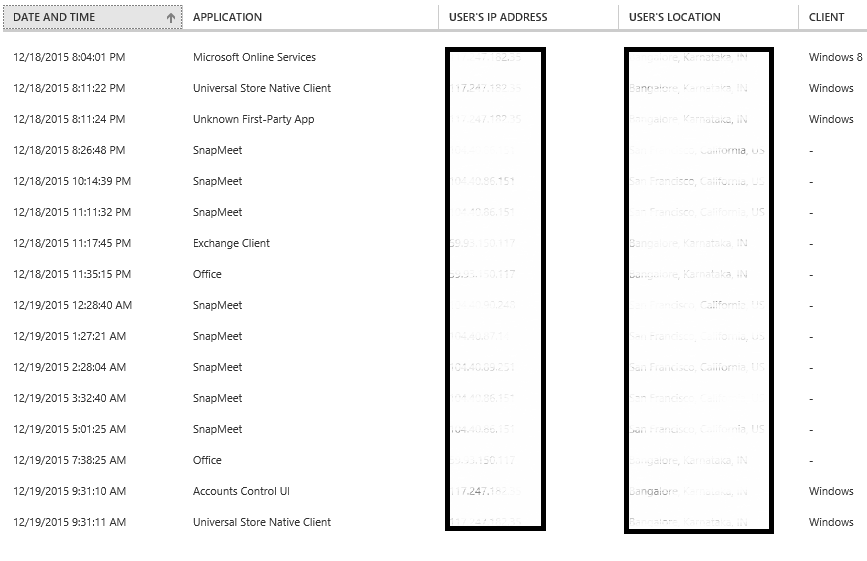
If you export this report to CSV and check, you can find the
application names such as Exchange Client, outlook.exe, Office 365
Exchange Online, Lync Online, Office 365 Sharepoint online, Sway etc…
This report seems much interesting and provides in depth details.
Cons:
To generate this report, you need to navigate to each individual user
separately in the Azure ActiveDirectory portal. This is cumbersome if
there are lot of users.
Note:
Both of the above reports – Application Usage and User Activity, we
can’t retrieve these report details through PowerShell as of today.
Method 4: Office365 Activity Management API
In July 2015, Microsoft introduced Activity Management API. Right-now
each service logs the audit log in its own way. For example in exchange
online we need to use Search-AdminAuditLog cmdlet. For SharePoint
online, the audit logs can be downloaded from the admin portal alone and
there is no PowerShell support. Also the current SharePoint audit
information is not up to the mark to provide all the essential
information. Instead of each service providing the audit information in
its own way, Microsoft decided to unify these audit logs and they have
introduced Activity Management API, this is currently in preview.
For more information:
Overview:
https://msdn.microsoft.com/EN-US/library/mt227394.aspx
List of events available events:
https://technet.microsoft.com/en-us/library/56e15d0c-04d3-49a5-bf86-d5a7a9646f40
Currently following workload audit events alone available and Microsoft
is planning to provide the audit information for Skype for Business and
Yammer in future.
- Azure ActiveDirectory
- Exchange Online
- Sharepoint Online
These audit events can be retrieved through the below ways:
- Using the API
- Using the exchange online cmdlet
“Search-UnifiedAuditLog” - Through the Office365 Compliance
Center
The sign-in activity is logged with the operation name
“PasswordLogonInitialAuthUsingPassword” in the audit logs.
Through the Office365 Compliance Center, we are able to view the
required event, but the detail column is empty. In future this UI may
get evolved.
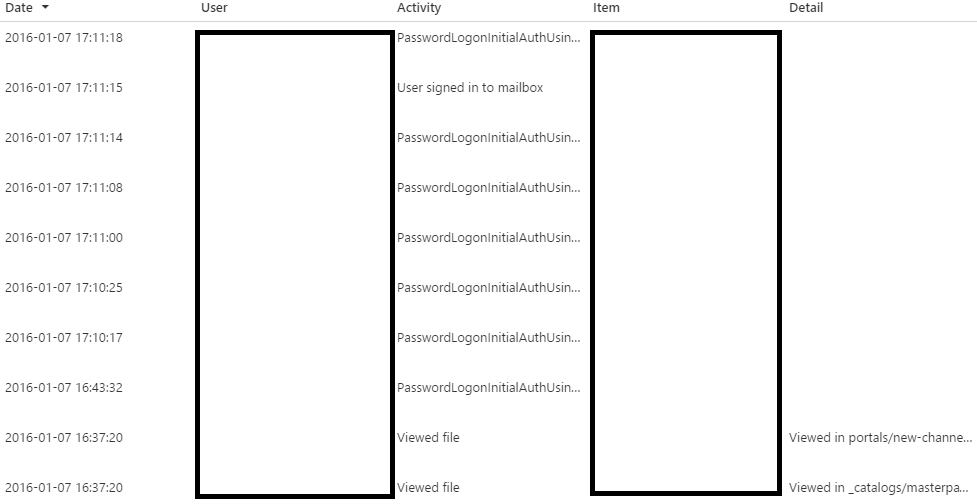
For our requirement of getting the Sign-in detail for each user across
services, it is best to go with the cmdlet Search-UnifiedAuditLog. To
get the sign-in activity alone use the below sample.
Search-UnifiedAuditLog -StartDate 1/6/2016 -EndDate 1/8/2016 -Operations PasswordLogonInitialAuthUsingPassword
In the return value of this cmdlet, “AuditData” holds the audit
information in json format. You need to extract this json alone from
each entry and process it to get the report.
In the below samples, I have extracted the audit data in json format
and presented below.
This is from Outlook client, note that the “Client” field is with value
“Office 15 Outlook”.
                        {
                        "CreationTime": "2016-01-07T11:41:18",
                        "Id": "73b43830-a2a1-467a-a8ad-2adc391402c3",
                        "Operation": "PasswordLogonInitialAuthUsingPassword",
                        "OrganizationId": "XXXX-dbc5-4625-8006-XXXX",
                        "RecordType": 9,
                        "ResultStatus": "success",
                        "UserKey": "1153977025382732912@XXXX.onmicrosoft.com",
                        "UserType": 0,
                        "Workload": "AzureActiveDirectory",
                        "ClientIP": "XXX.XXX.XXX.XX",
                        "ObjectId": "admin@XXXX.onmicrosoft.com",
                        "UserId": "admin@XXXX.onmicrosoft.com",
                        "AzureActiveDirectoryEventType": 0,
                        "Client": "Office 15 Outlook",
                        "LoginStatus": 0,
                        "UserDomain": "XXXX.onmicrosoft.com"
                        }
Below one is for Skype for Business.
                        {
                        "CreationTime": "2016-01-07T07:07:01",
                        "Id": "b885b66c-70ff-4ad7-915a-d2942cbf45a7",
                        "Operation": "PasswordLogonInitialAuthUsingPassword",
                        "OrganizationId": "XXXX-dbc5-4625-8006-XXXX",
                        "RecordType": 9,
                        "ResultStatus": "success",
                        "UserKey": "1153977025382732912@XXXX.onmicrosoft.com",
                        "UserType": 0,
                        "Workload": "AzureActiveDirectory",
                        "ClientIP": "XXX.XXX.XXX.XX",
                        "ObjectId": "admin@XXXX.onmicrosoft.com",
                        "UserId": "admin@XXXX.onmicrosoft.com",
                        "AzureActiveDirectoryEventType": 0,
                        "Client": "Office 15 Lync",
                        "LoginStatus": 0,
                        "UserDomain": "XXXX.onmicrosoft.com"
                        }
Cons:
- It is currently in preview and still some users complain that they
are not receiving these log. - It is not clear that for how many days the
“PasswordLogonInitialAuthUsingPassword” audit logs will be retained
for reporting. - Involves little programming
In my opinion, Activity Management API seems to be good option to
retrieve all the sign-in activity and other audit details. Also with the
current trend it seems Microsoft will provide all the future audit
information only through this.
















