


Even though Clutter is an email filtering option available to Office 365
mailboxes, by default it may filter high priority emails, so it must be
prevented from filtering the same. In this blog we will take a step
forward to improve the accuracy of Office365 Clutter in filtering the
emails using Transport Rule.
The most important problem faced by some companies that Clutter
filtered their mission critical emails, as a result their employees
missed important statements and insightful thoughts from their boss. So
a transport rule condition has been introduced by Microsoft to allow
companies to By-pass “Clutter” folder.
Following are methods for by-passing of “Clutter” folder by creating
Transport rule using,
- Method 1: User Interface
- Method 2: PowerShell
Method 1: User Interface
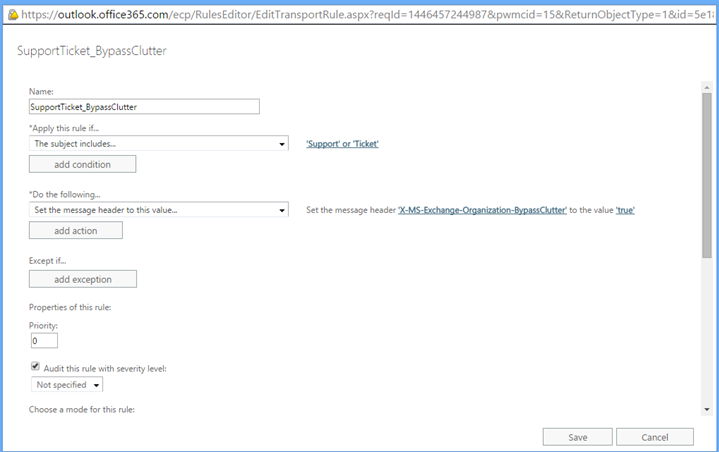
In this example, I will create a transport rule to allow all messages
with subject containing words “Support” or “Ticket” to bypass “Clutter”
folder.
- In the Exchange admin center (EAC), navigate to mail flow > Rules
and click “+” and select Create a new rule. - In the rule, set message header name –
“X-MS-Exchange-Organization-BypassClutter” and header value –
“true”. - After creating the new rule, click save to start the rule.
NOTE:
The rule with a priority of 0 is processed first, followed by the rule
with a priority of 1 and so on. You can change the rule priority by
adjusting the order of rules in EAC.
Method 2: PowerShell
The above transport rule can be created using the following PowerShell
command,
To create a new transport rule we need to use PowerShell command
‘New-TransportRule’.
To bypass Clutter, we need to use ‘SetHeaderName’ and ‘SetHeaderValue’
commands.
New-TransportRule -Name "SupportTicket_BypassClutter" -SubjectContainsWords "Support","Ticket" -SetHeaderName "X-MS-Exchange-Organization-BypassClutter" -SetHeaderValue "true"
NOTE: Both “X-MS-Exchange-Organization-BypassClutter” and “true” are case
sensitive.
















