

Regulating the Mail Flow in Office365
Hi, I hope you would be interested in our previous article on Azure AD
Sync
Tool.
In this article we provide a solution for regulating the mail flow
inside Office 365 Group Email Address using Mail Flow Rule and Message
Moderation.
It’s natural that every organization has multiple group email-ids such
as support, sales, etc., to communicate with their customers/external
world entity for improving their customer satisfaction, profit etc.
There are possibilities that confidential mail may be wrongly sent to
group email-id resulting in consequences which you cannot even expect in
your nightmare, unless you have a well-planned mail flow design
implemented in your organization. So it’s mandatory to decide “Who
should receive What?”. In this article we see about managing the
support team of an imaginary organization by regulating the mail flow
inside their Office 365 Group Email Address (Distribution List) and Mail
Flow rules in transport layer.
What’s Our Mission?
To solve this problem, we can use Message Approval in Distribution list,
but there may be managers/leads/ management members in the Distribution
List, these members need to receive mails instantly without any
moderation. If we use Message Moderation in Distribution List, then all
the members will receive the mails only after Moderator Approval. To
handle this case we need to go for hybrid solution of using both Message
Moderation in Distribution List, and Mail Flow Rules in the transport
layer.
Example Scenario
Whenever the Support Team receives any message, an instant BCC
message need to be sent to Manager and another BBC message to
Technical Lead by skipping message moderation, but the Support
Personnel should only receive moderated message.
How We Achieve Our Mission?
- Here we use Mail Flow Rule to allow the BCC messages to be sent
directly to Manager/Technical Lead by skipping message moderation. - We use Message Moderation to enable Message Approval Request to
Manager for sending only moderated messages to Support
Personnel.
Before diving deep in to the tasks, let’s have a glance on the basic
concepts involved with this topic. First we see about Office 365,
What is Office 365?
Office 365 is a subscription-based online office and software plus
services suite which offers access to various services and software
built around the Microsoft Office platform. For more information, click
here.
What makes us go for Office 365?
- Because Office 365 is powered by the cloud, you can get to your
applications and files from virtually anywhere and they’re always up
to date. For more information, click
here. - Now let’s see about Message Moderation– Message Moderation is a
mandatory process to be followed in any enterprise to control the
mail flow, i.e. approving the legitimate mail or rejecting the spam
mail from an external source. - As an Exchange Online administrator, you can use the Mail Flow
Rules to control the flow of e-mail messages in your organization,
such as you can allow or block messages based on your priorities. - Now we have an idea about the topics relevant to this article.
Test Lab Environment
- Active Subscription of Office 365
- Shared Mailbox – SupportTeam
- Forwards a copy of each and every incoming mail to SupportGroup.
- Distribution List – SupportGroup
- Include members who are assigned with support activities and
should receive mails only after moderation.
- Include members who are assigned with support activities and
- Enterprise users with Office 365 mailboxes with following
properties,
S.NO Users with Office 365 Mailbox Enterprise Role Relationship with SupportGroup
1 Bill Manager To be configured as its Message Moderator
2 Mike Manager X
3 Bob Technical Lead Member
4 Ben Support Personnel Member
5 Steve Support Personnel Member
6 Casey Support Personnel Member
Steps to accomplish the mission
This article includes the following tasks,
Create Mail Flow Rule to Skip Message Moderation for
Manager/Technical Lead
Enable Message Moderation for SupportGroup
Testing Mail Flow
Create Mail Flow Rule to Skip Message Moderation for Technical Lead
In this section, we create a Mail Flow rule to send a BCC message
instantly to Managers: Mike, Bill and Technical Lead – Bob, by
skipping message moderation, whenever the Support Team receives any
message.
- Login to Office 365 as administrator and from the Admin tab, select
Exchange. - Now in the Exchange Admin Center, select the mail flow setting.
- In the mail flow setting, click the “+” symbol to create a new mail
flow rule. - In the created rule (Support mail Moderation), the filter and action
are set as- Apply this rule if,
The recipient is SupportTeam - Do the following,
BCC the message to Mike, Bill, Bob
- Apply this rule if,
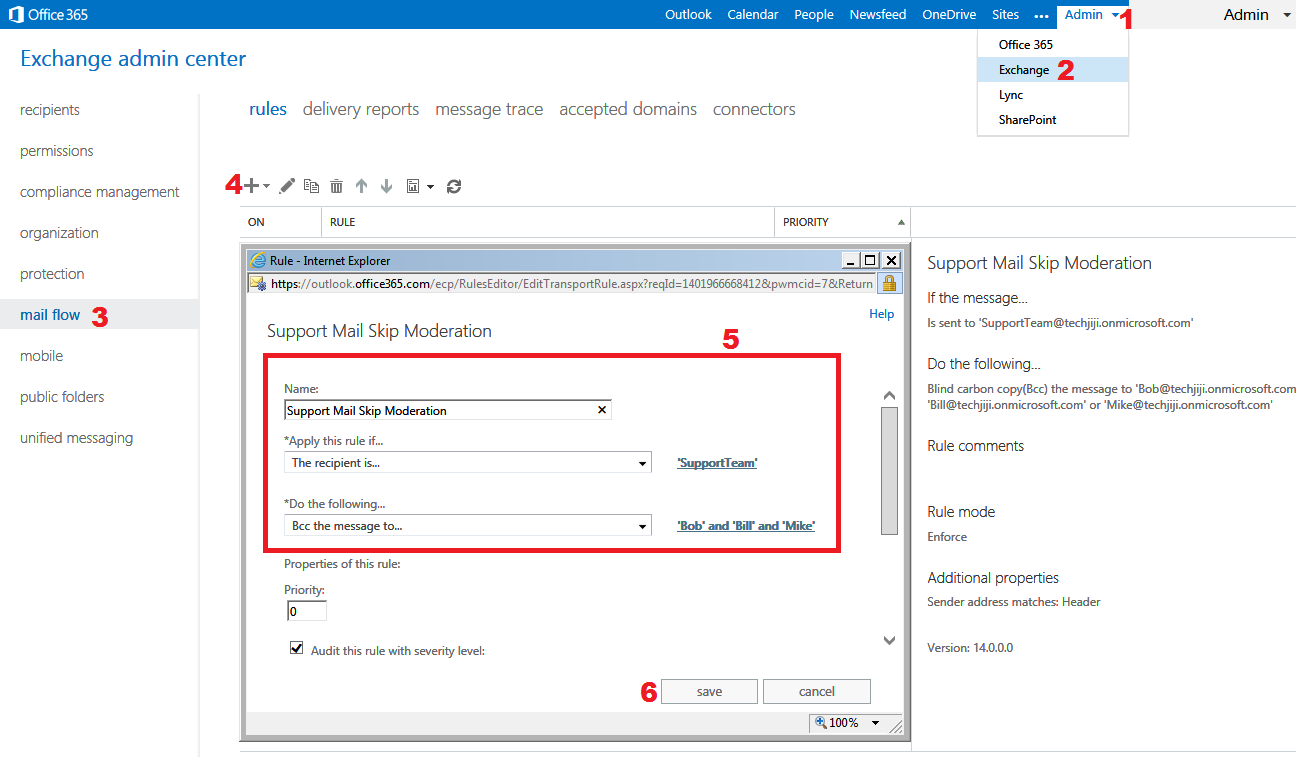
- Now the mail flow rule is created, which confirms that a BCC message
will be instantly sent to Managers (Bill and Mike) and Technical
Lead (Bob) by skipping message moderation, whenever the SupportTeam
receives any message. Next step is to enable message moderation
for Support Personnel – Ben, Steve and Casey.
Enable Message Moderation for Support Personel
In this section, we enable message moderation for SupportGroup and
set message moderator as Manager – Bill, so he will be the
responsible person in approving or rejecting the messages sent to
SupportGroup. As a result members of this group only receives
moderated message. Since Ben, Steve and Casey are already members of
SupportGroup, this action confirms that they will receive only moderated
messages.
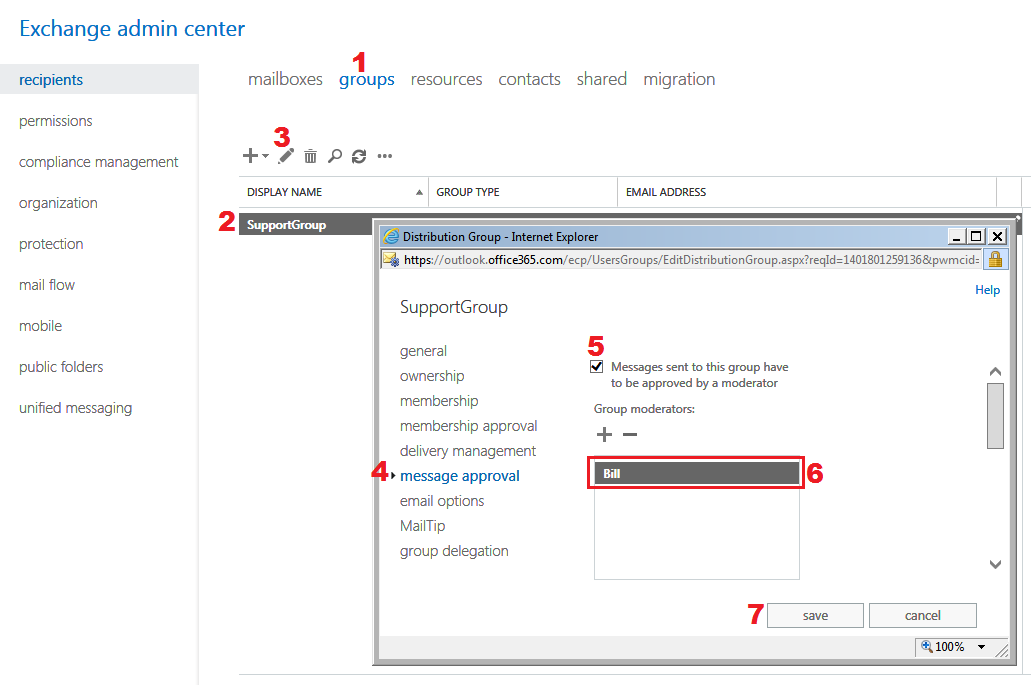
- In the Exchange Admin Center, select the recipients setting.
- Now enable the message moderation for SupportGroup and set message
moderator as Bill using the numerical points specified in the
screenshot given below,
- Now the configurations for mail flow are completed. Next step is to
test the mail flow.
Testing Mail Flow
Before testing the mail flow, let’s plan our testing using a flow chart
Flowchart for Testing Mail Flow
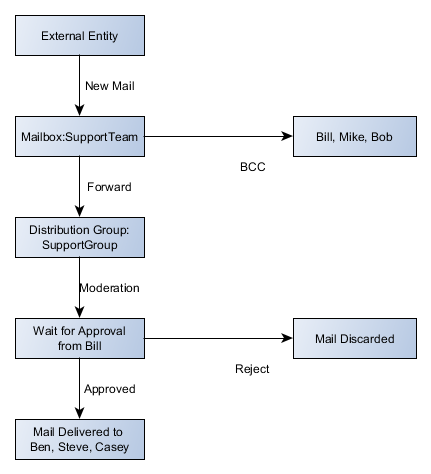
Based on the above flowchart, we are going to perform the testing in two
stages,
- In first stage we will send a mail from external source to
shared mailbox – SupportTeam, which in turn sends a BCC
message to Technical Lead – Bob by skipping message
moderation and an instant BCC message to Managers – (Bill, Mike)
using Mail Flow rule. - At the same time, due to the mail forwarding enabled in shared
mailbox – SupportTeam, it forwards a copy of message to
SupportGroup. - Since SupportGroup is enabled with message moderation, it
sends a message approval request to Manager – Bill. The
Manager validates the message and approves the message
approval request. - Finally in the second stage the Support Personnel – Ben, Steve and
Casey receives the moderated message.
Ok, the rehearsals are over, now its show time. Let’s test the mail
flow,
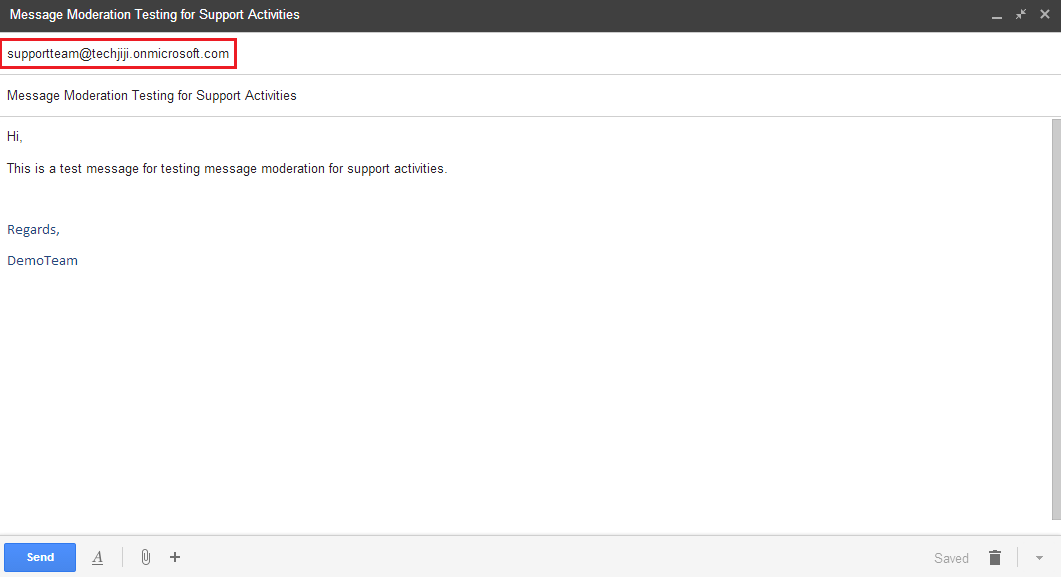
1. Mail sent from External Source to SupportTeam
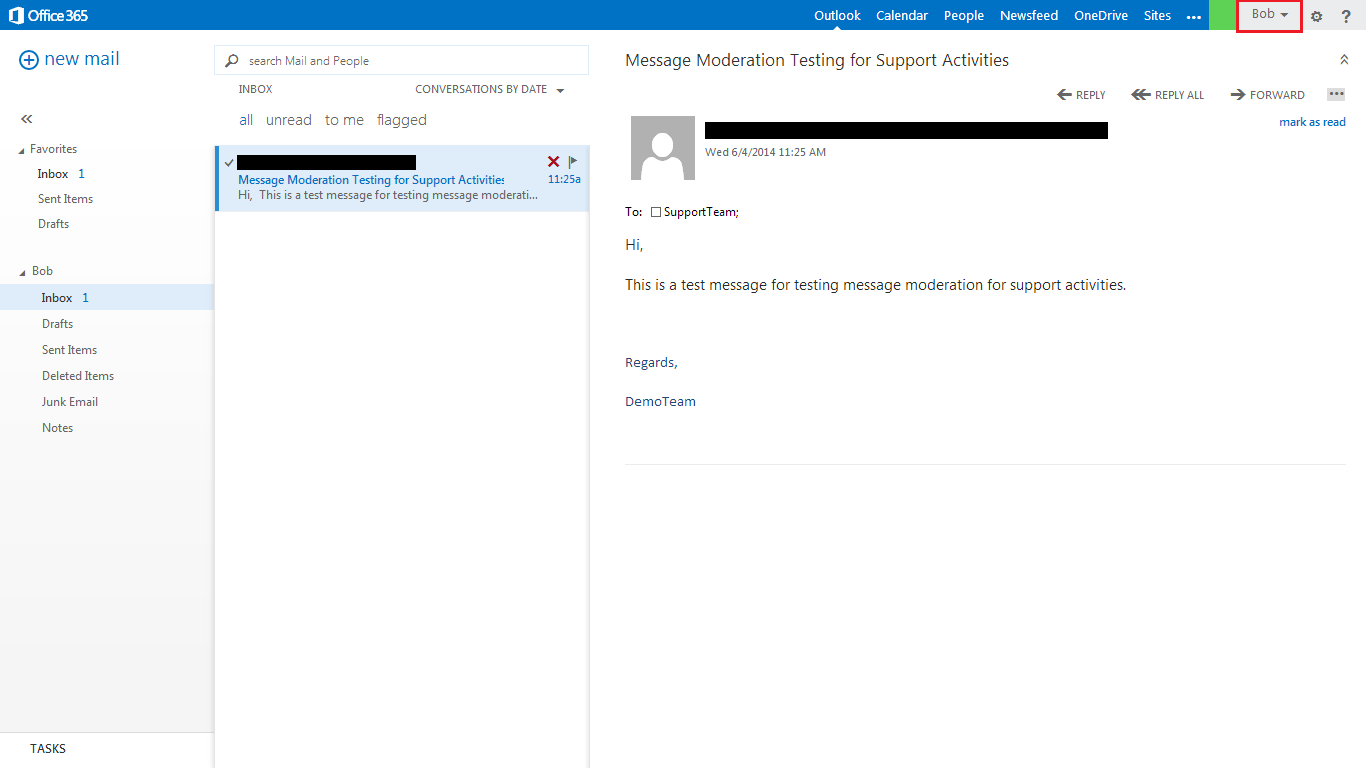
2. Technical Lead (Bob) receives a BCC Message without message moderation
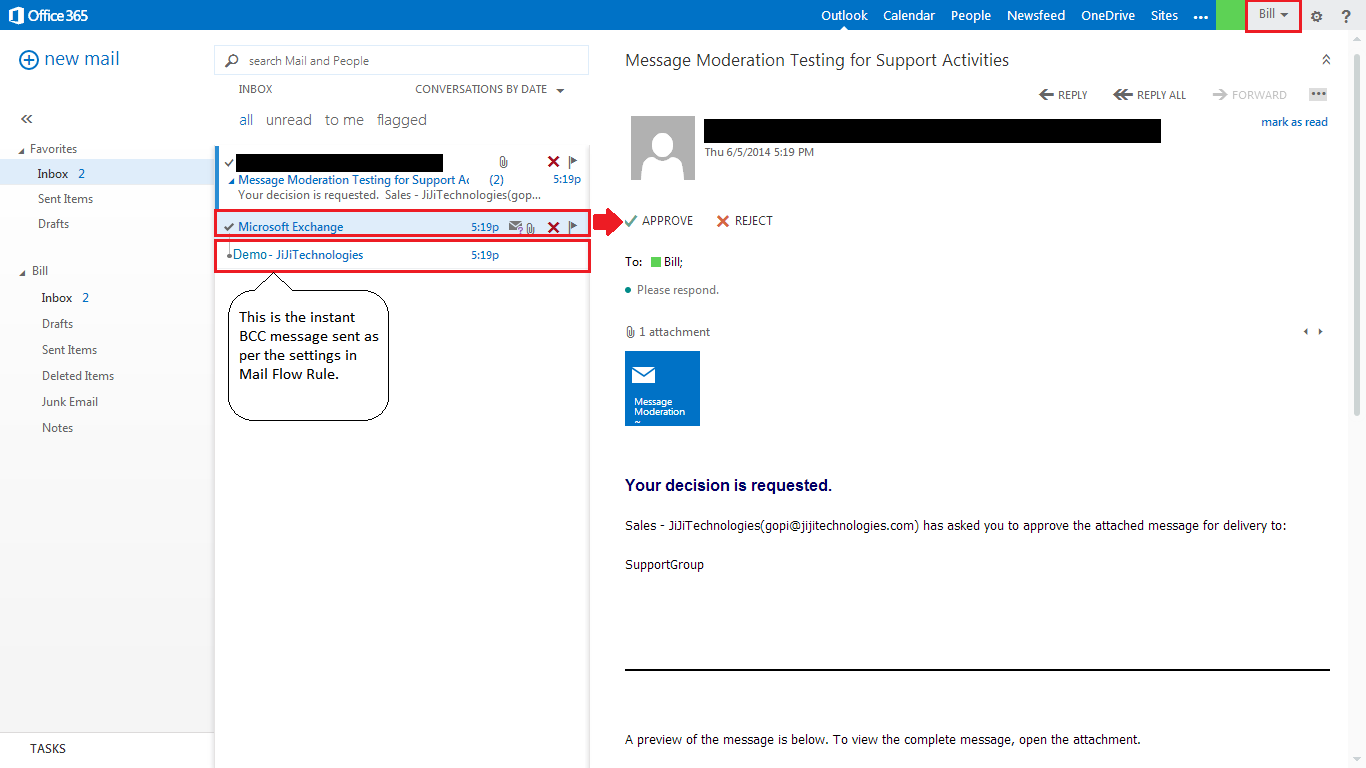
3. Manager (Bill) receives Message Approval Request and approves the request
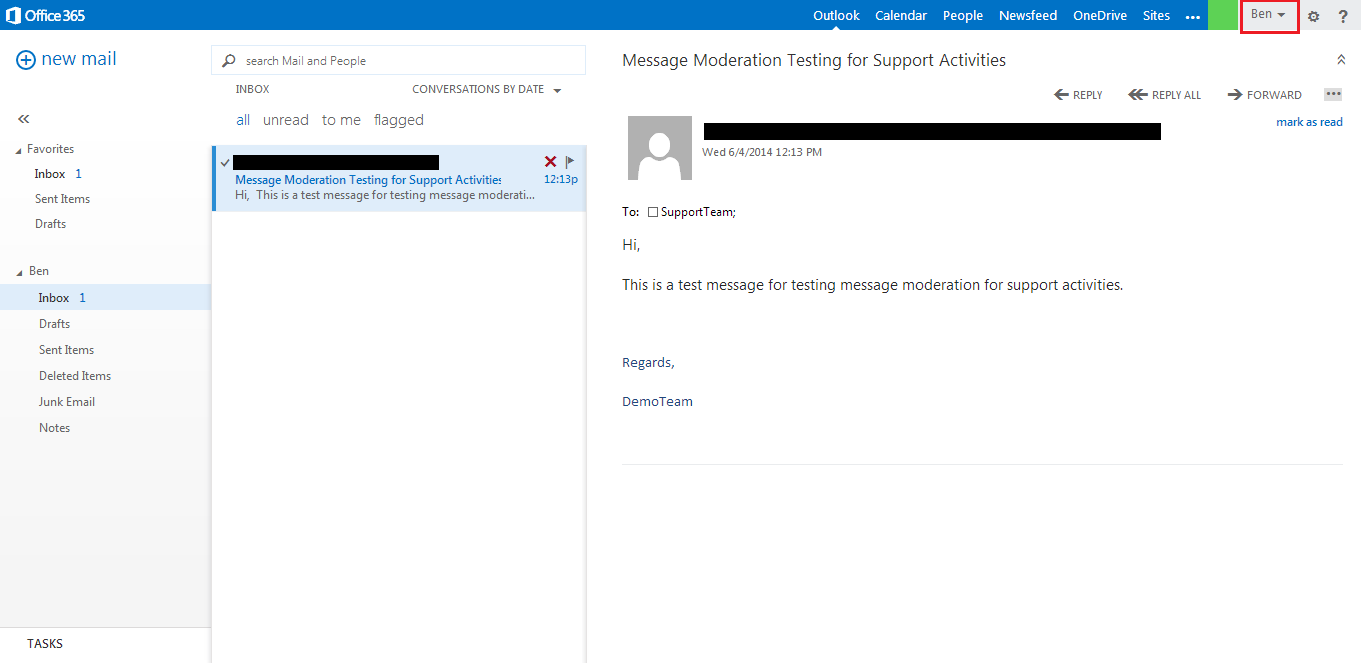
4. Finally Support Personnel (Ben) receives the Moderated Message
Conclusion
Thus our mission on managing the support team of an imaginary
organization by regulating the mail flow inside their Office 365 Group
Email Address using Mail Flow Rule and Message Moderation is
successfully accomplished. This ensures that even if a confidential
message is accidentally sent to the group id, it can be prevented from
becoming epidemic with least administrative effort.
















